7
►
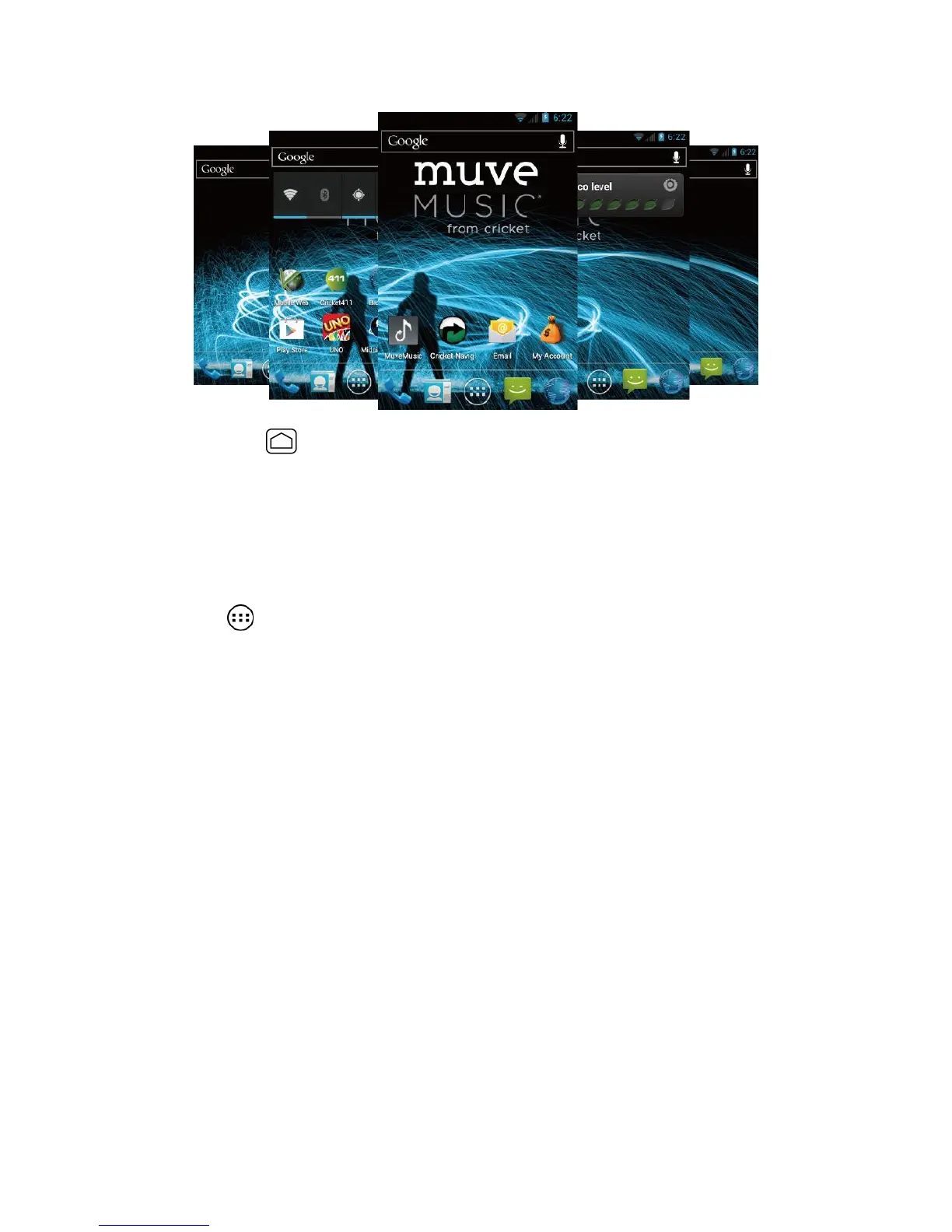
Press Home and then drag across the screen to move from the main screen to an
extended screen.
Note: You cannot add more screens.
Customize the Home Screens
Add Application Icons or Widgets to the Home Screens
1.
Touch on the Favorites Tray.
2.
Slide the APPS and WIDGETS screens to find the item you want to add to the Home
screen.
3.
Touch and hold an application icon or widget. The Home screen appears.
4.
Pressing the item, move your finger to find the place to add it to. The blue frame
indicates where it might be placed.
5.
Release your finger.
Move or Remove Items on the Home Screens
►
Touch and hold the item you want to move or remove on the screen.
To move the item, drag it to a new area and release it.
To remove the item, drag it over “X Remove” at the top of the screen and release
it when it turns red.
Change the Wallpaper
1.
Touch and hold the empty area on the Home screen.
2.
Select one of the following options:











 To Next Page