66
Finding Your Current Location
Note: Don’t forget to set your location sources.
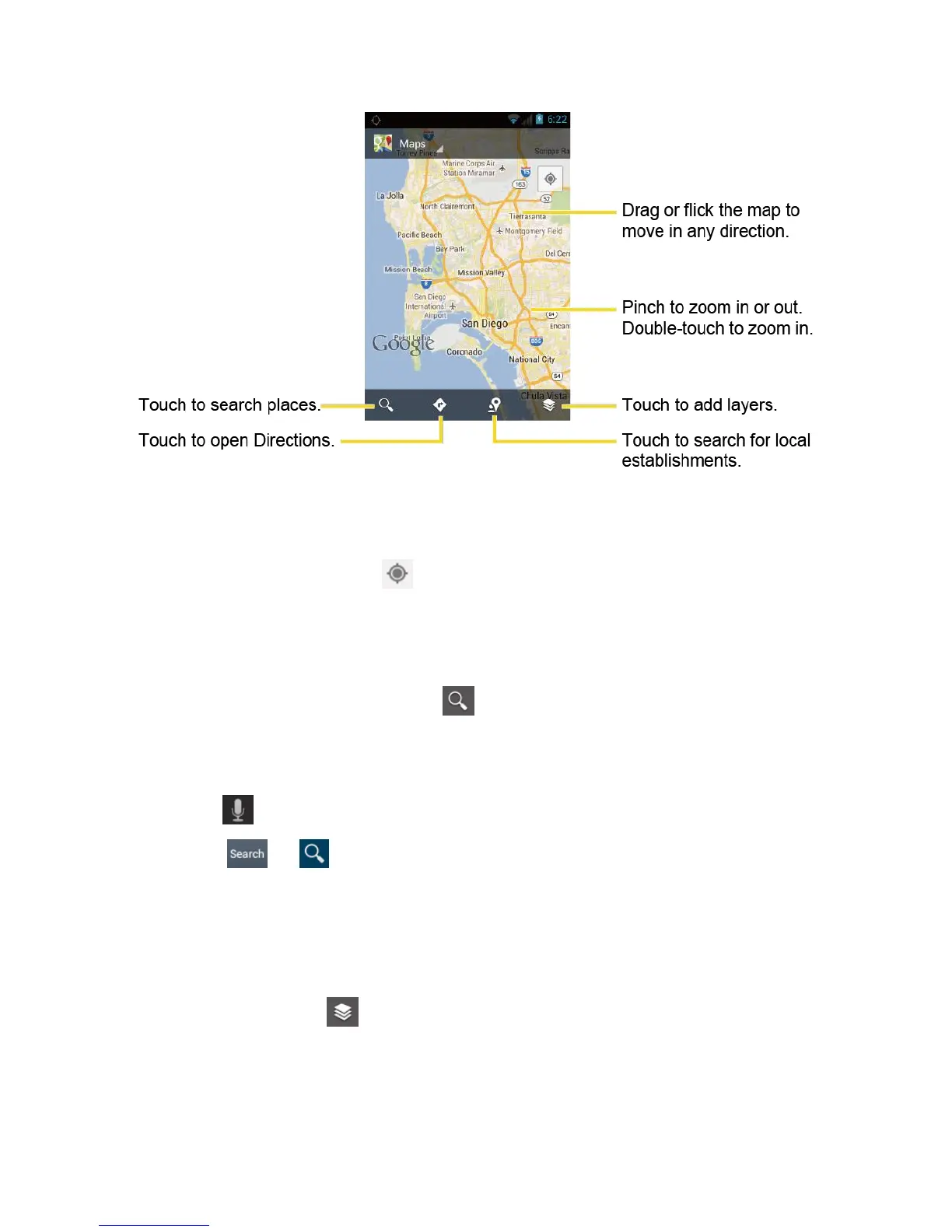
On the Google Maps screen, touch . A blinking blue arrow indicates your current location
on the map. This feature is available when Google’s location service or GPS satellites is
enabled. See Location Services.
Searching Maps
1.
On the Google Maps screen, touch .
2.
Type the place that you want to search. You can enter an address, a city, or type of
establishment.
Tip: Touch to search by speaking the location you are searching.
3.
Touch or . A callout label appears on the map to indicate the location.
4.
Touch the callout to open the menu for the location.
Adding Map Layers
Layers allow you to view locations and additional info overlaid on the map.
On the Google Maps, touch and then touch one or more of the following options:
●
Traffic: Add this layer to view real-time traffic conditions with roads marked in color-
coded lines that indicate the traffic condition. This mode is available in selected areas
only.











 To Next Page