2-21
Installing and Setting up the Machine > Touch Panel
3
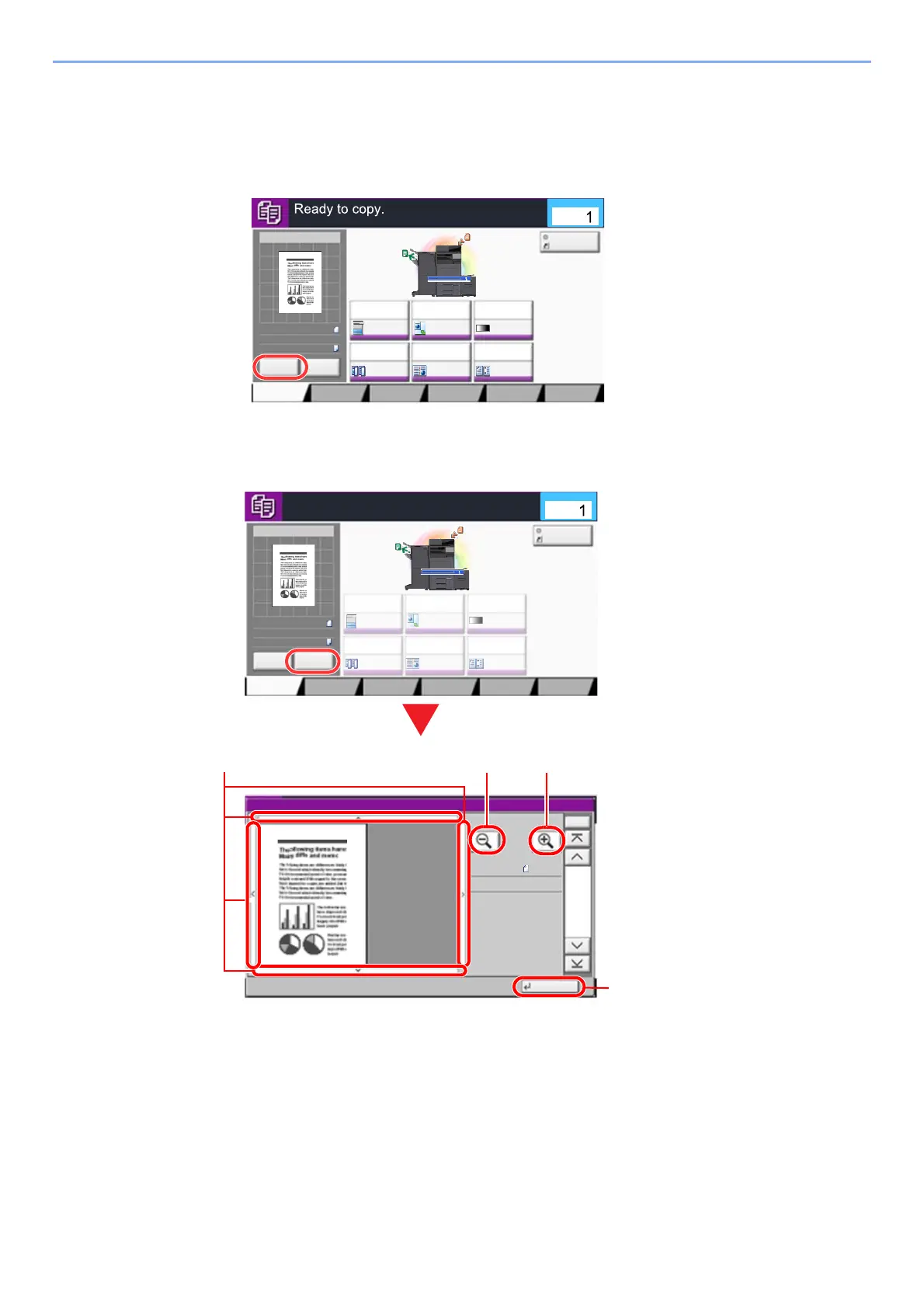
Display a preview image.
1 Select [Preview].
The machine starts scanning the original. When scanning is completed, the preview image
appears on the panel.
2 Select [Detail].
You can check the finished image in greater detail.
1 In magnified view, you can
move the range of display.
2 Zoom out.
3Zoom in.
4 Close the Preview screen.
Image QualityOrg./Paper/
Finishing
Quick Setup Layout/Edit Advanced
Setup
Program
:
:
:
100%
A4
A4
Preview
Original
Zoom
Paper
Preview
Proof Copy
c010101_01
Copies
Staple
/Punch
Normal 0
DensityPaper
Selection
Auto
Zoom
100%
Off1-sided
>>1-sided
Duplex
Off
Combine
ID Card Copy
Image QualityOrg./Paper/
Finishing
Quick Setup Layout/Edit Advanced
Setup
Program
:
:
:
Staple
/Punch
Normal 0
DensityPaper
Selection
Auto
Zoom
100%
Off1-sided
>>1-sided
Duplex
Off
Combine
100%
A4
A4
Cancel
Original
Zoom
Paper
Preview
Detail
c010101_03
Copies
Press Start key to start printing.
Press [Cancel] to change settings.
ID Card Copy
Close
Preview:
No.
1/6
2015101010574501
Status
Size
Density
:
: Normal 0
A4
100%
c0301






 To Next Page