EasyManua.ls Logo

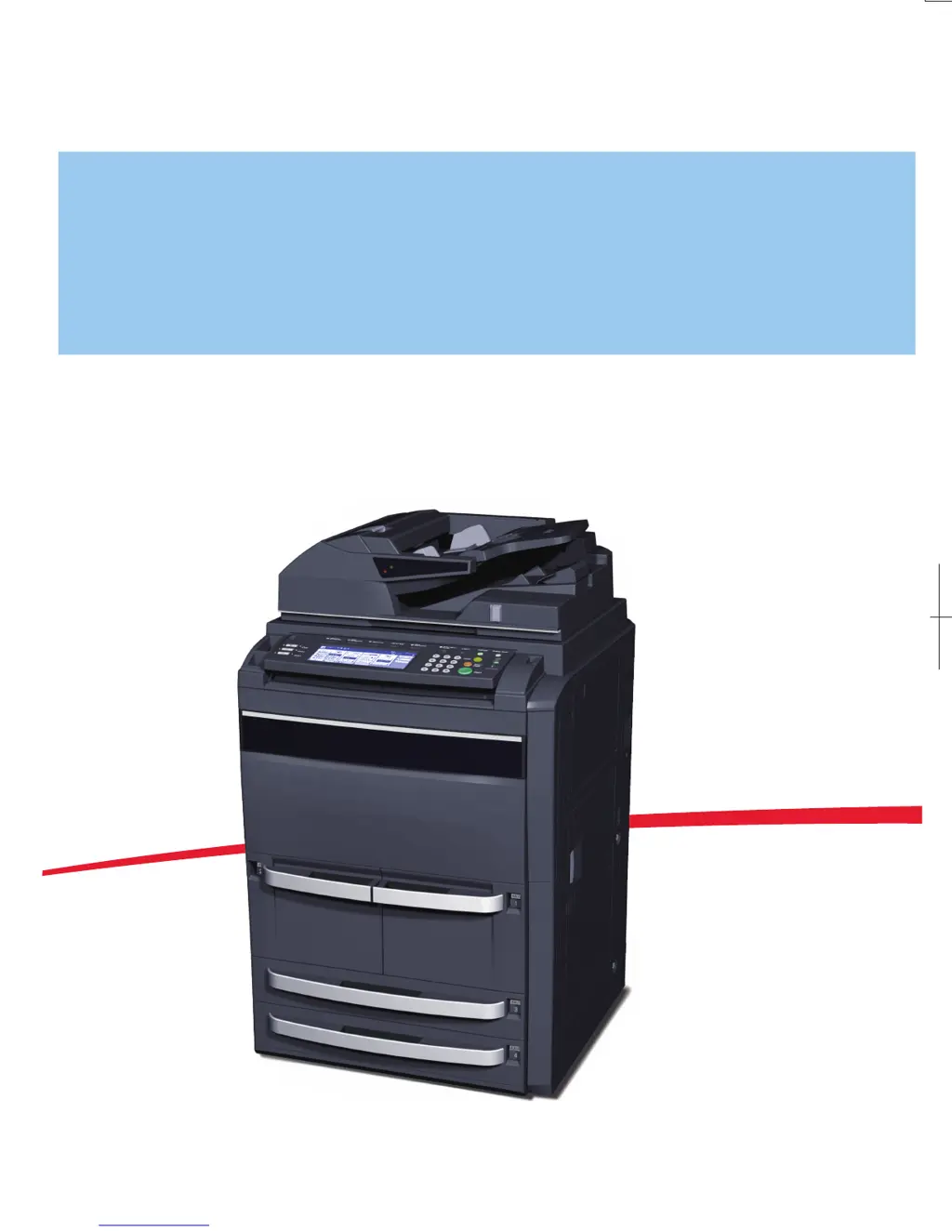
Kyocera TASKalfa 620 - User Manual

Kyocera TASKalfa 620
212 pages
Print Icon
To Next Page IconTo Next Page
Loading...
First edition 2008.11
Printed in China 302KP56040
620/820 ADVANCED OPERATION GUIDE
Please read this Operation Guide before using this machine. Keep it close to the machine for easy reference.
620/820
ADVANCED OPERATION GUIDE

Table of Contents

Other manuals for Kyocera TASKalfa 620

Questions and Answers

  • C
    Chad ThomasAug 13, 2025
    What to do if there is a paper jam in the conveyor section to Tray A of Kyocera Printer Accessories?
    • S
      Shaun AustinAug 13, 2025
      If there is a paper jam in the conveyor section to Tray A of your Kyocera Printer Accessories: * Lift open Tray B. * If the jammed paper is visible in the eject slot, gently pull it out in the direction of ejection without tearing it.
  • D
    diana10Aug 16, 2025
    What to do if there is a paper jam in the conveyor section to Tray B of Kyocera Printer Accessories?
    • M
      Melissa ReedAug 16, 2025
      If you have a paper jam in the conveyor section to Tray B of your Kyocera Printer Accessories: * If the jammed paper is visible in the eject slot, pull it out in the direction of ejection, without tearing it. * Open the upper cover and remove the jammed paper. * Close the upper cover.
  • R
    Richard GarciaAug 21, 2025
    What to do if a paper jam occurs in the Multi-Job Tray Unit of Kyocera Printer Accessories?
    • A
      amandamartinAug 21, 2025
      If a paper jam occurs in the Multi-Job Tray Unit of your Kyocera Printer Accessories, remove it without tearing it. Also, open the upper cover to the Document Finisher and remove the jammed paper.
  • C
    Cody HernandezAug 25, 2025
    What to do if there is a paper jam in the conveyor section to the internal tray of Kyocera Printer Accessories?
    • C
      courtneydoyleAug 25, 2025
      If there is a paper jam in the conveyor section to the internal tray of your Kyocera Printer Accessories: 1. If the jammed paper is visible in the eject slot, pull it out in the direction of ejection, without tearing it. 2. Grasp the front cover handle and open the front cover. 3. Turn internal tray lever G3 clockwise and pull out the internal tray. 4. Hold the internal tray release lever (G4) and open the internal tray. 5. Remove the jammed paper. 6. Hold the internal tray release lever (G4) and close the internal tray. 7. Push down on the frame to lock the internal tray in place. 8. Set the internal tray and turn the lever upright. Close the cover.
  • J
    James TurnerAug 28, 2025
    What to do if there is a paper jam in the conveyor section of the Center-Folding Unit of Kyocera Printer Accessories?
    • R
      Richard DavisAug 28, 2025
      If there is a paper jam in the conveyor section of the Center-Folding Unit of your Kyocera Printer Accessories: * Grasp the front cover handle and open the front cover. * Turn the unit release lever (G6), and then hold the unit release handle (G7) and move the Center-Folding Unit in the paper ejection direction. * If the jammed paper is visible from under the internal tray, remove the jammed paper. * If paper is jammed inside the internal tray, remove the jammed paper using the conveyor guide.
  • K
    Kaylee CochranAug 31, 2025
    What to do if there is a paper jam in the ejection section of the Center-Folding Unit of Kyocera Printer Accessories?
    • J
      Jenny KimSep 1, 2025
      If there is a paper jam in the ejection section of the Center-Folding Unit of your Kyocera Printer Accessories: * Grasp the front cover handle and open the front cover. * Turn the unit release lever (G6), and then hold the unit release handle (G7) and move the Center-Folding Unit in the paper ejection direction. * Hold the conveyor guide lever to open the conveyor guide and remove the jammed paper. * If the jammed paper cannot be easily removed, turn the conveyor guide knob to feed the paper further along for easy removal. * Remove the paper.
  • B
    Brandi AdamsSep 4, 2025
    How to fix curled copies from Kyocera Printer Accessories?
    • T
      Terri StevensSep 4, 2025
      If the copies ejected from your Kyocera Printer Accessories are curled: * Pull out the pressure roller adjuster (G5) slightly and turn it so that its projection is set into one of the five small holes. * If ejected copies are curled downward when using a non-sorting mode, turn the pressure roller adjuster (G5) in the direction of a higher number. * If ejected copies are curled upward when using a non-sorting mode, turn the pressure roller adjuster (G5) in the direction of a lower number.
  • C
    Cynthia MooneySep 8, 2025
    How to fix unevenly stacked copies in Kyocera Printer Accessories?
    • F
      frenchmichaelSep 8, 2025
      To address ejected copies that are not flat or are stacked unevenly when using Kyocera Printer Accessories, turn over the paper in the cassette and reload it.

Summary

1 Copying Functions

Paper Source

Select paper from the MP tray or different cassettes for various sizes.

Original Size

Specify the size of originals that will serve as the basis for scanning.

Copy Quantity

Specify the copy quantity for individual jobs within the range of 1 to 9,999.

Programmed Copying

Register combinations of copy modes and functions as a single program.

Mixed Size Originals Mode

Scan originals of different sizes for automatic copying onto paper sizes matching each original.

2 Document and Output Management Functions

Form Box

Storage for forms used for form overlay.

Shared Data Box

Storage for scanned originals for later printing.

Synergy Print Box

Storage for scanned originals for combining into single copy jobs.

3 System Settings

Default Settings for Copying

Configure settings applied when copier is powered up or reset.

Common Default Settings

Settings for changing copier defaults.

Weekly Timer

Automatically turn copier on/off at specified times on weekdays.

Hard Disk Management

Check free space on hard disk or delete unwanted data.

4 Job Accounting

Overview of Job Accounting

Manage accounting by assigning unique ID codes to departments.

Managing Accounts

Add and delete departments and define restrictions to copy count.

Copy Count per Department

Read overall copy count or count per individual department.

Job Accounting Default Settings

Specify the default job accounting settings.

Appendix

Paper

Details on paper types and specifications for copier use.

Specifications

Technical specifications for the copier and its components.

Intercompatible Functions

Charts showing which functions can be combined for efficient copying.

Glossary

Definitions of terms used in the manual.

Kyocera TASKalfa 620 Specifications

General IconGeneral
CategoryAll in One Printer
FunctionsPrint, Copy, Scan, Fax
Print Resolution1200 x 1200 dpi
Max Resolution (B&W)1200 x 1200 dpi
Copy Resolution600 x 600 dpi
Scan Resolution600 x 600 dpi
Fax Resolution300 x 300 dpi
Monthly Duty Cycle300, 000 pages
Duplex PrintingYes
Processor Speed1.2 GHz
Operating System CompatibilityWindows, Mac, Linux
Weight176.4 lbs
Print Speed (Black)62 ppm
Print Speed (Color)62 pages per minute
Copy Speed (B&W)62 ppm
Copy Speed (Color)62 pages per minute
Standard Paper Capacity600 sheets
Memory2 GB
ConnectivityUSB
Network ConnectivityEthernet

Related product manuals