CloudBox User Manual 155
7.D UPDATE THE LACIE CLOUDBOX FIRMWARE
LaCie may update and improve your CloudBox firmware, adding new features over time. This chapter explains
how to update your LaCie CloudBox firmware (LaCie NAS OS) via the Dashboard or LaCie Network Assistant.
UPDATE USING THE DASHBOARD
Launch the Dashboard as described in Log On to the Dashboard and navigate to the Support page.1.
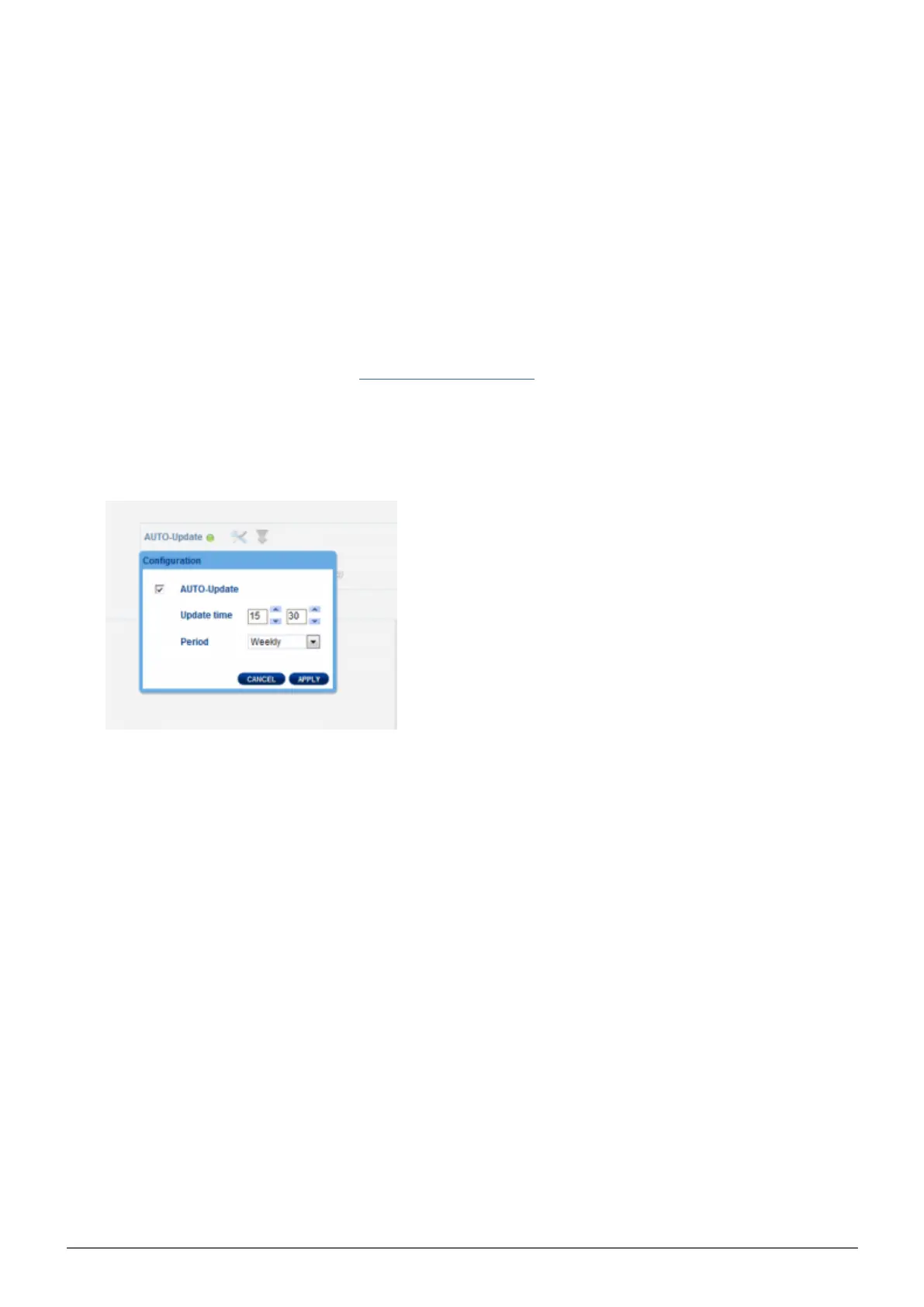
By default, the LaCie CloudBox will automatically check for updates once a week. You can change the2.
frequency and time of day:
Click on the configuration icon (intertwined screwdriver and wrench) next to AUTO-Update.1.
Select a frequency and time for the CloudBox to check LaCie's update server.2.
The Dashboard will prompt you if a new update is available.3.
To check for an update manually:3.
Click the grey, downward arrow.1.
If a link appears, click it to begin the download.2.
Follow the onscreen instructions to complete the update.3.
During an update, the device will reboot and disappear from the network temporarily. When it reappears, you4.
can verify the new software version on the Dashboard Support page.







 To Next Page