LaCie Network Space • DESIGN BY NEIL POULTON Setup
User Manual page 12
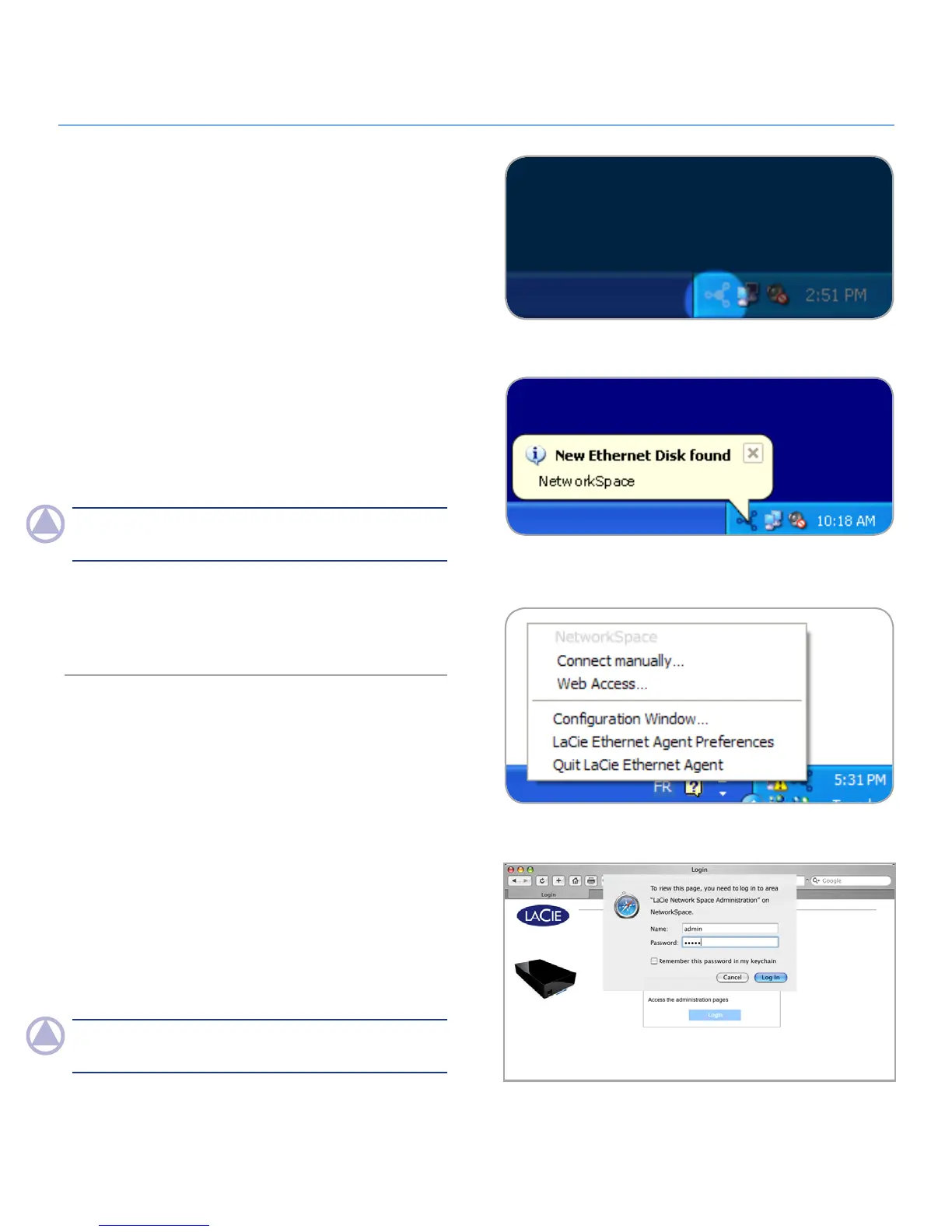
Figure 2.3-E
Connect to the LaCie Network Space:
Windows Users
Select LaCie Ethernet Agent in Start/Programs. An Ethernet 1.
Agent icon will appear in the system tray (Fig. 2.3-C) and Eth-
ernet Agent will automatically detect your LaCie Network Space
and any other storage devices on your network (Fig. 2.3-D).
Click on the icon in the system tray and select
2. Web access... from
the LaCie Network Space sub-menu (Fig. 2.3-E). The LaCie Net-
work Space administration page will open in your default browser.
To log in to LaCie Network Space administration (Fig. 2.3-E),
3.
enter:
Login: admin
Password: admin
NOTe: This password can be changed from the NAS Admin-
istration page.
Click
4. Log on.
Continue to section 3. Administering Your LaCie Network
Space.
Mac Users
Select LaCie Ethernet Agent in your Applications folder. An 1.
Ethernet Agent icon will appear in the menu bar and the
Agent will automatically detect your LaCie Network Space
and any other LaCie storage devices on your network.
Click on the icon in the menu bar and select
2. Web access... from
the LaCie Network Space sub-menu (Fig. 2.3-E). The LaCie Net-
work Space administration page will open in your default browser.
To log in to LaCie Network Space administration (Fig. 2.3-F),
3.
enter:
Login: admin
Password: admin
NOTe: This password can be changed from the NAS Admin-
istration page.
Click
4. Log on.
Continue to section 3, Administering Your LaCie Network
Space.
Figure 2.3-C
Figure 2.3-D
Figure 2.3-F












 To Next Page