LaCie Network Space • DESIGN BY NEIL POULTON Administration
User Manual page 21
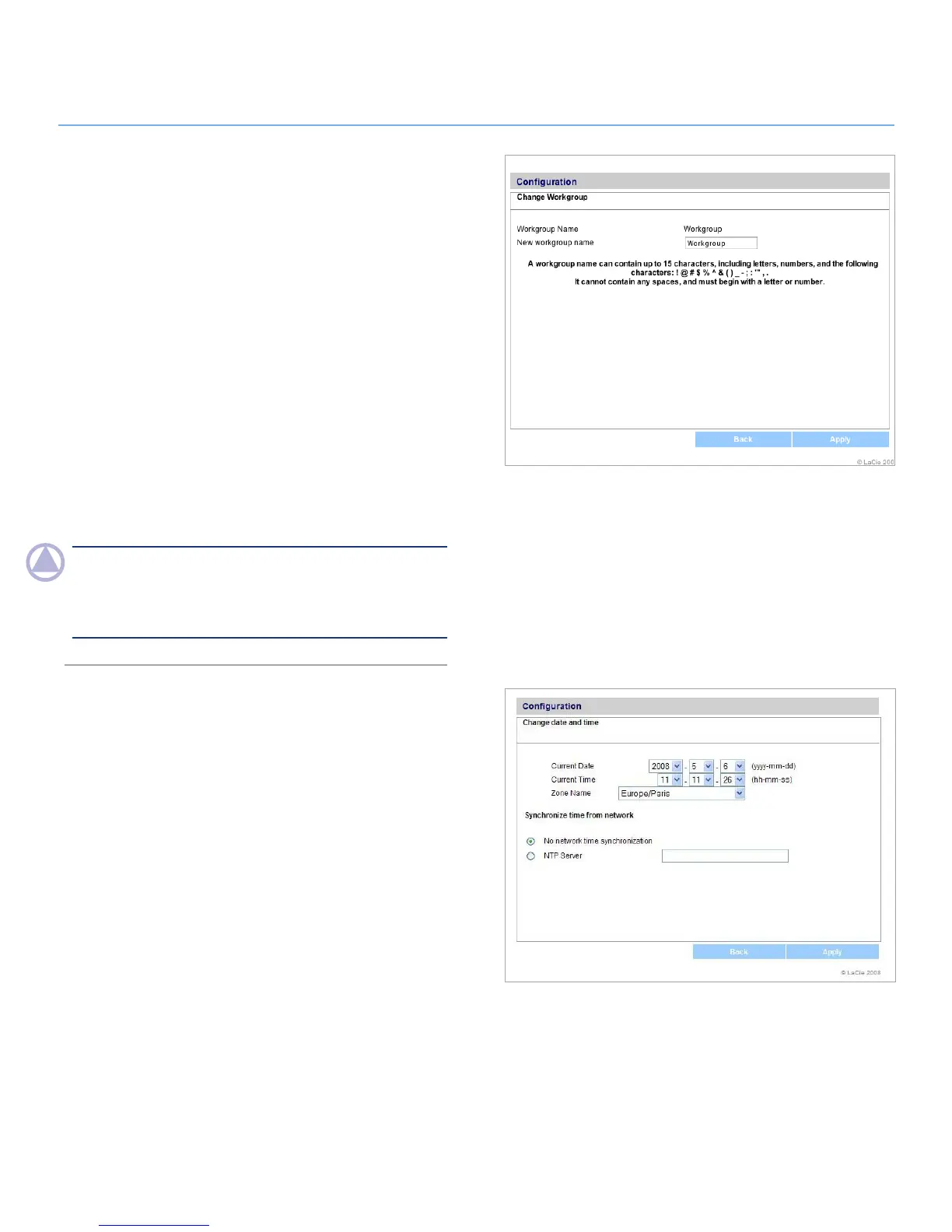
Figure 4.2.2
Figure 4.2.3
Windows Workgroup4.2.2.
Windows users can access the LaCie Network Space as a Win-
dows workgroup computer. The Windows Workgroup listed on
the LaCie Network Space must match the name of the Windows
workgroup you want the LaCie Network Space to belong to.
To modify the Windows Workgroup:
Click the corresponding oval button on the Configuration 1.
page.
On the “Change Workgroup“ page (Fig. 4.2.2), enter a new
2.
name in the New workgroup name field, following the
guidelines stated below the field.
Click
3. Apply.
The LaCie Network Space should now be accessible from My
Network Places > View Workgroup Computers > Network
Space.
NOTe: Mac users connected to a network with Windows com-
puters can also access shares this way by selecting in the Finder
Network > [Workgroup] > networkspace where “[Work-
group]” is the name of the Windows workgroup.
Date and Time4.2.3.
To modify the date and time of the LaCie Network
Space:
Click the oval button corresponding to Current Date.1.
Set the time and date:2.
by entering them manually using the menus ✦
by selecting one of the “Synchronize time from network” ✦
settings
Click
3. Apply.













 To Next Page