EasyManua.ls Logo

LaCie d2 Network 2 - User Manual

LaCie d2 Network 2
141 pages
Print Icon
To Next Page IconTo Next Page
Loading...
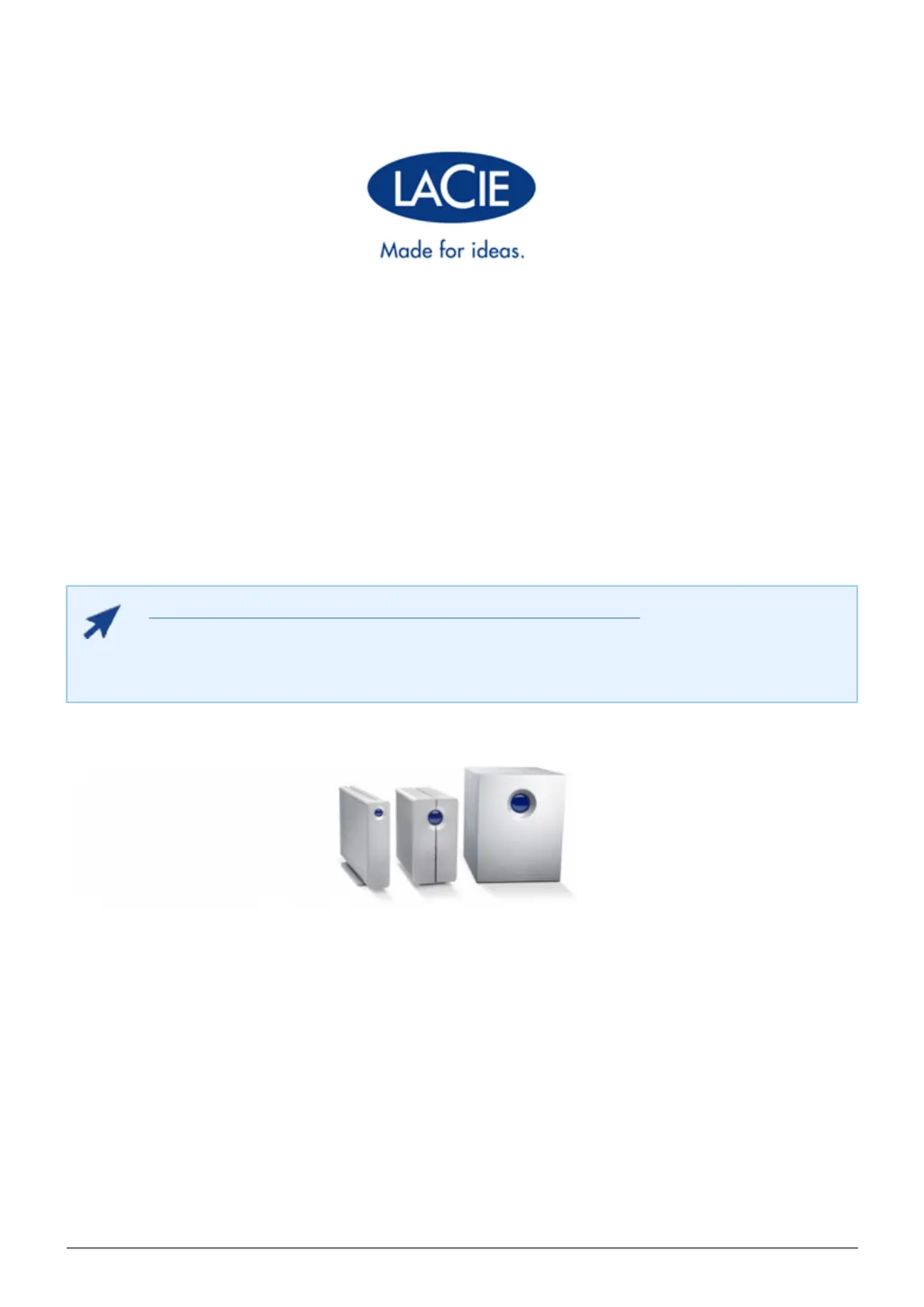
d2, 2big, and 5big Network 2 User Manual 1
D2, 2BIG, AND 5BIG NETWORK 2 USER MANUAL
CLICK HERE TO ACCESS UP-TO-DATE ONLINE VERSION
of this document for the most recent content as well as for features such as expandable
illustrations, easier navigation, and search capability.

Table of Contents

Other manuals for LaCie d2 Network 2

Questions and Answers

  • K
    Kim ParksAug 15, 2025
    Why is my LaCie d2 Network 2 drive not recognized by the computer?
    • S
      Samantha SchaeferAug 15, 2025
      First, check that your computer meets the minimum system requirements. See if the LaCie drive has an icon and drive letter in 'My Computer'. Ensure the power supply is properly connected and the outlet is working. Review the USB connection installation steps and make sure both ends of the USB cables are firmly attached. Disconnect and reconnect the cables, and if needed, restart your computer. If problems persist, it could be a conflict with other device drivers. For further assistance with driver conflicts, it is recommended to contact LaCie Technical Support.
  • I
    Isaiah McdanielAug 18, 2025
    Why is LaCie d2 Network 2 system not recognized by the computer?
    • D
      dbrownAug 18, 2025
      First, ensure your computer meets the minimum system requirements. Check that the power supply is properly connected, the system is powered on, and the outlet is working. If the blue light is flickering or won't turn on, the power supply may be defective. Review the installation steps and ensure both ends of the Ethernet cable are firmly connected. If you cannot access your LaCie d2 Network 2, try checking your DHCP server’s log. To get the IP address, run LaCie Network Assistant. If no DHCP server detected, the product will run APIPA to assign itself an IP address. To change this IP address, use LaCie Network Assistant. Finally, ensure the IP address is properly set.
  • H
    Hayley HopkinsAug 21, 2025
    What to do if the USB drive connected to LaCie d2 Network 2 is not recognized?
    • M
      Mark RuizAug 21, 2025
      Devices connected to the USB expansion port (hard drive or printer) are automatically unmounted when you connect the USB cable to the USB host port. To make the hard drive or printer accessible, disconnect the drive from your computer and connect it to the network using the Ethernet cable.
  • D
    Dylan TurnerAug 25, 2025
    How to copy a file larger than 4GB to LaCie d2 Network 2 Network Hardware?
    • D
      David JonesAug 25, 2025
      If you are connected to the computer via USB, the USB share of the drive is formatted in MS-DOS (FAT32), which limits file sizes to 4 GB. To transfer files larger than 4GB, disconnect the USB cable and connect the Ethernet cable. Alternatively, you can reformat the USBShare to HFS+, which permits larger file sizes.
  • T
    thompsonemilyAug 27, 2025
    What to do if I can't access my LaCie d2 Network 2 Network Hardware account?
    • J
      John PorterAug 28, 2025
      If you are receiving an error message when trying to access your account, the first thing to check is whether your password is correct. If you input an email address in the User page, you can retrieve your password by clicking on the “forgot my password” link on the login page and following the instructions.
  • H
    hartseanAug 30, 2025
    Why a user does not have access to the LaCie Network Hardware?
    • L
      Linda WilsonAug 30, 2025
      For a user to access the LaCie d2 Network 2, the administrator must create an account for the user, providing a username and password. Also, the LaCie d2 Network 2 must be connected to the network via Ethernet.
  • C
    Carrie RoweSep 2, 2025
    Why is my LaCie Network Hardware drive making clicking noises?
    • T
      Thomas WeberSep 3, 2025
      Soft clicking can be the normal sound of the drive working. If the drive is functional, this is normal. If the drive is non-functional, there are two possible causes: The drive could be corrupted (reformatting the drive can solve this issue) or the drive could have a failure in the external power supply or power cable (try using a different one, if possible). Hard clicking usually indicates a physical failure.
  • J
    Joseph RobertsSep 5, 2025
    Why is there a delay in accessing shares on LaCie d2 Network 2 Network Hardware?
    • L
      lindsey65Sep 5, 2025
      If you've noticed a delay in accessing shares on your LaCie Network Hardware, it may be due to simultaneous file transfers. Access to a share can slow down during multiple file transfers.
  • N
    neilleeSep 8, 2025
    Why can't I see media files on LaCie d2 Network 2 Network Hardware on my UPnP AV media player?
    • J
      Jessica PetersonSep 8, 2025
      If you cannot see the media files stored in the LaCie d2 Network 2 on your UPnP AV media player or adapter, it may be because the media files are not stored on a public share. UPnP AV devices will only discover media files stored on public shares. Files stored in non-public shares are not accessible to UPnP devices.
  • R
    Ronald KingSep 12, 2025
    What to do if USB drive connected to LaCie Network Hardware does not mount?
    • R
      Rickey Bailey DDSSep 12, 2025
      If a USB drive connected to the USB expansion port Type A does not mount and is not listed in the LNA, reformat the drive in a different file format.

Summary

INTRODUCTION

BOX CONTENT

Lists the included contents for each product model.

MINIMUM SYSTEM REQUIREMENTS

VIEWS OF THE DRIVES

Front View

Illustrates the front panel components and LEDs of the drives.

Rear View

Details the connectors and ports on the rear panel of the drives.

LED BEHAVIOR

d2

Describes the front LED color and state indicators for the d2 model.

2 big;5 big

Details LED behavior for 2big and 5big models, including front and rear LEDs.

HARD DISK HEAT MANAGEMENT

HEAT DISSIPATION DESIGN

Explains how the product's metal body aids in dissipating heat.

ADDING DISKS TO AN EMPTY ENCLOSURE

CHOOSE A COMPATIBLE HARD DRIVE

Guidelines for selecting appropriate hard drives for the NAS enclosure.

SECURE THE DISK

Instructions on how to secure a hard drive within the disk tray.

POWER ON AND INITIALIZE THE LACIE NAS

FORMAT THE DISK(S)

CONNECT TO THE NETWORK

CONNECT THE ETHERNET CABLE

Instructions for connecting the NAS to the network using an Ethernet cable.

INSTALL LACIE NETWORK ASSISTANT

Guide on installing the software needed to manage the NAS.

ACCESS SHARES

Option 1

Method for accessing shares using LaCie Network Assistant.

Option 2

Alternative method to access shares using operating system features.

ADMINISTRATION (DASHBOARD)

DASHBOARD - ACCESSING

How to access the browser-based administration interface of the NAS.

Recovering a Lost Password

Procedure for recovering a forgotten Dashboard login password.

DASHBOARD - USERS

New User

Steps to create a new user account for accessing the NAS.

Importing Users from Active Directory

How to import user accounts from an Active Directory domain.

DASHBOARD - SHARES

New Share

Steps to create new network shares (folders) on the NAS.

Manage Share Access

Configuring user and group permissions for accessing network shares.

DASHBOARD - GENERAL SETTINGS

Services Tab

Activating or deactivating network services like SMB, AFP, FTP, etc.

DASHBOARD - BACKUP

Local Backup

Setting up backup jobs to an external drive or another share.

Remote Backup

Configuring backups to another NAS over the network or internet.

Restore

DASHBOARD - NETWORK

Standard Tab

Configuring IP settings (DHCP or manual) and remote access.

Bonding Tab (5 big Only)

Configuring dual Ethernet connections for load balancing or failover on the 5big model.

DASHBOARD - ECO MANAGEMENT

DASHBOARD - RAID MANAGEMENT

MODIFY RAID MODE

Changing the RAID configuration for data protection and performance.

ABOUT RAID MODES

Overview of different RAID levels and their characteristics.

ADVANCED ACCESSIBILITY FEATURES

REMOTE ACCESS

Setting up remote access to the NAS via LaCie MyNAS.

CREATING SHORTCUTS TO SHARES

Creating shortcuts for quick access to NAS shares.

CONNECT TO A COMPUTER VIA USB

CONNECTION STEPS

Detailed steps to connect the NAS to a computer via USB.

DISCONNECT THE USB CONNECTION

Safe procedures for disconnecting the USB connection to the NAS.

CONFIGURE ISCSI

REPLACING DISK

Disk Removal

Steps for safely removing a disk from the NAS enclosure.

Disk Insertion

Procedures for installing a new disk into the NAS and configuring it.

UPDATE PRODUCT OPERATING SYSTEM

UPDATE USING THE DASHBOARD

Updating the NAS firmware via the Dashboard interface.

UPDATE USING LACIE NETWORK ASSISTANT

Updating the NAS firmware using the LaCie Network Assistant software.

RESET TO FACTORY CONDITIONS

RESET WITHOUT DATA LOSS

Resetting the NAS to factory defaults without erasing stored data.

RESET WITH DATA LOSS

Performing a full factory reset, erasing all data and settings.

TROUBLESHOOTING TOPICS

Troubleshooting the Network Connection

Resolving issues related to network connectivity and share visibility.

Troubleshooting the USB Connection (d2;2 big only)

Specific USB connection issues for d2 and 2big models.

Troubleshooting the Active Directory Connection

Resolving problems when connecting the NAS to an Active Directory domain.

PRECAUTIONS

HEALTH AND SAFETY PRECAUTIONS

Guidelines for safe operation and maintenance of the device.

WARRANTY INFORMATION

LEGAL INFORMATION

Standard terms and conditions of the LaCie limited warranty.

FEDERAL COMMUNICATION COMMISSION INTERFERENCE STATEMENT

LaCie d2 Network 2 Specifications

General IconGeneral
Storage drive capacity2000 GB
Total installed storage capacity2 TB
Number of storage drives installed1
CertificationROHS
Dimensions (WxDxH)44 x 173 x 160 mm
Networking featuresGigabit Ethernet Base-TX
Minimum system requirements600MB HDD Internet Explorer 7.0/8.0 / Firefox 3.0 / Safari 3.0 / Chrome 2.0 +
Compatible operating systemsWindows XP/Windows Vista/Windows Vista 64-bit/Windows 7 Mac OS X 10.4/10.5/10.6 Linux 2.6
Supported network protocolsSMB, AFP, FTP, HTTP, HTTPS, Apple Bonjour, BitTorrent, NTP, DHCP, Apipa
eSATAYes
USB 2.0 ports quantityUSB 2.0 ports have a data transmission speed of 480 Mbps, and are backwards compatible with USB 1.1 ports. You can connect all kinds of peripheral devices to them.
Bundled softwareLaCie Network Assistant for Windows, Mac, Linux; Genie Backup Manager Pro Intego Backup Manager Pro
Weight and Dimensions IconWeight and Dimensions
Weight1500 g

Related product manuals