d2, 2big, and 5big Network 2 User Manual 100
CONNECT TO A COMPUTER VIA USB
Note: This chapter refers to the d2 and 2big Network 2 only.
This chapter explains how to connect your LaCie d2 or 2big Network 2 to a computer via USB. For details on
connecting your NAS to a network, see Connect to the Network.
If your network is limited to 10/100 Mbit transfer speeds or if you use WiFi, the USB connection will generally
permit faster transfer times. In this case, LaCie suggests that as a first step you copy large quantities of files
from your computer to your LaCie NAS via USB, then as a second step, connect it to the network.
CONNECTION STEPS
Follow these steps to connect your LaCie NAS to a computer via USB:
You must successfully connect your NAS to the network (see Connect to the Network) and complete the1.
Setup Wizard on the Dashboard (see Dashboard - Accessing before connecting the d2 or 2big Network 2 to
your computer via USB.
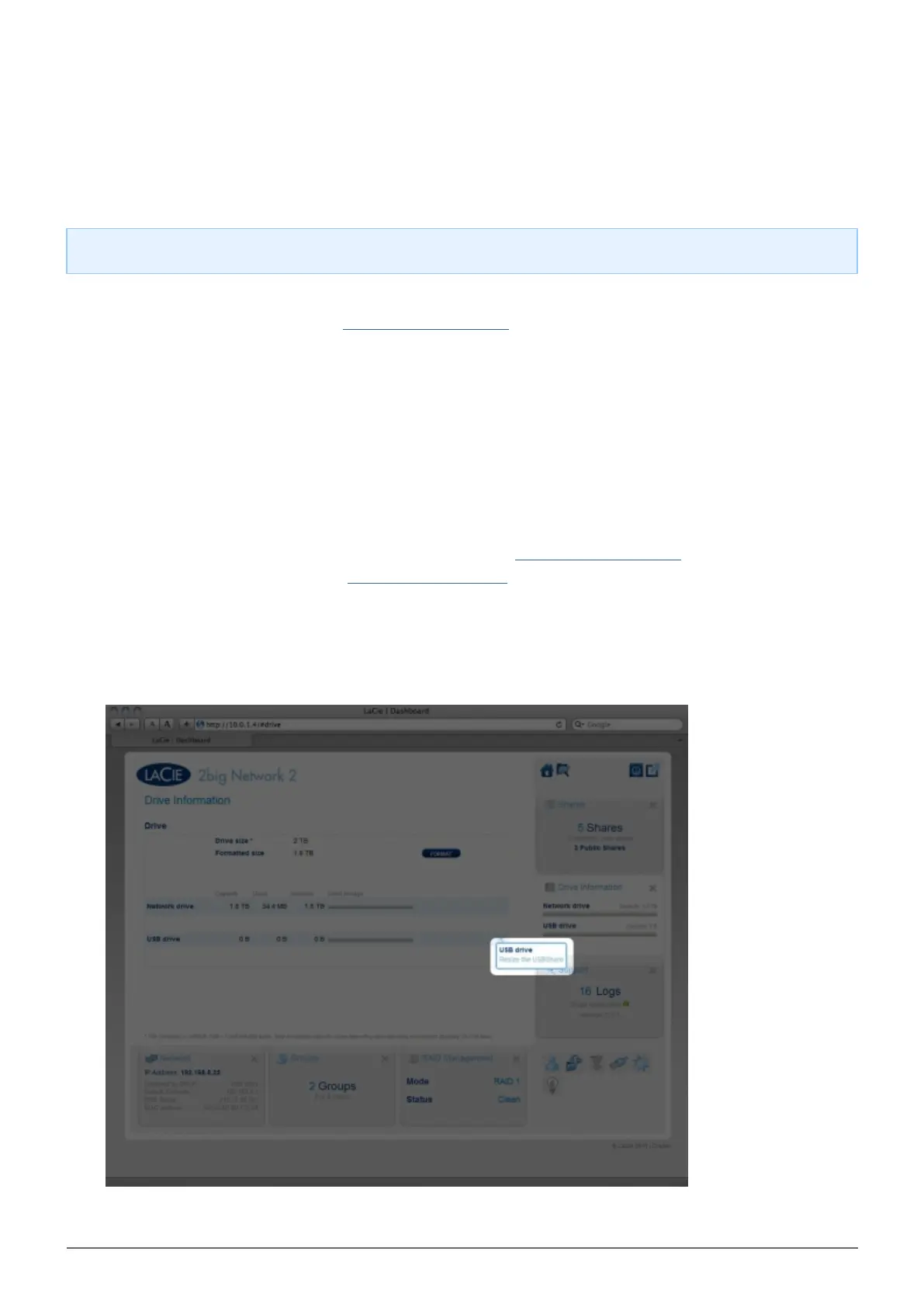
You must also allocate space to the USB share before continuing. To do so:2.
While the NAS is still connected to the network, access Dashboard - Drive Information.1.
In the drive table, in the USBShare row, click the configuration icon.2.
Click Resize USBShare.3.













 To Next Page