d2, 2big, and 5big Network 2 User Manual 42
Existing Share
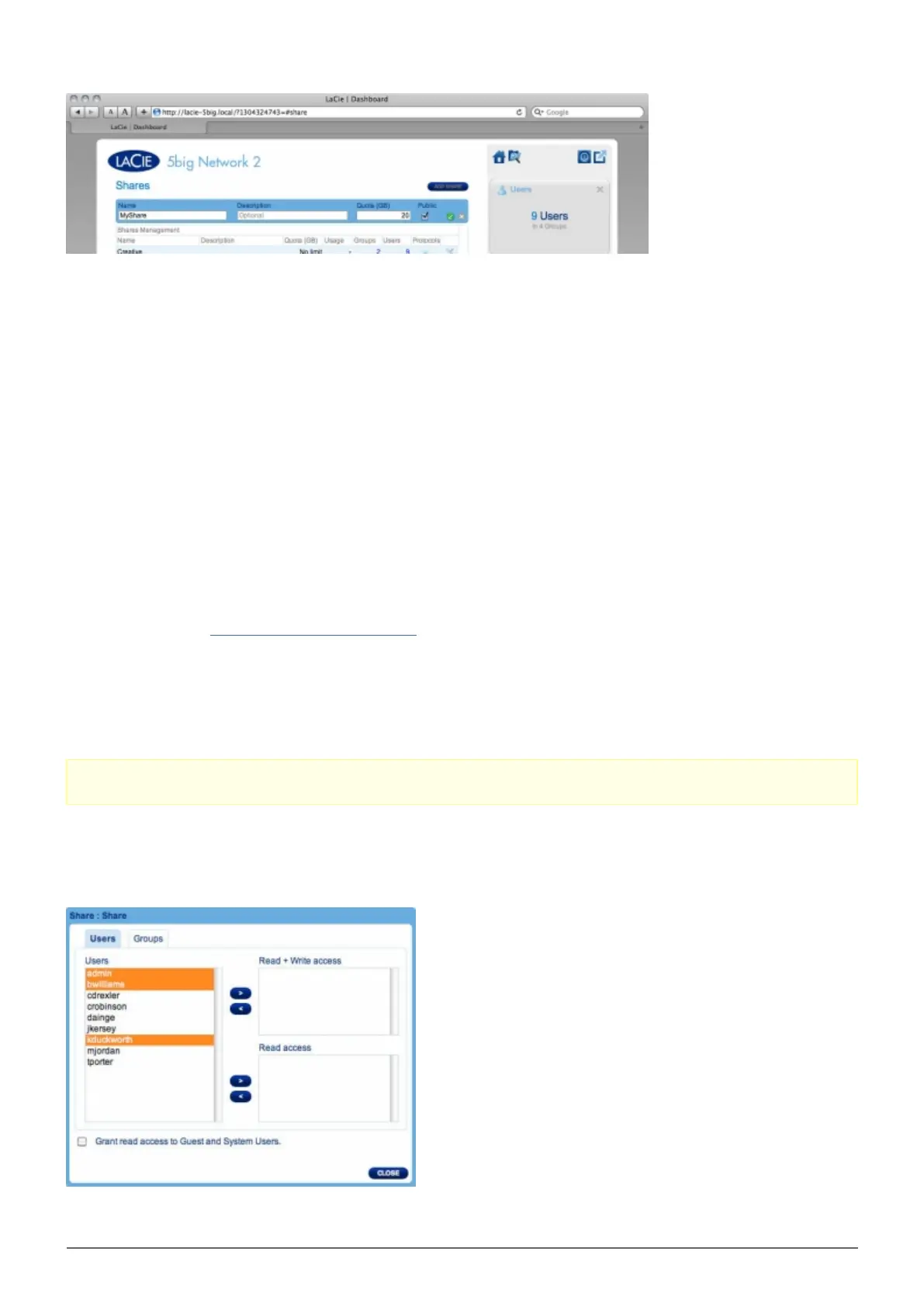
Share data is organized in a table.
Click the text in the Name column to change the share name.
■
Click the text in the Description column to change the share's description (optional).
■
Click the text in the Quota column to change the share's maximum size.
■
A number in the Usage column indicates the amount of storage space occupied by the share.
■
The number in the Groups column shows how many groups have access to the share. Click the number to
■
view the group(s).
The number in the Users column shows how many users have access to the share. Click the number to view
■
the user(s).
A blue circle in the Protocols column indicates that the network protocols for this share are controlled by the
■
global value set in Dashboard - General Settings (Services tab). Click the circle to override the global value
for this share.
Click the configuration icon to bring up a settings menu for the share. Most of the options in this menu are
■
explained above, except for the ability to make the share public/public or to delete the share. A public share is
read+write for all users and non-users.
Caution: Decreasing the capacity of a quota can cause data to be deleted.
Manage Share Access
Click the configuration icon in the right-hand column and select either Manage User Access or Manage













 To Next Page