Version 3.11 | HPI Combi Flow User Guide | 33www.lafert.com
5.7. Selecting Between Hand and Auto Control
A Stop
H Stop
NOTE The use of the Hand and Auto
buttons can be disabled by adjusting the
setting of P2-39 Parameter Access Lock.
37kW 400V 3Ph 37kW 400V 3Ph
A = Auto H = Hand
The active control source is shown
on the Display. Use the Hand and
Auto buttons on the keypad to
switch between control sources.
Hand mode permits drive control
directly from the drive keypad. Auto
mode control source is configured
with Parameter P1-12 (Control Mode)
5.8. Keypad Shortcuts
The following shortcuts can be used to speed up selecting and changing parameters when using the keypad.
5.8.1. Selecting the Parameter Groups
When extended or advanced parameter access is enabled (see section 9. Extended Parameters on page 39), additional
parameter groups are visible, and may be selected quickly by the following method.
Maximum frequency/Speed limit
Preset frequency/Speed 1
P1-01 P2-01
50.0Hz 5.0Hz
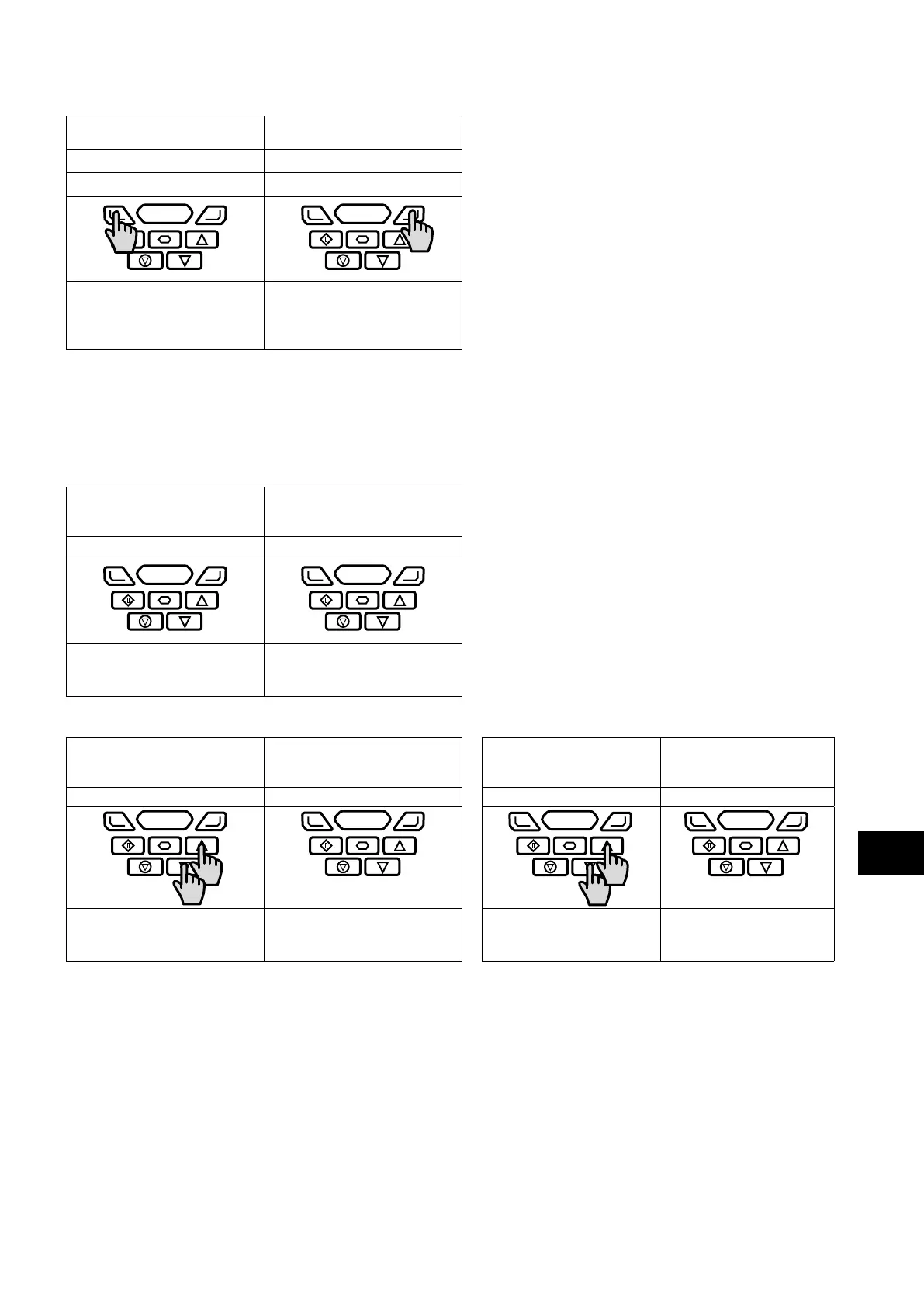
Whilst in the parameter selection menu,
press the Navigate and Up or Navigate
and Down keys simultaneously.
The next highest or lowest
accessible parameter group will be
selected.
5.8.2. Selecting the Lowest Parameter in a Group
Motor rated current
Maximum frequency/Speed limit
P1-08 P1-01
9.5A 50.0Hz
Whilst in the parameter selection
menu, press the Up and Down keys
simultaneously.
The lowest accessible parameter in
the selected parameter group will
be selected.
5.8.3. Setting a Parameter to the Minimum Value
Maximum frequency/Speed limit
Maximum frequency/Speed limit
1500 rpm 0 rpm
P1-01
7500 rpm
0 rpm
P1-01
7500 rpm
0 rpm
Whilst editing a parameter
value, press the Up and Down
keys simultaneously.
The parameter will be set to the
lowest possible value.
5
LED Keypad and Display Operation



 To Next Page