Leitz Icon Printer User Guide Getting Started
15
Printing Labels
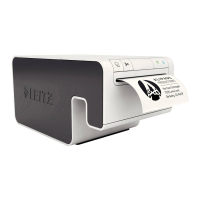
Using the Leitz Icon printer, you can print a wide variety of self-adhesive labels as well as non-adhesive name and visitor
badges and appointment cards.
For detailed information about printing labels using the Leitz Icon Software, refer to the Leitz Icon Software Help
(available from the Help menu).
To print a label
1.Click to start Leitz Icon Software.
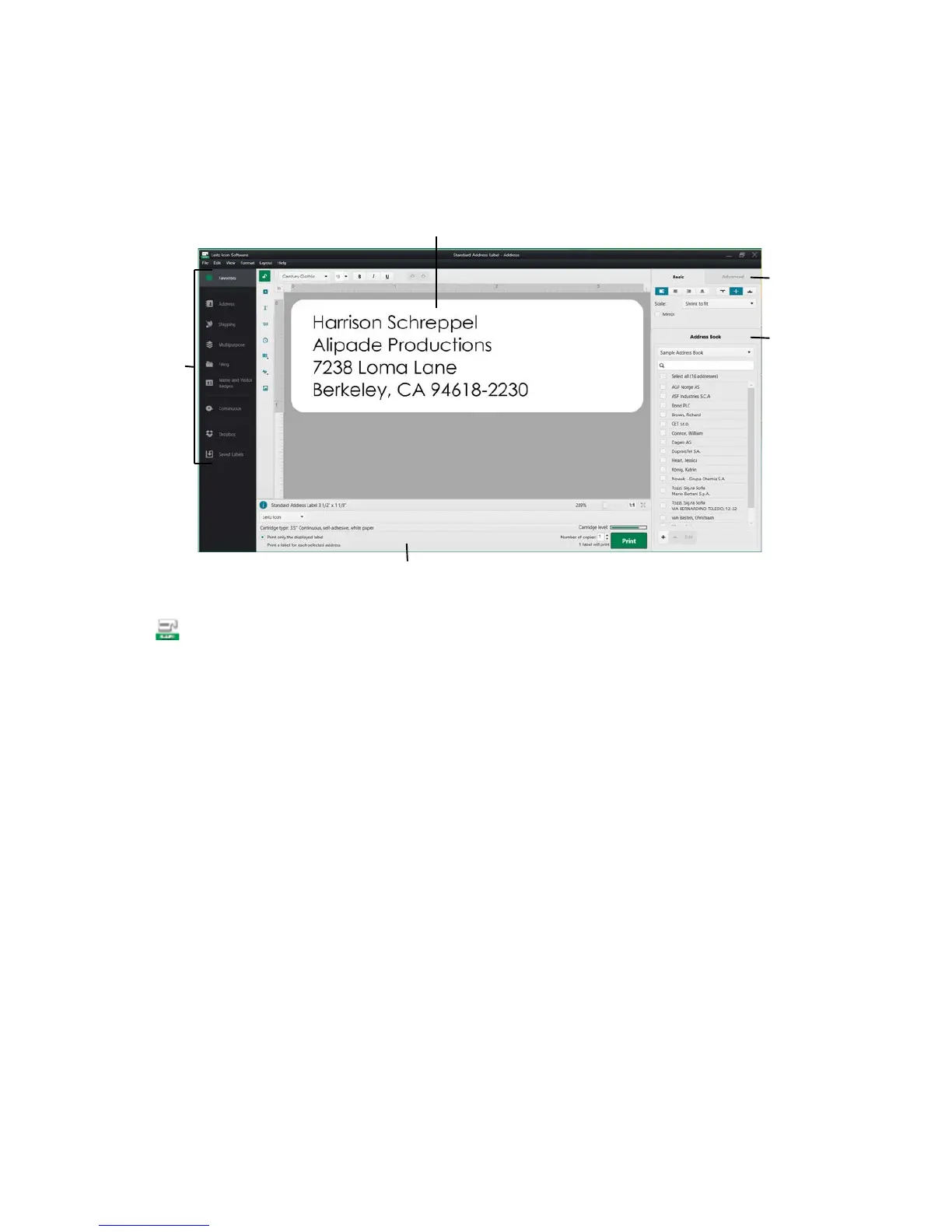
2.On the label selection pane, click the label category that contains the type of label you want to create.
The label selection pane expands to display the label types for the selected category.
3.Click the label type that you want to create.
The label selection pane expands again to display the available templates for the selected label type.
4.Click the label template that you want to use to create your label.
The selected label is displayed in the label workspace.
5.Click once on the displayed label and type the text for the label.
6.If desired, use the formatting pane to change the text formatting.
7.Click Print to print the label.


 To Next Page