Leitz Icon Printer User Guide Getting Started
9
Connecting the Printer Using USB
1.In the Add Printer Wizard, select USB, and then click Next.
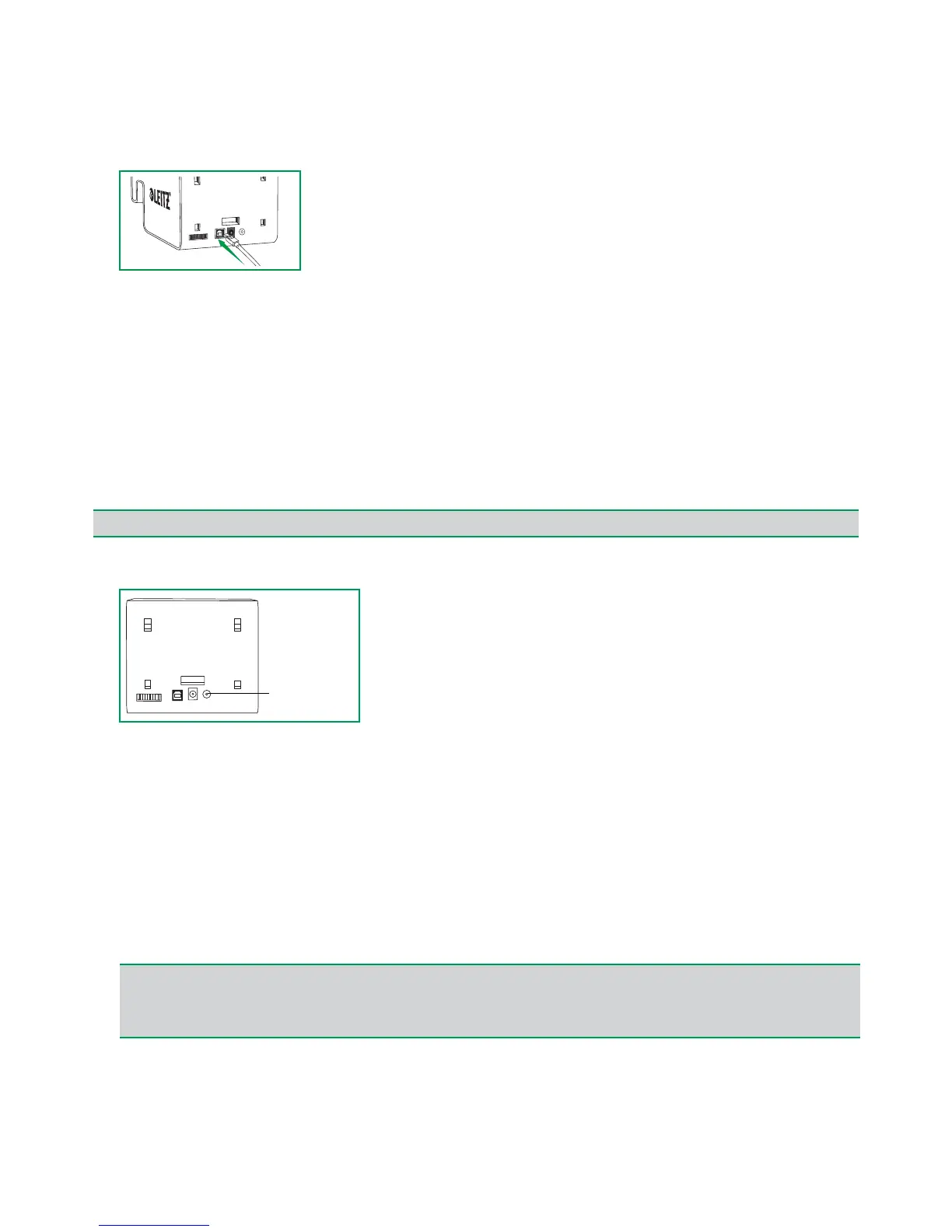
2.Plug the USB cable into the USB connector located on the back of the printer.
3.Plug the other end of the USB cable into an available USB port on your computer.
4.Click Close to close the Add Printer Wizard.
The necessary driver to print to your printer is installed. Once the installation is complete, you will be able to print your
first label.
Connecting the Printer Using Your Wireless Network
You can connect the printer to your wireless network using the Leitz Icon Add Printer Wizard or using WPS (Wi-Fi
Protected Setup).
Connecting the Printer to your Wireless Network Using WPS
You can quickly connect the printer to your wireless network using WPS.
1.Press the WPS button located on the back of the printer.
The Wireless status light begins to blink.
2.Within two minutes, press the WPS button on your router.
Refer to the router documentation for instructions on locating the WPS button.
When the printer is connected to your wireless network, the Wireless status light stops blinking and turns solid green.
Connecting the Printer to your Computer Using the Leitz Icon Add Printer Wizard
1.In the Add Printer Wizard, select Wi-Fi, and then click Next.
2.Select Infrastructure, and then click Next.
3.Click Soft AP, and then click Next.
4.From the list of available wi-fi access points, select the printer ID of the Leitz Icon printer you want to connect to your
wireless network, and then click Connect.
The Printer ID is formatted as ICON-xxyyzz and can be found on the label on the bottom of your printer.
5.Enter your user name and password in the User name and Password boxes.
The default user name and password are as follows.
User name: Admin
Password: password
NOTE
To connect your printer to your wireless network using WPS, you must use a router with WPS support.
NOTE
If the label on the bottom of your printer does not contain the Printer ID, you can determine the Printer ID using the printer’s
MAC address. In this case, the Printer ID is formatted as ICON-xxyyzz, where xxyyzz is the last six characters of your
printer’s MAC address (found on the label on the bottom of your printer). For example, if your printer’s MAC address is
MAC:00:1E:CO:13:13:A5, the Printer ID is ICON-1313A5.


 To Next Page