Whattodonext:
•Toworkwithanotherpieceofhardware,gototheappropriatesection.
•Tocompletetheinstallationorreplacement,goto“Completingthepartsreplacement”onpage78.
Completingthepartsreplacement
Aftercompletingtheinstallationorreplacementforallparts,youneedtoreinstallthecomputercoverand
reconnectcables.Dependingonthepartsyouinstalledorreplaced,youmightneedtoconrmtheupdated
informationintheSetupUtilityprogram.RefertoChapter7“UsingtheSetupUtilityprogram”onpage89
.
Toreinstallthecomputercoverandreconnectcablestoyourcomputer,dothefollowing:
1.Makesurethatallcomponentshavebeenreassembledcorrectlyandthatnotoolsorloosescrews
areleftinsideyourcomputer.See“Locatingcomponents”onpage12
forthelocationsofvarious
componentsinyourcomputer.
2.Makesurethatthecablesareroutedcorrectly.Keepcablesclearofthehingesandsidesofthe
computerchassistoavoidinterferencewithclosingthecomputercover.
3.Lowerthedrivebayassembly.See“Accessingthesystemboardcomponentsanddrives”onpage40.
4.Ifyouhaveremovedthefrontbezel,reinstallit.
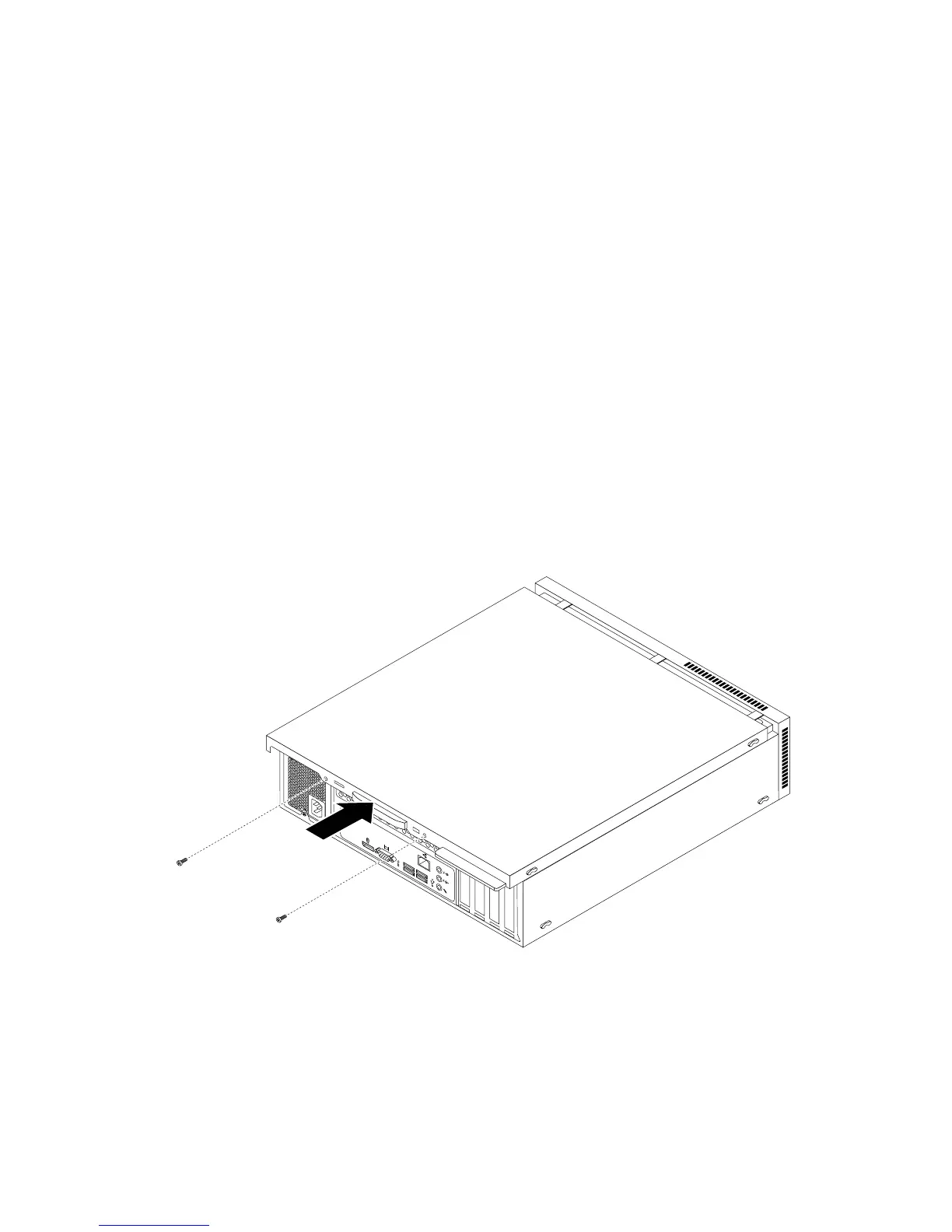
5.Positionthecomputercoveronthechassissothattherailguidesonthecomputercoverengagethe
railsonthechassis.Then,slidethecomputercovertothefrontofthecomputeruntilitsnapsinto
positionandisclosed.Then,installthetwoscrewstosecurethecomputercover.
Figure63.Reinstallingthecomputercover
6.Ifthereisapadlockavailable,lockthecomputercover.See“Lockingthecomputercover”onpage32.
7.IfthereisaKensington-stylecablelockavailable,lockthecomputer.See“AttachingaKensington-style
cablelock”onpage33.
8.Reconnecttheexternalcablesandpowercordstothecomputer.See“Locatingconnectorsonthe
rearofyourcomputer”onpage10.
78ThinkCentreE73UserGuide













 To Next Page