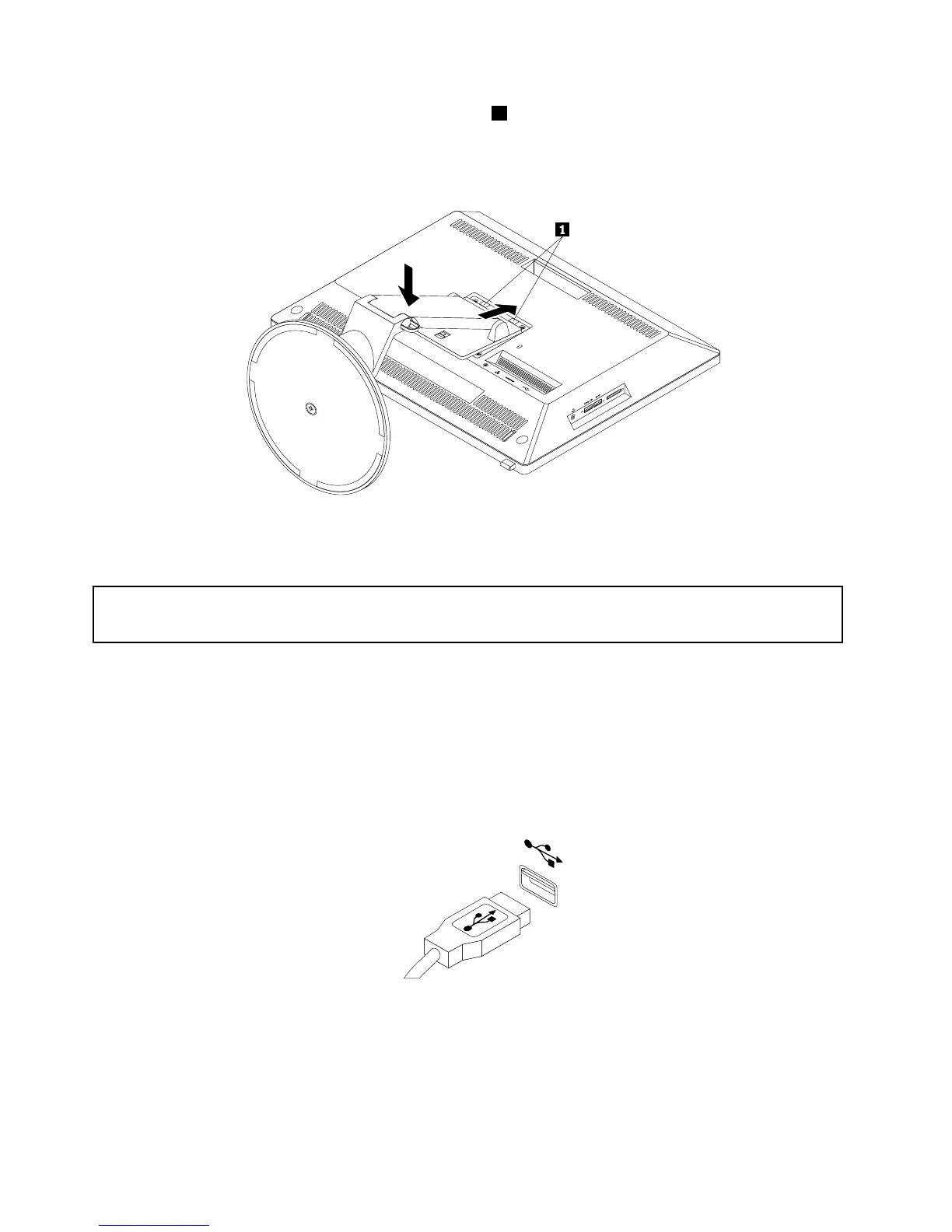
6.Toreinstallthetransformerstand,insertthetwotabs1onthetransformerstandintothecorresponding
holesinthechassis.Then,pressthereleasebuttontowardthetopofthecomputerandlowerdown
thetransformerstandatthesametime.Releasethereleasebuttontosecurethetransformerstand
onthecomputer.
Figure14.Reinstallingthetransformerstand
Replacingthekeyboardormouse
Attention:
Donotopenyourcomputerorattemptanyrepairbeforereadingandunderstandingthe“Importantsafetyinformation”
onpagev
.
Thissectionprovidesinstructionsonhowtoreplacethekeyboardormouse.
Toreplacethekeyboardormouse,dothefollowing:
1.Disconnecttheoldkeyboardcableormousecablefromthecomputer.
2.ConnectanewkeyboardormousetooneoftheUSBconnectorsonthecomputer.Dependingonwhere
youwanttoconnectthenewkeyboardormouse,see“Locatingconnectors,controls,andindicatorson
thefrontofyourcomputer”onpage9or“Locatingconnectorsontherearofyourcomputer”onpage10.
Figure15.ConnectingtheUSBkeyboardormouse
Replacingthewirelesskeyboard
Toreplacethewirelesskeyboard,dothefollowing:
1.Takeawayyourfailingwirelesskeyboard.
44ThinkCentreE93zUserGuide











 To Next Page