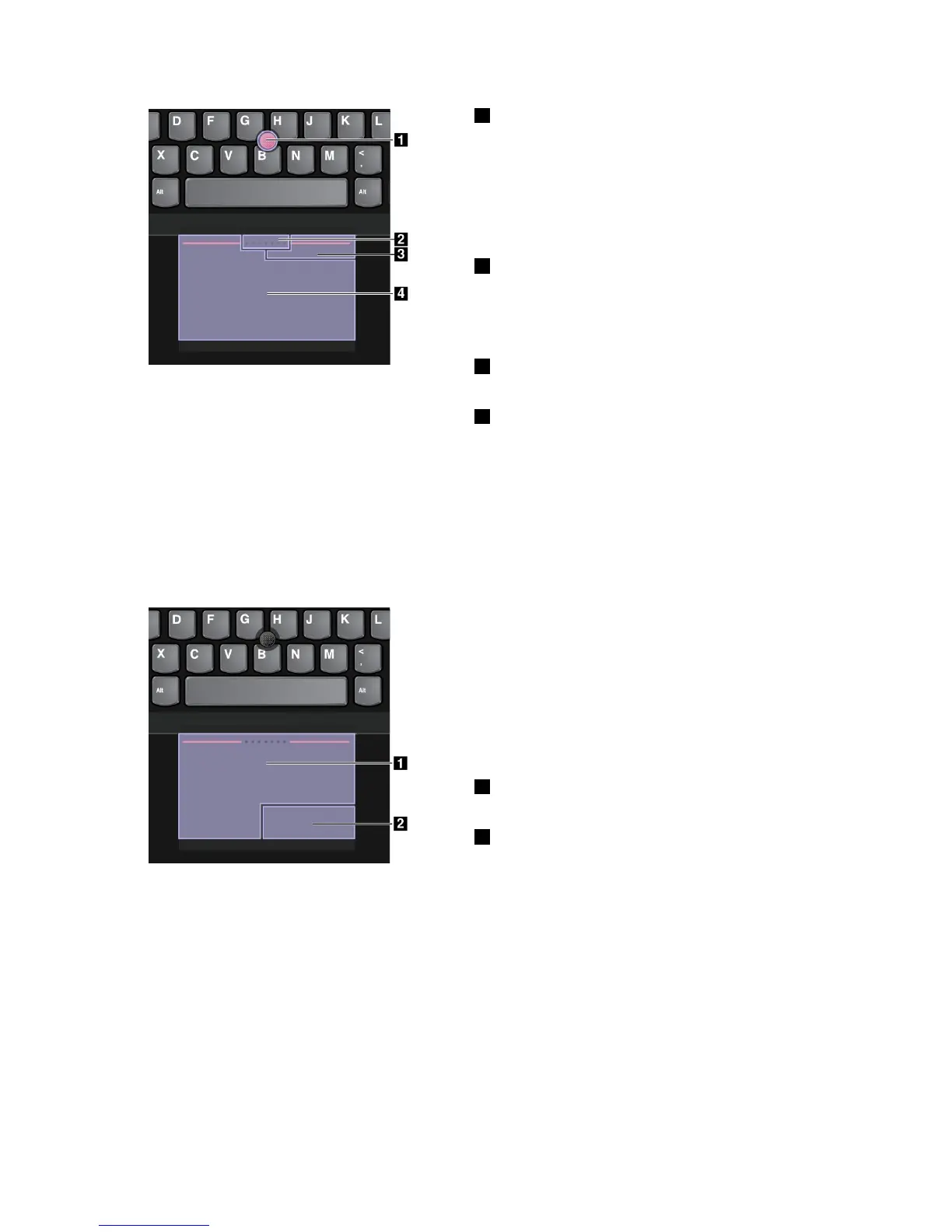
1Point
Usethepointingsticktomovethepointeronthescreen.
Tousethepointingstick,applypressuretothepointing
sticknonslipcapinanydirectionparalleltothekeyboard.
Thepointermovesaccordinglybutthepointingstickitself
doesnotmove.Thespeedatwhichthepointermoves
dependsontheamountofpressureyouapplytothe
pointingstick.
2Scroll
Pressandholdthedottedscrollingbarwhileapplying
pressuretothepointingstickintheverticalorhorizontal
direction.Thenyoucanscrollthroughthedocument,
Website,orapps.
3Right-click
Presstheright-clickzonetodisplayashortcutmenu.
4Left-click
Presstheleft-clickzonetoselectoropenanitem.
Trackpadmode
IntheTrackpadmode,usethetrackpadtoperformalltheactions,suchaspoint,left-click,right-click,
andscroll.
Youalsocanusethetrackpadtoperformavarietyoftouchgestures.Forinformationaboutusingtouch
gestures,see“Trackpadtouchgestures”onpage25.
Point
Slideonefingeracrossthesurfaceofthetrackpadto
movethepointeraccordingly.
Scroll
Puttwofingersonthetrackpadandmovetheminthe
verticalorhorizontaldirection.Thenyoucanscroll
throughthedocument,Website,orapps.Ensurethatyou
positionyourtwofingersslightlyapartfromeachother.
1Left-click
Presstheleft-clickzonetoselectoropenanitem.
2Right-click
Presstheright-clickzonetodisplayashortcutmenu.
ClassicTrackPointmode
IntheClassicTrackPointmode,usethepointingsticktomovethepointer,andusethetrackpadtoperform
otheractionssuchasleft-click,right-click,andscroll.
Note:ComparedwiththeTrackPointmode,theClassicTrackPointmodeenlargestheright-clickzoneso
thattheright-andleft-clickzonesonthetrackpadaredividedequally.However,thetouchgesturesare
disabledandcannotbeusedintheClassicTrackPointmode.
24UserGuide











 To Next Page