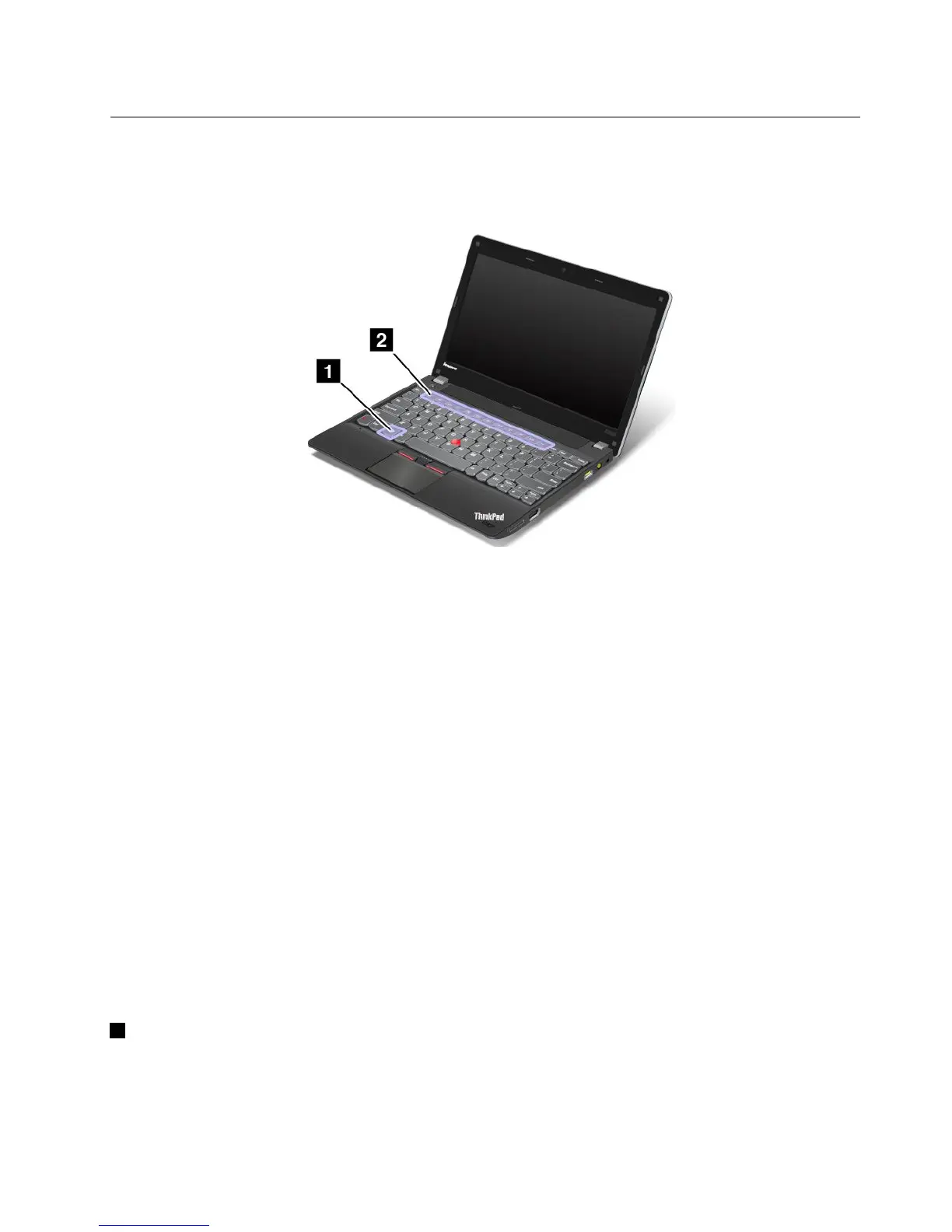
Specialkeys
Yourcomputerhasseveralspecialkeystohelpyouworkmoreeasilyandeffectively.
Thefollowinggureshowsthelocationsofthespecialkeys.
YoucantoggletheThinkPadF1-F12keyfunctionalitytousethekeysindefaultmodeorinlegacymode.In
defaultmode,youcaninitiatethespecialfunctionsillustratedoneachkeybypressingthecorresponding
keydirectly.Inlegacymode,toinitiatethespecialfunctionsillustratedoneachkey,pressandholdtheFn
keyandthenpressthedesiredfunctionkey,thenreleasebothkeys.
TotoggletheF1-F12keyfunctionalityintheWindowsenvironment,dothefollowing:
1.OpentheThinkPadKeyboardPropertieswindowbydoingeitherofthefollowing:
•GotoControlPanel.Intheiconsview,clickKeyboard.
•PressFnkeyforfourseconds.
2.ClicktheThinkPadF1-F12keystab
3.Conguresettingsasdesiredfollowingtheinstructionsonthescreen.
TotoggletheF1-F12keyfunctionalitythroughtheThinkPadSetupprogram,dothefollowing:
1.Startthecomputer.WhentheThinkPadlogoscreenisdisplayed,pressF1.TheThinkPadSetup
programmainmenuopens.
2.SelectCong➙Keyboard/Mouse➙ChangetoF1-F12keys.
3.Conguresettingsasdesiredfollowingtheinstructionsonthescreen.
4.Savechangesandexit.
Thefollowingisabriefintroductiontothespecialkeysandbuttons.
1Windowskey
OntheWindows7operatingsystem,presstheWindowskeytoopentheStartmenu.OntheWindows8
operatingsystem,presstheWindowskeytoswitchbetweenthecurrentworkspaceandtheStartscreen
Chapter2.Usingyourcomputer19










 To Next Page