
 Need help?
Do you have a question about the Lenovo ThinkPad P52s and is the answer not in the manual?
Essential guidelines for safe and proper use of your notebook computer.
Tips to ensure optimal computer use and avoid discomfort or injury.
Identifies critical product conditions requiring immediate attention and service.
Overview of hardware features, ports, and status indicators on the computer.
Guidance on managing AC and battery power for optimal performance and conservation.
Step-by-step instructions for connecting and disconnecting the computer from docking stations.
Information on setting and using power-on, supervisor, and hard disk passwords.
Methods to protect computer data from unauthorized access and security attacks.
Instructions for enrolling and using fingerprints for secure computer login.
Solutions for when the computer becomes unresponsive or freezes.
Instructions for resetting the computer to its factory state, keeping or removing files.
Procedures to repair or recover the OS when it fails to start correctly.
Instructions for safely removing and replacing the computer's removable battery.
Procedures for replacing the computer's hard disk or solid-state drive.
 General
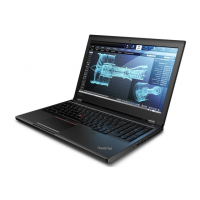
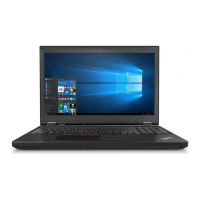
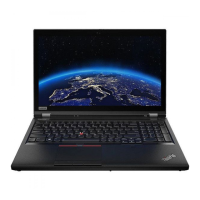
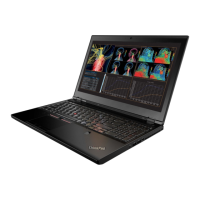
| Form factor | Clamshell |
|---|---|
| Product type | Laptop |
| Product color | Black |
| Housing material | Glass Fibre Reinforced Plastic (GFRP), Polyphenylene sulfide (PPS) |
| Country of origin | France |
| Bus type | OPI |
| Processor cache | 8 MB |
| Processor cores | 4 |
| Processor family | Intel® Core™ i7 |
| Configurable TDP-up | 25 W |
| Processor frequency | 1.8 GHz |
| Configurable TDP-down | 10 W |
| Processor manufacturer | Intel |
| Processor boost frequency | 4 GHz |
| Configurable TDP-up frequency | 2 GHz |
| Configurable TDP-down frequency | 0.8 GHz |
| Discrete graphics card | Yes |
| On-board graphics card | - |
| Motherboard chipset | Intel SoC |
| Internal memory | 32 GB |
| Internal memory type | DDR4-SDRAM |
| Memory layout (slots x size) | 2 x 16 GB |
| SSD interface | M.2, NVMe, PCI Express |
| Storage media | SSD |
| Optical drive type | No |
| Total storage capacity | 512 GB |
| Color gamut | 45 % |
| Display diagonal | 15.6 \ |
| Anti-glare screen | Always gives an optimal view, even in direct sunlight. |
| Display brightness | 250 cd/m² |
| Bluetooth version | 4.1 |
| Top Wi-Fi standard | Wi-Fi 5 (802.11ac) |
| Ethernet LAN data rates | 10, 100, 1000 Mbit/s |
| Trusted Platform Module (TPM) version | 2.0 |
| Intel TSX-NI version | 0.00 |
| CPU configuration (max) | 1 |
| Intel Identity Protection Technology version | 1.00 |
| Privacy type | Privacy shutter |
| Front camera HD type | HD |
| Keyboard layout | AZERTY |
| Keyboard language | French |
| Battery capacity | 56 Wh |
| AC adapter power | 65 W |
| Operating system architecture | 64-bit |
| Sustainability certificates | ENERGY STAR, EPEAT Gold, GREENGUARD, RoHS |
| HDMI version | 1.4 |
| USB 2.0 ports quantity | USB 2.0 ports have a data transmission speed of 480 Mbps, and are backwards compatible with USB 1.1 ports. You can connect all kinds of peripheral devices to them. |
| USB 3.2 Gen 1 (3.1 Gen 1) Type-A ports quantity | 2 |
 Weight and Dimensions
| Depth | 252.8 mm |
|---|---|
| Width | 365.8 mm |
| Height | 20.2 mm |
| Weight | 1950 g |



 To Next Page