24Fast /2 Gigabit Ethernet combo Web Smart Switch
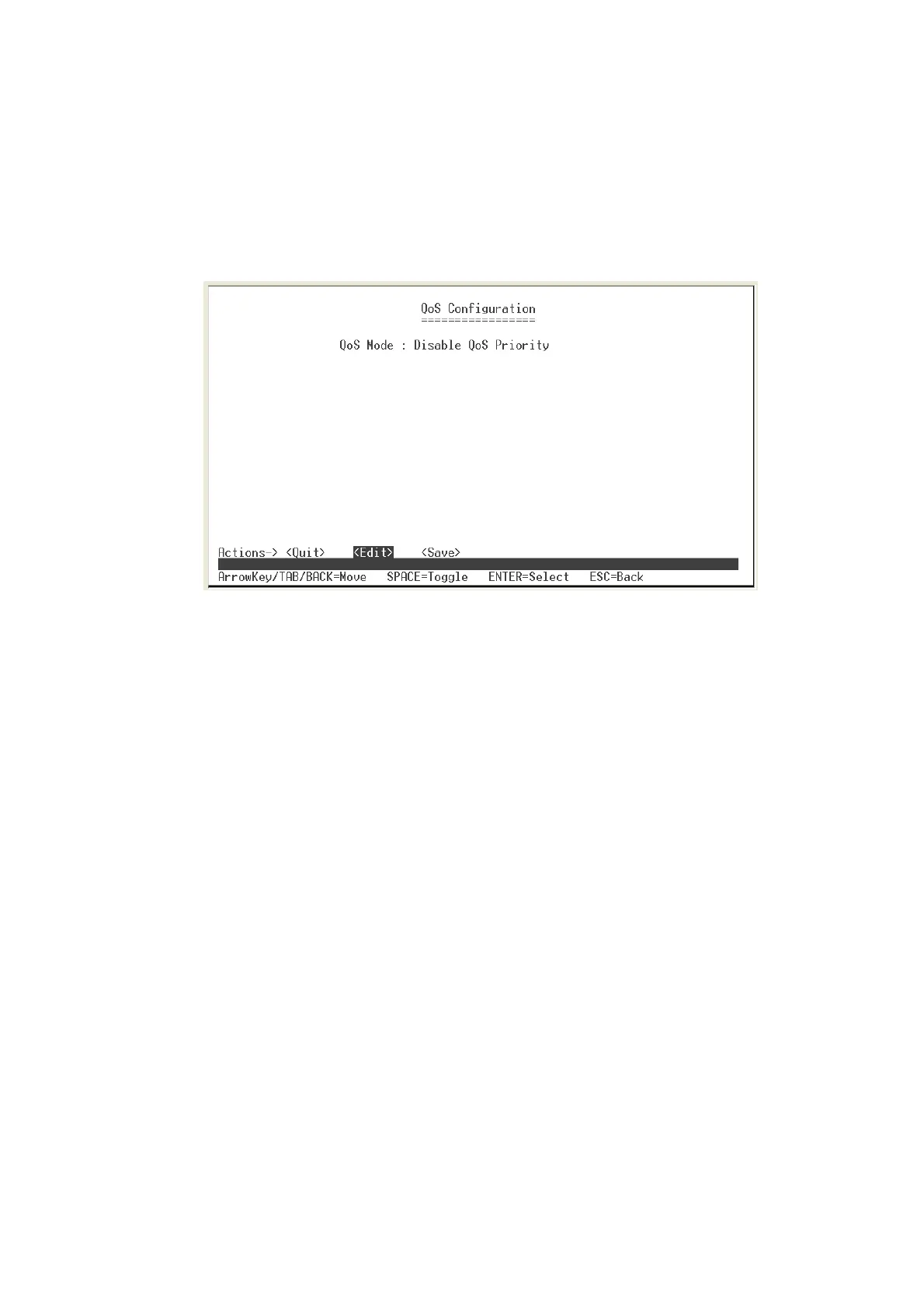
QoS Configuration
You can configure port priority level to high or low queue.
1. Select
<Edit>
.
Select QoS Mode interface
2.
Qos Mode:
select the Qos mode for process incoming packets. The default QoS
mode is “Disable QoS Priority”.
High: Low = 3: 1:
the system will process 3 high priority packet, and then 1
low priority packet.
High: Low = 5: 1:
the system will process 5 high priority packet, and then 1
low priority packet.
High: Low = 7: 1:
the system will process 7 high priority packet, and then 1
low priority packet.
All High before Low:
the system will process all high priority packet, and
then low priority packet.
Disable QoS Priority:
no QoS priority function.
3.
Static Port Ingress Priority:
after selected the QoS mode, configure each port of
ingress priority –
Low
or
High
.
4.
802.1p Priority [7-0]:
use “
Space
” key to select the priority level mapping to high
or low queue.
5. Press “
ESC
” goes back action menu line.
6. Select
<Save>
to save all configure value.
23








 To Next Page