Setting Top-Of-Form
Top-Of-Form sets the first line of print. Use the control panel to save your Top-Of-Form settings for continuous forms,
cut forms, and for each macro enabled.
Setting Top‑Of‑Form for continuous forms in push mode
1 Clear the paper path.
The Paper Out light blinks if no paper is loaded. If the Paper Out light is off, tear off excess forms, and then press
Load/Unload. If a cut form is loaded, press FormFeed to clear the paper path.
2 Make sure the paper select lever is in the position.
3 Load continuous form paper on the push tractor feed pins (or the Tractor 2 feed pins if you are using the optional
Tractor 2 Feeder).
4 Press FormFeed.
The paper moves to the current Top‑Of‑Form, and the Paper Out light goes off.
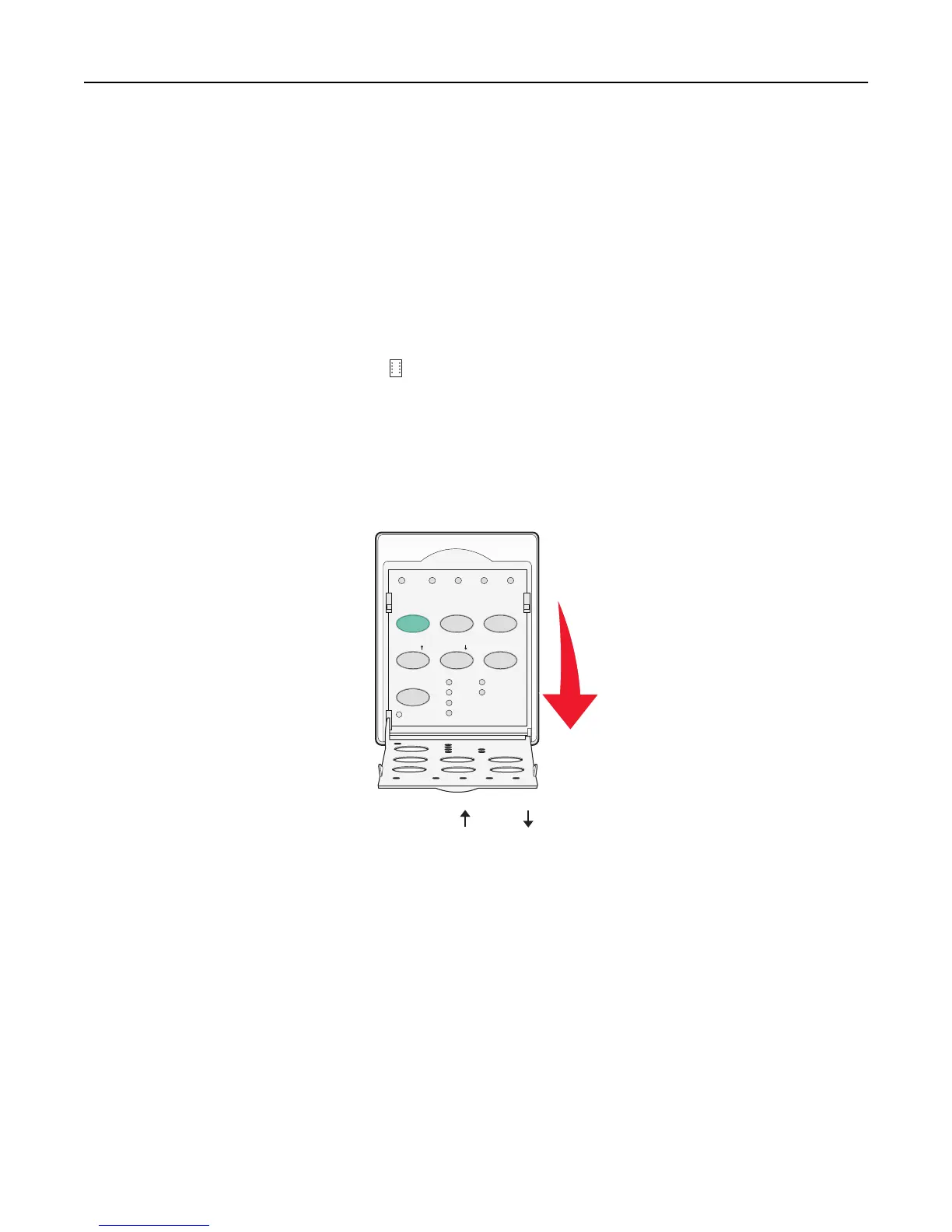
5 Open the control panel cover to access layer 2.
Power
Set TOF LineFeed Macro
Setup
Pitch
10
15
17
20
24
123 4
Micro Micro
12
Lock
6 Press any paper movement button (LineFeed, Micro , Micro ) to align the horizontal lines located on the platen
with the Top‑Of‑Form you want.
Note: If you press and hold a paper movement button, the paper advances in micro movements and then goes
into continuous feed.
7 Press Set TOF to set and save your Top‑Of‑Form.
8 Close the control panel cover.
9 To verify the new Top‑Of‑Form, press Load/Unload to unload the continuous forms paper, and then press FormFeed
to reload the continuous forms paper.
The continuous forms paper loads to the current Top‑Of‑Form setting.
10 Press Start/Stop to set the printer online.
Note: If Auto Tear Off is set to On, the paper will advance to the Tear Off position. Sending a print job or
pressing Tear Off returns the paper to the current Top‑Of‑Form.
Loading paper 39



 To Next Page