A
Charging schedules
Displays the week-long registered charging schedule in a list using icons.
B
[Add] switch
Select to add a new item to the charging schedule.
C
[Edit] switch
Select to change or delete registered items on the charging schedule.
D
[Charge now] switch
Select to [Charge now] to on.
The following content is displayed on the calendar.
Display Content
Gray line
*10
Current time
Green icon The charging mode is set to [Departure time].
Blue icon The charging mode is set to [Start at set time].
It may be necessary to use a smartphone with a dedicated app to change the next
charging schedule.
When [Charge now] is on, the icon will move to the position of the gray line.
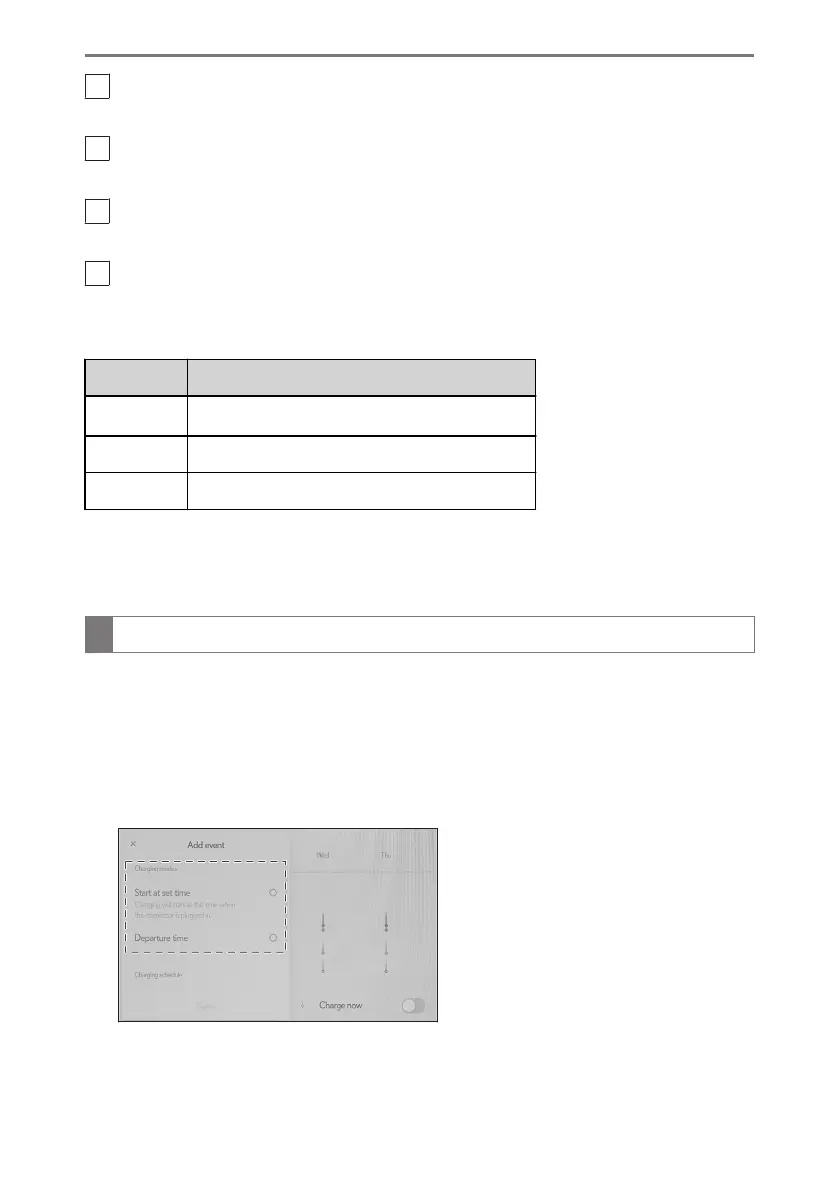
Registering the charging schedule on the center display
1 Display the charging schedule screen.
2 Select [Add].
The edit charging event screen will be displayed on the screen.
3 Change the schedule to the desired time.
▶ Charging mode
Select [Start at set time] or [Departure time] to set the desired charging mode.
When [Start at set time] is selected:
*10 :
A row with a ash line indicates the current time.
1-3. Charging with the plug-in hybrid system
96



 To Next Page