EasyManua.ls Logo

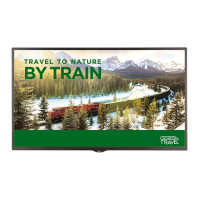
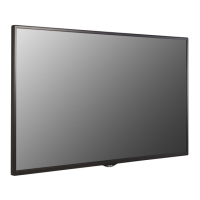
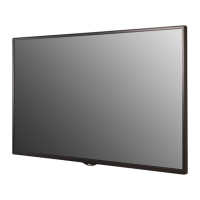
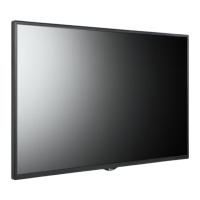
LG 32LS33A - User Manual

LG 32LS33A
76 pages
Print Icon
To Next Page IconTo Next Page
Loading...
www.lg.com
OWNER’S MANUAL
MONITOR SIGNAGE
32LS33A
42LS33A
47LS33A
55LS33A
65LS33A
42LS35A
47LS35A
55LS35A
Please read this manual carefully before operating the your set and
retain it for future reference.
MONITOR SIGNAGE MODELS

Questions and Answers

  • R
    robert80Sep 4, 2025
    How to prevent after-image appearing on LG Digital Signage?
    • M
      Mary CampbellSep 4, 2025
      If an after-image appears on your LG Digital Signage, and you've been using a fixed image for a long time, the pixels may be damaged quickly; use the screen-saver function. Also, when a dark image is displayed on the screen after an image with high contrast (black and white or gray), it may cause image sticking, which is normal for LCD screens.
  • W
    Wanda LeeSep 4, 2025
    Why does 'Unknown Product' message appear on LG 32LS33A Digital Signage?
    • J
      Jared ButlerSep 4, 2025
      If an 'Unknown Product' message appears when your LG Digital Signage is connected, check if the plug&play function is supported by referring to the video card user manual.
  • T
    Travis GuzmanSep 5, 2025
    What to do if no image is displayed on my LG Digital Signage?
    • I
      Isabella WolfSep 5, 2025
      If your LG Digital Signage isn't displaying an image, first ensure the power cord is properly connected to the outlet. Next, verify the signal cable between your PC and the display is securely connected. Also, check if the signal from the PC (video card) is within the product's vertical or horizontal frequency range, adjusting as needed by referring to the Specifications in this manual. Finally, press the 'INPUT' menu on the remote control to confirm the input signal.
  • G
    Gregory ClarkSep 6, 2025
    What to do if the screen image looks abnormal on my LG 32LS33A?
    • R
      rosemichaelSep 6, 2025
      If the screen image looks abnormal on your LG Digital Signage, and you're using a D-Sub analog signal, press the "AUTO" button on the remote control to automatically select the optimal screen status. If adjustment is not satisfactory, select [PICTURE] - [Screen] - [Position] in the OSD menu. Also, verify that the video card resolution and frequency are supported by the product; if the frequency is out of range, set to the recommended resolution in the Control Panel "Display" Setting menu. Ensure the correct input signal is connected to the appropriate signal port.

Summary

Assembling and Preparing

Accessories

Lists included items in the product box.

Parts and Buttons

Identifies and describes the monitor's physical buttons and ports.

Connecting the Stand

Provides step-by-step instructions for attaching the monitor stand.

Connecting the Speaker

Details how to connect external speakers to the monitor.

Mounting on a Wall

Provides guidelines and precautions for wall-mounting the monitor.

Securing the product to a wall (optional)

Explains the process of securing the monitor to a wall for safety.

Remote Control

Making Connections

Overview of Connections

Illustrates how to connect various external devices like PCs, speakers, and gaming consoles.

RGB Connection

Details how to connect a PC using an analog RGB signal cable.

HDMI Connection

Explains connecting PCs or external devices via HDMI for digital audio/video.

USB Connection

Guides on connecting USB storage devices for media playback.

Using the Monitor

Entertainment

Customizing Settings

PICTURE Settings

Adjusts image quality, brightness, contrast, and color settings.

AUDIO Settings

Customizes sound modes, effects, and volume balance for optimal audio.

Troubleshooting

Image Display Issues

Solutions for no image, unknown product messages, or abnormal screen displays.

Product Performance Issues

Addresses after-images, audio problems, color issues, and operational errors.

Specifications

LG 32LS33A Specifications

General IconGeneral
Screen Size32 inches
Display TypeLED
Brightness250 cd/m²
Contrast Ratio1000:1
Response Time8 ms
Viewing Angle (H x V)178° x 178°
Aspect Ratio16:9
OutputAudio Out
VESA Mounting200 x 200 mm
Standby Power0.5 W
Operating Temperature0°C to 40°C
Operating Humidity10% to 80%
Resolution1920 x 1080
InputHDMI, VGA, USB
Built-in SpeakersYes

Related product manuals