SCREEN Menu
Auto adjustment (RGB [PC] mode only)
Automatically adjusts picture position and minimizes image shaking.
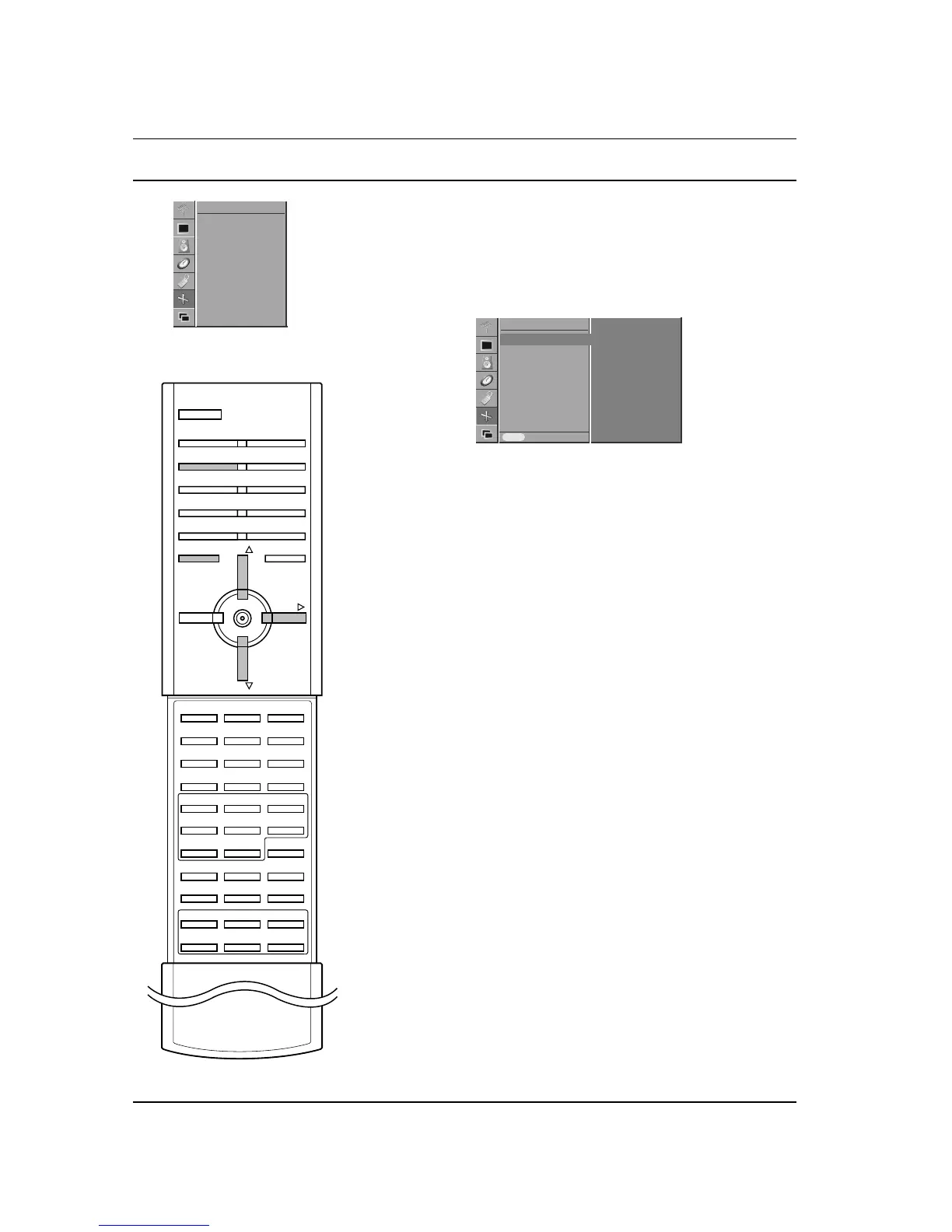
1. Press the MENU button and then
DD
/
EE
button to select the
SCREEN menu.
2. Press the
GG
button and then
DD
/
EE
button to select Auto
Configure
.
3. Press the
GG
button to start Auto Configure.
The display OK will appear.
If the position of the image is still not correct, try Auto adjust-
ment again.
4. Repeatedly press the MENU button to return to normal TV
viewing.
Note :
a. If picture needs to be adjusted more after Auto adjustment in
RGB (PC), you can adjust the Manual Config..
b. Although the image is still not correct, your TV is functioning
properly but needs further adjustment.
c. The Auto Configure and the Manual Config. functions
don’t need to be run for DVI mode.
Picture format
You can watch TV in various picture formats; Auto, 4:3, Wide, 14:9
and Zoom.
1. Press the MENU button and then
DD
/
EE
button to select the
SCREEN menu.
2. Press the GG button and then
DD
/
EE
button to select ARC.
3. Press the GG button to select your desired picture format.
4. Press the MENU button to save.
You can also select
Auto, 4:3, Wide, 14:9 or Zoom with the ARC
button on the remote control.
Auto
When your set receives the wide screen signal, it will be automati-
cally changed to the picture format to be sent.
4:3
This picture format is 4 to 3 of general TV.
Wide
You can enjoy the cinema (the picture format of 16:9) or general TV
programme through the 16:9 mode.
The screen 16:9 is viewed just like that but the screen 4:3 is mag-
nified to the left and right so that the screen 16:9 is full.
14:9
You can enjoy the picture format of 14:9 or general TV programme
through the 14:9 mode. The screen 14:9 is viewed just like that the
screen 4:3 is magnified to the upper / lower and left / right.
Zoom
You can enjoy the cinema in a vast screen through the Zoom mode.
The screen 4:3 is magnified to the upper / lower and left / right sides
so that the screen 16:9 is full. The bottom and top of the picture
may be lost.
Note :
a. In the double window and PIP/DW mode, ARC function isn’t
available.
b. Set
4:3 and Wide screen format for RGB, DVI mode.
22



 To Next Page