SCREEN Menu
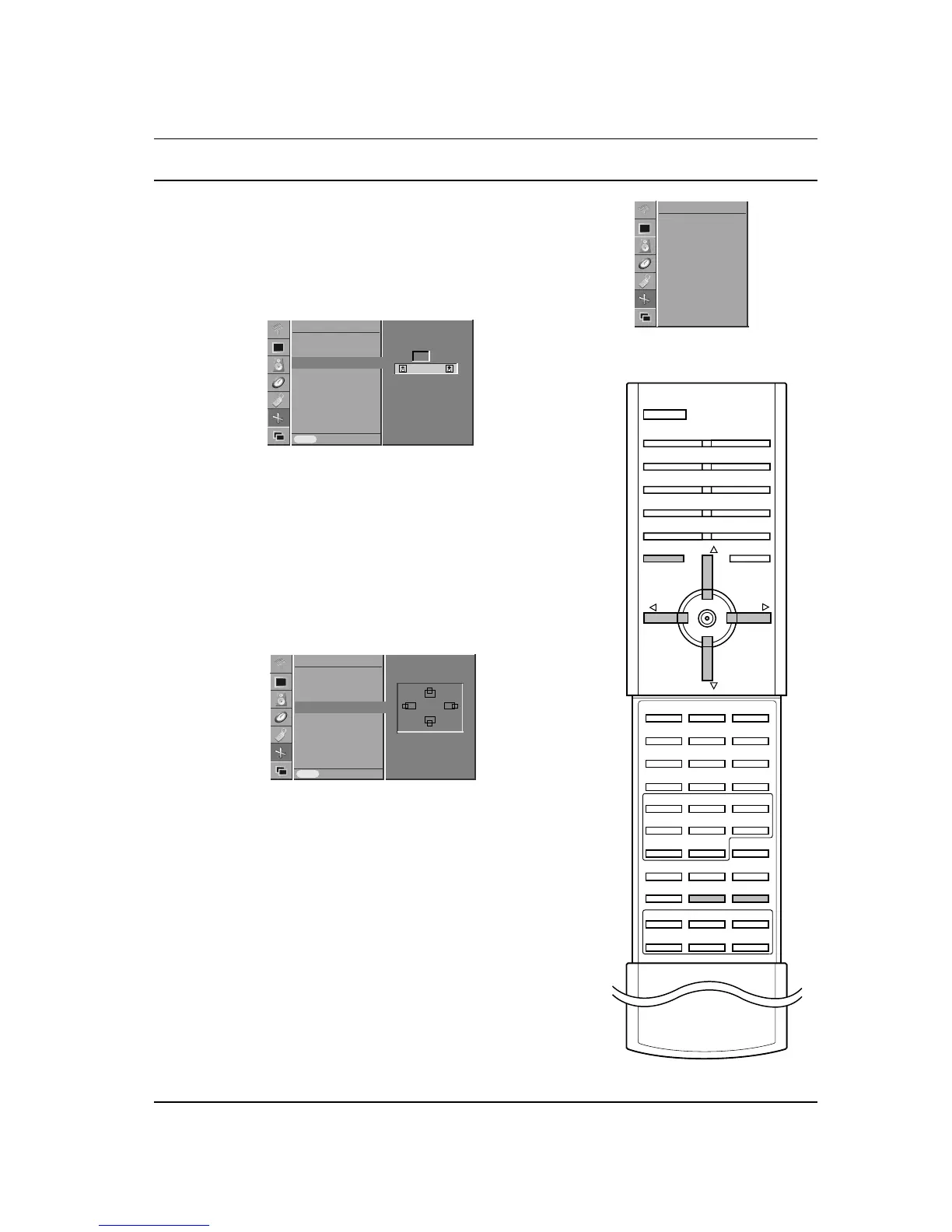
Picture Size Zoom
When enlarging or reducing the picture, the screen may be display
unnatural picture.
1. Press the MENU button and then
D
/
E
button to select the
SCREEN menu.
2. Press the
G
button and then
D
/
E
button to select Zoom
In/Out
.
3. Press the
G button and then F / G button to enlarge or reduce
the picture size.
4. Press the MENU button to save.
You can also enlarge or reduce the picture size with Zoom+/Zoom-
on the remote control and then adjust the main picture position with
the
D
/
E
/
F / G buttons in enlarged picture mode.
Note : The adjustment range of zoom is 100~300.
Screen Position (RGB [PC] mode only)
1. Press the MENU button and then
D
/
E
button to select the
SCREEN menu.
2. Press the
G button and then
D
/
E
button to select Position.
3. Press the
G button and then
D
/
E
or F / G button to adjust the
position.
4. Press the MENU button to save.
Manual Configure (RGB [PC] mode only)
If the picture isn’t clear after auto adjustment and especially that
characters are still trembling, adjust the picture phase manually. To
correct the screen size, adjust
Clock.
1. Press the MENU button and then
D
/
E
button to select the
SCREEN menu.
2. Press the
G button and then
D
/
E
button to select Manual
Config.
.
3. Press the
G button and then
D
/
E
button to to select Phase or
Clock.
4. Press the
F / G button to make appropriate adjustments.
5. Press the MENU button to save.
Note :
a. The adjustment range of
Phase is 0~31.
b. The adjustment range of
Clock is -50~+50.
23



 To Next Page