Operating22
Operating
4
Connecting to DLNA-
Certified Smartphone
This function allows you to control the playback
of media streamed from DLNA media server by a
DLNA certied smartphone. Most DLNA certied
smartphone has a function to control the playback
media on your home network.
Home menu
/
[Connect Mobile Device]
/
[SmartShare Connection Guide]
/
[Go to SmartShare]
�
To function, you need smart phone that has
smart share.
�
Refer to the smart phone’ s manual to use
smart share function on your phone.
,
Note
Preparation
-
Check Wi-Fi connection on the smartphone.
-
Connect your smart phone and the unit to
access point on the same network.
-
Check the Smartshare’s setting in your
phone.
-
Run the Smartshare app you are able to
share to the unit.
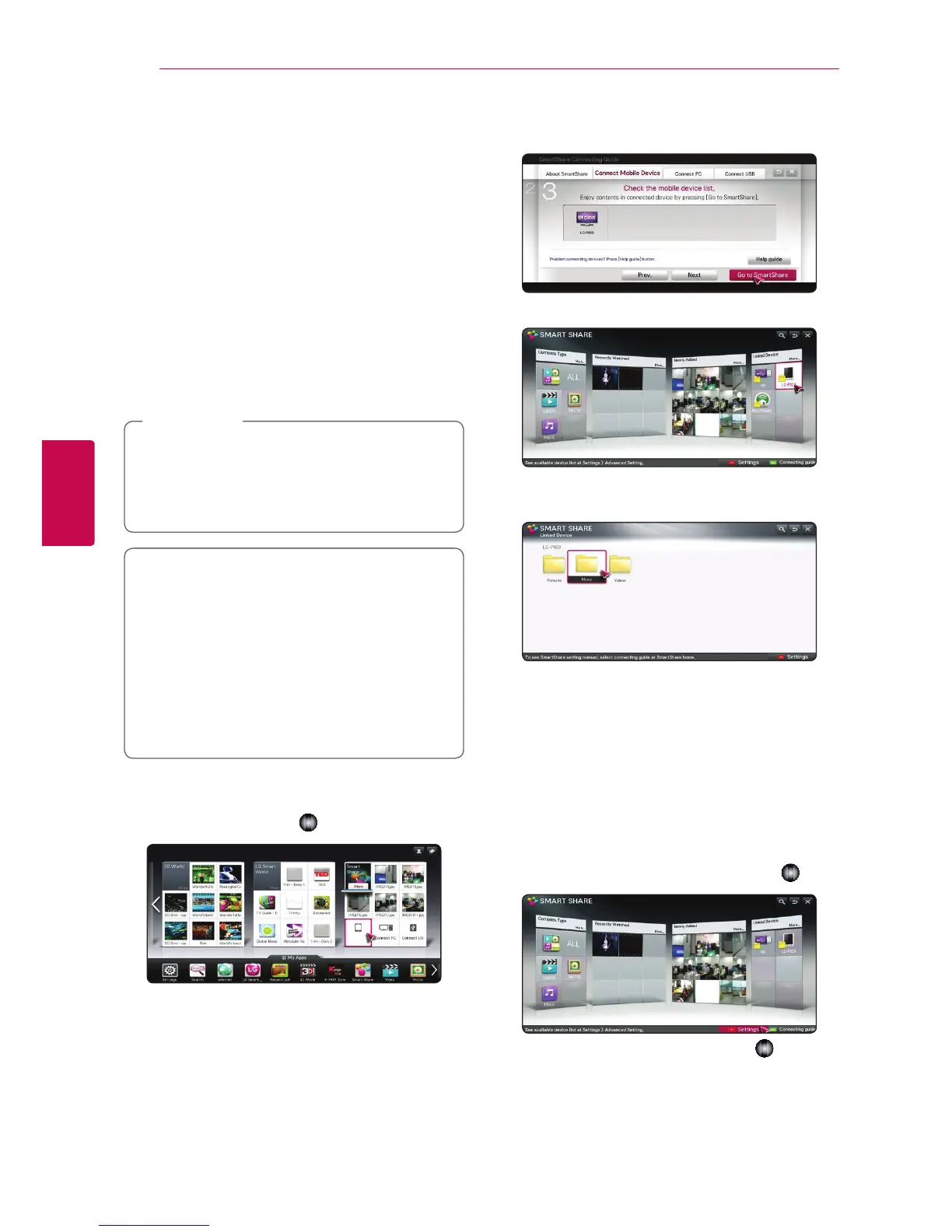
1. Press HOME (
n
) to start this function.
2. Select [Connect Mobile Device] of [Smart Share]
card and press Wheel (
).
3. After checking the steps for [SmartShare
Connecting Guide], select [Go to SmartShare].
4. Select [Linked Device] on the SmartShare menu.
5. Folders or les in the smart phone will be
displayed. Select a le to play.
Setting Smart Share
connection setting
To set SmartShare related functions,
Home menu
/
[SmartShare]
/
[Settings]
1. Press HOME (
n
).
2. Select [Smart Share], and press Wheel (
).
3. Select [Settings], and press Wheel ( ).


 To Next Page