Operating 31
Operating
4
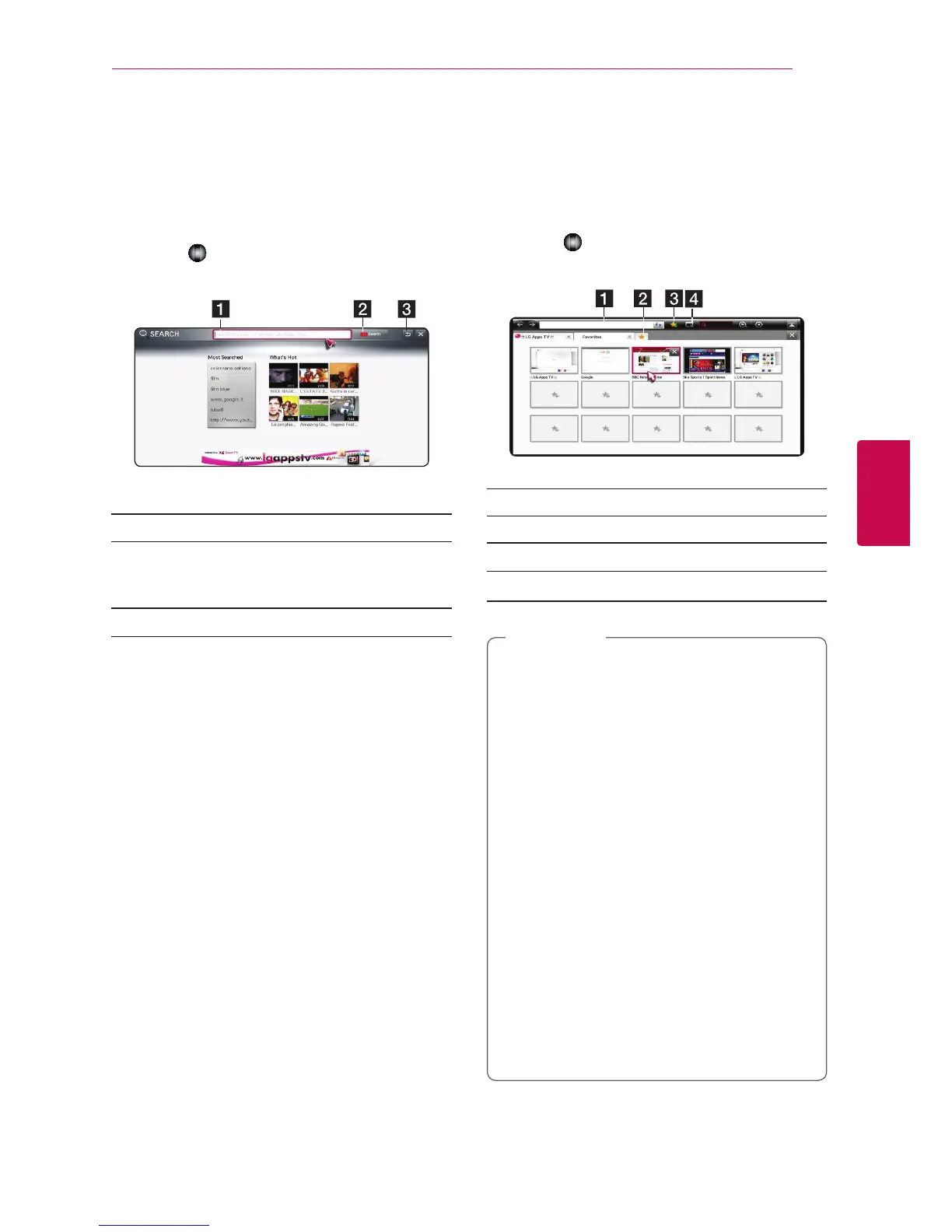
Using [Search] app
This search function enables ecient searching
of LG Apps and other Content. Enter search terms
using an input device like the remote control to
search LG Apps, and parts of Premium Service.
1. Select the [Search] in the [My Apps] and press
Wheel (
).
2. Enter search terms in the blank.
a Search - Enter search terms.
b Search button - After entering the search
terms, select the button or use red colored
button on the remote control.
c Back - Moves to the previous step.
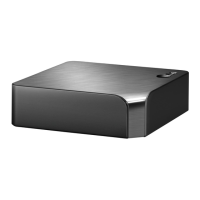
Using the [Internet] Web
browser app
Types URL manually on the screen or visits web
sites added to Favorite.
1. Select the [Internet] in the [My Apps] and press
Wheel (
).
2. Enter search terms in the blank.
a Types in the web address or URL.
b Selects when opening several web browsers.
c Add the current page to favorites.
d Moves to a previously visited website.
�
For best service quality, subscribe to an
Internet service of 4.0Mbps (1.5Mbps or
faster). Contact the ISP (Internet service
provider) for any problems related to
Internet speed.
�
Internet only works with pre-installed plug-
ins.
�
Internet only plays the following media le
formats: JPEG/ PNG/ GIF/WMV (ASF)/ WMA/
MP3/ MP4
�
Internet is forcibly closed when memory is
insucient.
�
For the internet, fonts installed on the unit
are used and may not be displayed normally
depending on the content played.
�
Internet does not support le and font
download.
�
Internet is made only for this unit. So it may
have dierent operation from PC browsers.
,
Note


 To Next Page