Operating26
Operating
4
Options while watching a video
You can check and adjust a subtitle information of
the video le on playing.
1. While playback or pause, press
m
(INFO/MENU)
to show various playback options.
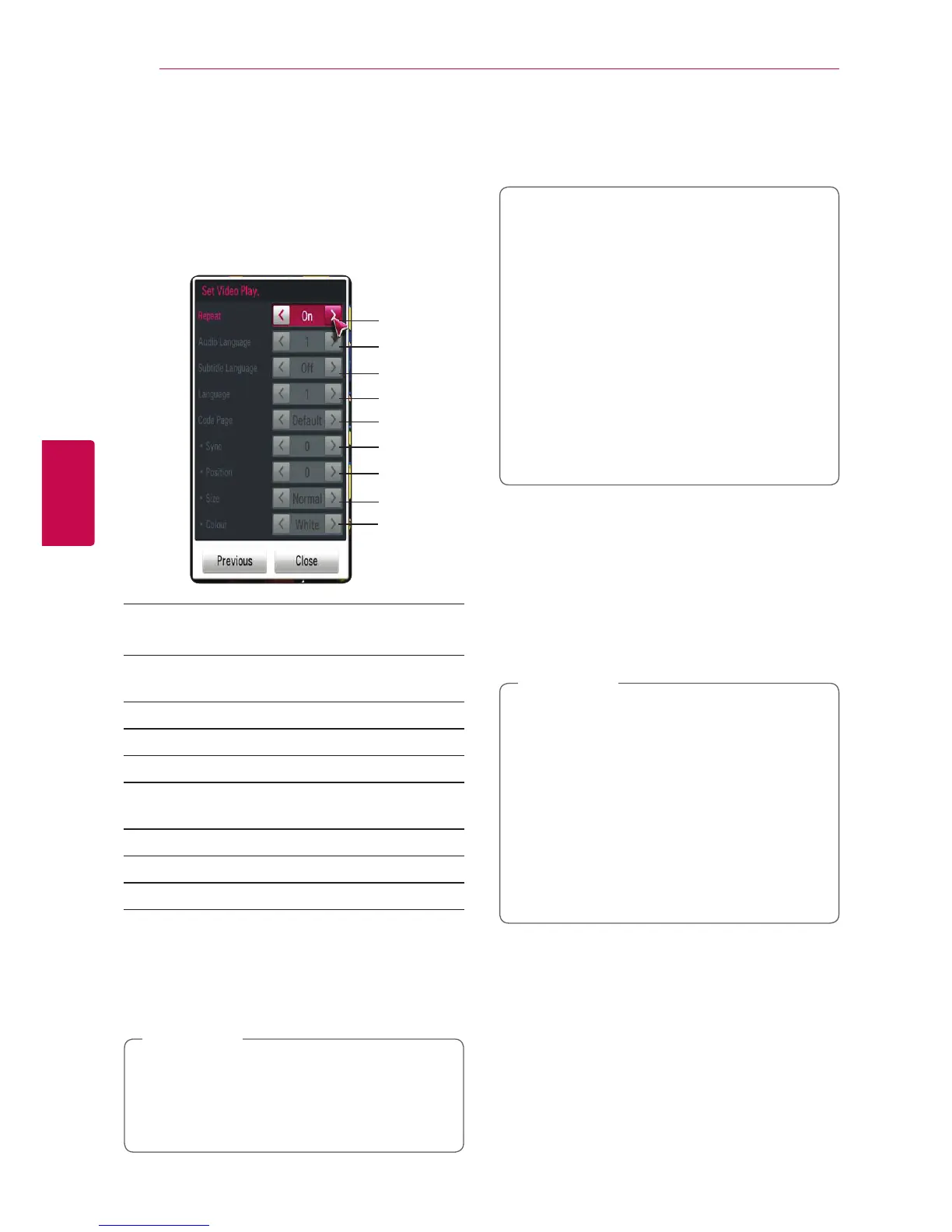
2. Select [Set Video Play] or [Picture Size], [Set 3D
Video] option.
c
d
e
f
b
a
g
h
i
a Repeat – All the les will be played back
repeatedly.
b Audio Language – Selected audio or
channel.
c Subtitle Language – Select subtitle On / O.
d Language – Selected subtitle.
e Code Page – Select subtitle code page.
f Sync – Synchronizes unmatched video
subtitle.
g Position – Adjust the subtitle position.
h Size – Adjust the subtitle size.
i Colour – Adjust the subtitle colour.
3. To adjust option value, use the
A/D
on the
screen .
4. Press BACK (
1
) or [Previous] to exit the option
menu.
�
If no button is pressed for a few seconds,
the on-screen display disappears.
�
Available items may dier depending on
titles.
,
Note
Setting 3D Video
This player can play 3D les which contain separate
views for the left and right eyes.
Preparation
In order to playback 3D les in stereoscopic 3D
mode, you need to:
Check your TV is 3D capable and has HDMI
input(s).
Wear 3D glasses to enjoy the 3D experience
if it is necessary.
Check whether the 3Dtitle is the 3D le or
not.
Connect an HDMI cable (Type A, High
Speed HDMI™ Cable) between the player’s
HDMI output and TV’s HDMI input.
1. Press HOME (
n
).
2. Play a 3D le in the unit.
3. While playback or pause, press
m
(INFO/MENU).
4. [Set Video Play], [Picture Size] and [Set 3D Video]
options are displayed.
5. Select
A/D
to set [Set 3D Video] option.
6. To return to the file list, press
Z
(Stop).
�
When playing 3D le, do not use 3D(ON/
OFF) button in your TV remote control. The
screen may be distorted. We recommend to
watch 3D movie by selecting [Set 3D Video]
on the unit.
�
If you select [Set 3D Video] option to play
a normal le, the le may be divided or
distorted.
�
During playback 3D le, magic pointer will
be disappeared.
,
Note
Picture size
you can select picture size by selecting original or
full during playback a video le.
1. While playing a video le, press
m
(INFO/
MENU) button.
2. [Picture Size] option is displayed.
3. Select
A/D
to adjust [Picture Size] option.


 To Next Page