EasyManua.ls Logo

Life EVOS XL Core - User Manual

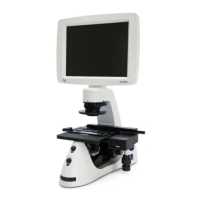
Life EVOS XL Core
37 pages
Print Icon
To Next Page IconTo Next Page
Loading...
USER GUIDE
EVOS
®
XL Core
Imaging System for TransmittedLight Applications
Catalog Number AMEX1000
Publication Number MAN0007989
Revision A.0
For Research Use Only. Not for use in diagnostic procedures.

Questions and Answers

  • T
    Tiffany GrayAug 16, 2025
    What to do if the Life Microscope LCD screen is black?
    • A
      amber67Aug 17, 2025
      If the Life Microscope LCD screen is black, but the blue LED below the LCD screen is on, try adjusting the illumination slider or wheel. Also, make sure the objective turret is positioned to allow light to pass through the objective. Check that the phase turret on the condenser isn't stuck between settings. Ensure the specimen is centered over the objective. Finally, confirm the power supply is properly connected and the power switch is turned on, indicated by the blue LED below the LCD screen.
  • H
    hcontrerasAug 22, 2025
    What to do if the onscreen Save button on Life EVOS XL Core does not respond?
    • J
      Jose HarrellAug 22, 2025
      If the onscreen Save button on your Life Microscope isn't responding, and the USB icon appears gray, plug in a USB drive. If a USB is already plugged in but not recognized, the issue might be with the USB format or a locked flash drive. Try unlocking the flash drive or using a different USB. Also, ensure that the USB flash drive is FAT32 formatted.
  • S
    staciesalasAug 25, 2025
    How to fix a dim image on a Life EVOS XL Core Microscope, even at the brightest setting?
    • S
      steve69Aug 26, 2025
      If the image on your Life Microscope is too dim, even at the brightest setting, set the phase turret to the BF position. Also, if a condenser slider from a different EVOS® instrument has been inserted into the condenser, remove it, as sliders aren't needed for this instrument.
  • C
    Cindy AllenAug 27, 2025
    How to activate onscreen controls on Life Microscope?
    • C
      corey56Aug 27, 2025
      To activate the onscreen controls on the Life Microscope, install the wireless USB mouse by following the instructions under “Wireless Mouse”. The onscreen controls are only active when a mouse is installed. You may also need to roll the mouse over the bottom of the screen to make the onscreen controls appear.
  • T
    Timothy SuttonAug 30, 2025
    What to do if the Life EVOS XL Core image does not respond to changes?
    • N
      Nicole WilsonAug 30, 2025
      If the image on your Life Microscope isn't responding to changes in focus or stage position, click the LIVE button to return to real-time observation. Note that a red USB icon on the Save button indicates there is an unsaved frozen image, which will be lost unless it is saved before clicking LIVE.
  • M
    Mary MaloneSep 2, 2025
    How to remove specks, dots, or blurs from Life EVOS XL Core image?
    • M
      michael79Sep 2, 2025
      To remove specks, dots, or blurs from your Life Microscope image, clean the objectives following the instructions under “Objective Lens Care”.
  • L
    Lisa MurphySep 5, 2025
    Why is the focus uneven across the Life EVOS XL Core screen?
    • E
      Eric MckinneySep 5, 2025
      If you're experiencing uneven focus across the screen of your Life Microscope, make sure the specimen is positioned flat on the stage and that the specimen’s thickness is even.
  • P
    peter83Sep 7, 2025
    What causes focusing issues on Life Microscope with coverslipped slides?
    • G
      gonzalezkyleSep 7, 2025
      If you're having difficulty focusing on a coverslipped specimen on a standard slide with your Life Microscope, place the slide so that the coverslip is facing up. Long working-distance objectives require a thick optical substrate and image best through 1.0–1.5 mm of glass or plastic.
  • B
    Bruce TorresSep 10, 2025
    How to fix a loose mechanical stage on Life Microscope?
    • A
      Amber SharpSep 10, 2025
      To fix a mechanical stage that shifts loosely over the fixed stage on your Life Microscope, tighten the screws under the stage. See “Appendix B: Installing the Attachable Mechanical Stage”.
  • I
    Isaac TorresSep 10, 2025
    Why doesn't my Life EVOS XL Core mouse work?
    • K
      Kevin PadillaSep 12, 2025
      If your Life Microscope mouse isn't working, first ensure the wireless mouse receiver is properly connected to the USB drive. Then, check the mouse battery and replace it if necessary. Finally, try removing any nearby wireless devices that could be interfering with the mouse's signal.

Summary

Setup

Standard Items Included

Lists components provided with the EVOS XL Core Imaging System.

Operating Environment

Specifies conditions for setting up and operating the EVOS XL Core Imaging System.

Power Supply

Details the procedure for connecting the power supply to the instrument.

Quick Reference: Instrument Controls

Operation

Basic Operation

Provides step-by-step instructions for the fundamental operation of the imaging system.

Care and Maintenance

General Care

Outlines general procedures for maintaining the instrument.

Troubleshooting

Specifications

Installing the Attachable Mechanical Stage

Safety

General Instrument Safety

Covers essential safety practices for operating the instrument.

Chemical Safety

Provides guidelines for the safe handling of chemicals used with the instrument.

Chemical Waste Safety

Outlines procedures for the safe disposal of chemical waste.

Electrical Safety

Details critical safety precautions related to the instrument's electrical components.

Physical Hazard Safety

Addresses safety concerns related to physical hazards associated with the instrument.

Biological Hazard Safety

Covers safety protocols for handling biological samples with the instrument.

Life EVOS XL Core Specifications

General IconGeneral
Light SourceLED
Objectives4x, 10x, 40x
Focusing SystemCoarse and fine focusing
StageMechanical Stage
Power Supply100-240V AC, 50/60 Hz