EasyManua.ls Logo

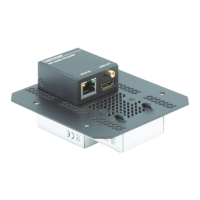
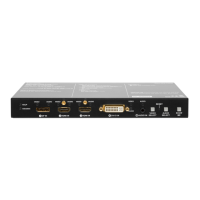
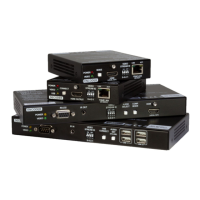
Lightware HDMI-TPS-TX210 - User Manual

Lightware HDMI-TPS-TX210
159 pages
Print Icon
To Next Page IconTo Next Page
Loading...
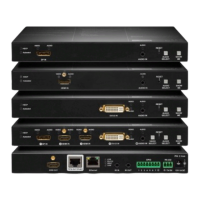
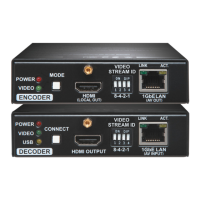
HDMI-TPS-TX210, HDMI-TPS-TX220
HDMI-TPS-TX226
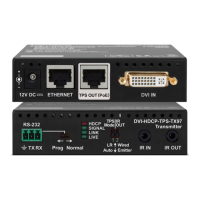
DVI-HDCP-TPS-TX210, DVI-HDCP-TPS-TX220
DP-TPS-TX210, DP-TPS-TX220
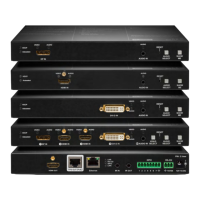
SW4-TPS-TX240, SW4-TPS-TX240-Plus
User’s Manual
HDBaseT
TM
Multimedia Extender
v3.2

Table of Contents

Other manuals for Lightware HDMI-TPS-TX210

Questions and Answers

  • M
    marykennedyAug 19, 2025
    Why is there no picture on my Lightware HDMI-TPS-TX210's video output?
    • M
      Megan RodriguezAug 19, 2025
      Several factors can cause a missing picture on the video output: * The devices might not be powered correctly. Ensure all extenders and connected devices are properly powered, and try unplugging and reconnecting them. * There may be a cable connection issue. Verify that all video and TPS cables are securely connected. * There could be a problem with the TPS mode. Check the current TPS mode and the selected modes on the extenders. * The input or output port might be muted. Verify the mute state of both input and output ports. * The display may not support the current video format. Check the emulated EDID and try selecting a different one, such as emulating the display's EDID on the input port. * HDCP might be disabled. Enable HDCP on both the input and output ports.
  • J
    Jacqueline DelgadoAug 21, 2025
    What to do if there is no audio on the Lightware HDMI-TPS-TX210 output?
    • E
      Erik CastilloAug 21, 2025
      If there's no audio on the output, consider these potential causes: * The source audio volume may be too low or muted. Check the audio settings of the source. * The audio input port could be muted. Check the audio input port properties. * The audio output port might be muted. Verify the output port properties.
  • J
    Jennifer DownsAug 23, 2025
    What to do if the Lightware HDMI-TPS-TX210 displays the wrong picture?
    • F
      Francisco WallsAug 23, 2025
      If the video output displays an incorrect picture, it might be due to: * The video output being set to a static test pattern (no sync screen). Check the test pattern settings in the properties of the output ports. * The video output being set to a test pattern (no sync screen) because there is no picture on the video source. Check the video settings of the source.
  • P
    pricecrystalAug 26, 2025
    Why can't I establish a LAN connection with my Lightware HDMI-TPS-TX210?
    • T
      Timothy RamirezAug 26, 2025
      If you're unable to establish a LAN connection, it could be due to: * An incorrect static IP address. Try using a dynamic IP address by enabling the DHCP option. * If that doesn't work, restore the factory default settings (with a fixed IP address).
  • T
    Travis StephensonAug 27, 2025
    Why does my Lightware HDMI-TPS-TX210 HDMI output signal have no audio?
    • W
      webbdavidAug 27, 2025
      If the HDMI output signal lacks audio, it could be because: * The HDMI mode was set to DVI. Check the output port properties and set the signal type to HDMI or Auto. * A DVI EDID is being emulated. Check the EDID settings and select an HDMI EDID to emulate.
  • N
    Nathan JohnsonAug 30, 2025
    What to do if my Lightware Extender connected serial device does not respond?
    • C
      Chase WatsonAug 30, 2025
      If a connected serial device isn't responding, consider the following: * There may be a cable connection problem. Check the connectors to ensure a secure fit and verify the wiring of the plugs. * The RS-232 settings might be different. Check the port settings of the transmitter and the connected serial device(s). * The RS-232 mode might be incorrect. Check the RS-232 mode settings (control, command injection, or disconnected).
  • M
    Melissa HarmonSep 1, 2025
    What to do if my Lightware Extender receives error messages continuously?
    • E
      ewingmichelleSep 1, 2025
      If you're receiving continuous error messages, it might be due to a different protocol being set. Check the port protocol settings (LW2 / LW3) and use the proper protocol commands.
  • M
    Misty NixonSep 3, 2025
    How to make Lightware HDMI-TPS-TX210 Extender read out the EDID again?
    • T
      Taylor SaundersSep 3, 2025
      You need to restart your source to make it read out the EDID again.
  • J
    Joshua AndersonSep 7, 2025
    What to do if there is no audio output from Lightware Transmitter?
    • J
      Jason CollinsSep 7, 2025
      If there's no audio present on the output of your Lightware Transmitter, consider the following: * **Crosspoint Settings:** Verify the audio layer crosspoint settings to ensure the correct audio port is switched to the output. * **Source Volume:** Check the audio settings of the source device to ensure the volume is not low or muted. * **Output Port Mute:** Review the output port properties to confirm it is not muted. * **Analog Audio Volume:** If using analog audio, check the Analog audio input port settings and ensure the volume is not set too low.
  • D
    David SuttonSep 9, 2025
    Why does my Lightware Transmitter HDMI output have no audio?
    • R
      Rachel ThomasSep 9, 2025
      If your Lightware Transmitter's HDMI output signal contains no audio, check the following: * **HDMI Mode:** Verify the properties of the output port and ensure it is set to HDMI or Auto, not DVI. * **EDID Emulation:** Check the EDID settings and select an HDMI EDID to emulate, rather than a DVI EDID.

Summary

Important Safety Instructions

1. INTRODUCTION

1.1. Description

Overview of the transmitter family, its capabilities, and supported signals like HDMI, DP, and analog audio.

1.2. Compatible Devices

Lists compatible Lightware TPS receivers, matrix TPS, and third-party HDBaseT extenders.

1.5. Features

Details the various features of the device, including support for 4K, 3D, audio embedding, and control interfaces.

1.6. Model Comparison

Compares the features and specifications of different available models of the transmitter.

1.7. Typical Applications

Illustrates common system diagrams and standalone application setups using the device.

2. PRODUCT OVERVIEW

2.1. Front Views

Illustrates the front panel layout of various device models, highlighting connectors and buttons.

2.2. Rear Views

Shows the rear panel layout of device models, detailing ports like HDMI, TPS, Ethernet, and RS-232.

2.3. Front Panel LEDs

Explains the function and status indications of the LEDs on the front panel.

2.4. Rear Panel LEDs

Describes the status indications provided by the LEDs on the rear panel.

3. INSTALLATION

4. DEVICE CONCEPT

4.11. The Event Manager Feature

Details how the Event Manager allows devices to react to conditions by performing actions.

5. SOFTWARE CONTROL - LIGHTWARE DEVICE CONTROLLER

5.3. Establishing the Connection

Details the process of connecting the device to a computer via Ethernet or RS-232 using LDC.

5.7. Diagnostic Tools

Introduces diagnostic tools like Cable Diagnostics for analyzing signal integrity and quality.

5.8. EDID Menu

Covers advanced EDID management, including emulation, learning, exporting, and deleting EDIDs.

5.9. Control Menu

Details control options for RS-232, GPIO, and Ethernet ports within the LDC software.

5.10. Event Manager

Explains how to create and manage events by defining conditions, actions, and delays.

5.11. Settings Menu

Covers device settings including status, network configuration, front panel options, and backup.

5.13. Configuration Cloning (Backup Tab)

Explains how to back up and restore device configurations, enabling cloning across multiple devices.

6. LW2 PROGRAMMERS REFERENCE

7. LW3 PROGRAMMERS REFERENCE

7.4. System Commands

Details LW3 commands for querying product information, managing device labels, and resetting the device.

7.6. Video Port Settings

Explains LW3 commands for managing video input/output status, crosspoint settings, and autoselect.

7.7. Audio Port Settings

Details LW3 commands for managing audio input/output status, crosspoint, and autoselect settings.

7.8. Event Manager Basics

Explains how to arrange events by defining conditions, actions, and using the Event Manager Tool Kit.

7.11. Ethernet Port Configuration

Explains LW3 commands for configuring Ethernet port settings like DHCP, IP address, and MAC filtering.

7.15. TCP Message Recognizer

Covers LW3 commands for setting up TCP clients, delimiters, timeouts, and message recognition.

7.16. RS-232 Port Configuration

Details LW3 commands for configuring RS-232 port settings like protocol, baud rate, and operation mode.

7.18. RS-232 Message Recognizer

Covers LW3 commands for enabling and configuring the RS-232 message recognizer.

7.23. EDID Management

Explains LW3 commands for querying and managing EDID settings, including emulation and copying.

8. FIRMWARE UPDATE

8.4. The Updating Steps

Details the step-by-step process for updating device firmware, including backup and factory reset.

8.8. If the Update is not successful

Provides guidance on troubleshooting firmware update failures and interpreting exit codes.

9. TROUBLESHOOTING

10. TECHNOLOGIES

10.1. EDID Management

Explains the Extended Display Identification Data (EDID) and its role in display communication and resolution.

10.2. HDCP Management

Details HDCP encryption, handling protected and unprotected content, and enabling/disabling HDCP.

10.3. Pixel Accurate Reclocking

Describes signal reclocking technology to stabilize signals, reduce jitter, and eliminate skew.

11. APPENDIX

Lightware HDMI-TPS-TX210 Specifications

General IconGeneral
CategoryExtender
ModelHDMI-TPS-TX210
Signal TypeHDMI
Input Ports1 x HDMI
InputHDMI
Max Distance100m
HDCP SupportYes
OutputTP
Operating Temperature0°C to +40°C
Storage Temperature-20°C - +70°C
Connector TypeHDMI, RJ45
TypeHDBaseT transmitter

Related product manuals