EasyManua.ls Logo

Lightware HDMI20-OPTC-TX220-Pro - User Manual

Lightware HDMI20-OPTC-TX220-Pro
75 pages
Print Icon
To Next Page IconTo Next Page
Loading...
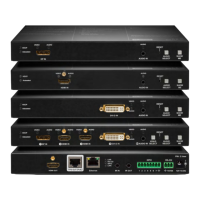
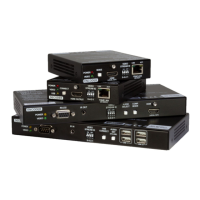
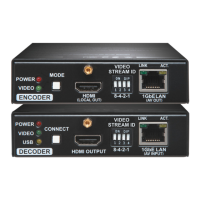
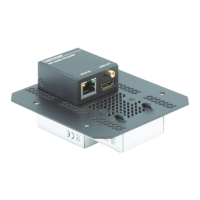
HDMI20-OPTC-TX220-PRO, -RX220-PRO
HDMI20-OPTC-TX220-FOX, -RX220-FOX
HDMI20-OPTC-TX220-NTQ, -RX220-NTQ
HDMI20-OPTC-TX220-PCN, -RX220-PCN
User’s Manual
Multimode Single Fiber Optical Extender

Table of Contents

Other manuals for Lightware HDMI20-OPTC-TX220-Pro

Questions and Answers

  • G
    garciabrookeAug 18, 2025
    What to do if connected serial device cannot be controlled using Lightware HDMI20-OPTC-TX220-Pro?
    • A
      Andrew DanielAug 18, 2025
      If you cannot control a connected serial device, consider these potential causes: * There is a cable connection problem. Ensure your serial cable is properly connected, and verify the wiring of the plugs. * The RS-232 mode is not correctly configured. Check the RS-232 mode settings (pass, control, and command injection).
  • P
    Patty BoydAug 21, 2025
    What to do if select/function button not toggles the inputs/ conversion modes on Lightware Extender?
    • M
      Mary HansonAug 21, 2025
      If the select/function button on your Lightware Extender does not toggle the inputs/conversion modes, the front panel buttons may be locked. Try unlocking the buttons.
  • E
    everettpatriciaAug 26, 2025
    What to do if HDMI output signal contains no audio on Lightware HDMI20-OPTC-TX220-Pro Extender?
    • B
      Brenda OrtizAug 26, 2025
      If the HDMI output signal from your Lightware Extender contains no audio, the issue might be: * The video signal type is set to DVI. Check the output port's signal type properties and change it to HDMI or Auto. * A DVI EDID is being emulated. Check the EDID settings and select an HDMI EDID to emulate.
  • T
    Taylor WalterAug 28, 2025
    How to fix Lightware HDMI20-OPTC-TX220-Pro Extender when no LAN connection can be established?
    • J
      Janet WilliamsAug 28, 2025
      If you're unable to establish a LAN connection with the Lightware Extender: * An incorrect IP address may be set. If using a fixed IP, switch to a dynamic IP address by enabling the DHCP option. * There might be an IP address conflict. Check the IP addresses of other devices on the network.
  • N
    Nicole SalinasAug 30, 2025
    Why are no LEDs lit on my Lightware HDMI20-OPTC-TX220-Pro Extender?
    • B
      Brandon CunninghamAug 30, 2025
      If no LEDs are lit on your Lightware Extender, the dark mode may be enabled. Try disabling the dark mode.
  • J
    jonathan50Sep 1, 2025
    How to make Lightware HDMI20-OPTC-TX220-Pro read changed EDID?
    • J
      Jerry WatsonSep 1, 2025
      If you've changed the EDID on an input port of the Lightware device and nothing happens, you need to restart your source to make it read out the EDID again.
  • A
    Adam MooreSep 6, 2025
    Why does the HDMI output signal contain no audio on Lightware HDMI20-OPTC-TX220-Pro?
    • C
      colemandavidSep 6, 2025
      If the HDMI output signal contains no audio, it could be due to the video signal type being set to DVI. To resolve this, check the signal type properties of the output port and set it to HDMI or Auto. Another potential cause is DVI EDID emulation; in this case, check the EDID and select an HDMI EDID to emulate.
  • O
    omeyersSep 8, 2025
    What to do if no LAN connection can be established on Lightware Extender?
    • R
      Robert JordanSep 8, 2025
      If no LAN connection can be established, it might be due to an incorrectly set IP address. If you are using a fixed IP, try using a dynamic IP address by enabling the DHCP option. There may also be an IP address conflict, so check the IP addresses of other devices on the network. You can also try restoring the factory default settings (with fix IP).
  • S
    Steven JonesSep 12, 2025
    How to fix a Lightware HDMI20-OPTC-TX220-Pro Extender when a connected serial device cannot be controlled?
    • H
      Hector CohenSep 12, 2025
      If a connected serial device cannot be controlled, first check whether your serial cable is properly connected and verify the wiring of the plugs. Also, check the RS-232 mode settings (pass, control, and command injection).
  • A
    Andrew AndersonSep 13, 2025
    What to do if I changed to a different EDID on an input port of the Lightware HDMI20-OPTC-TX220-Pro Extender but nothing happens?
    • Z
      Zachary ValdezSep 13, 2025
      To apply the new EDID settings, you need to restart your source to make it read out the EDID again.

Summary

Important Safety Instructions

Class I Apparatus Construction

Safety features and power connection requirements for Class I apparatus.

1. Introduction

1.1. Description

Details the features and benefits of the HDMI20-OPTC series extenders.

1.6. Features of the Device

Video and Signal Features

Covers 4K UHD, 700m transmission, 18 Gbps bandwidth, and 4:2:0 conversion.

Advanced Functionality

Includes HDMI splitting, local output, graphic display, dark mode, and event manager.

2. Installation and Connection

2.1. Mounting Options

Explains various mounting methods including rack and truss installation.

2.2. Connecting Steps

Provides a step-by-step guide for connecting the device to sources and displays.

3. Product Overview

3.1. Front View

Details the controls and indicators on the front panel of the transmitter and receiver.

3.7. Video and Audio Interface

3.7.1. Output Conversion Modes

Describes Transparent, Split, and Downsample conversion modes for video output.

3.8. Control Features

3.8.3. Serial Interface

4. Operation

4.1. Powering on

Instructions for powering on the device and post-self-test behavior.

4.2. Front Panel Operations

Explains the function of front panel buttons and status LEDs for transmitter and receiver.

4.3. Front Panel LCD Menu Operations

4.3. Ports and EDID Menu

4.3.3. EDID Menu

Explains advanced EDID management including viewing, switching, and saving EDIDs.

5. Software Control - Lightware Device Controller

5.1. Install and Upgrade LDC

Instructions for installing and upgrading the Lightware Device Controller software.

5.2. Running the LDC

How to start and connect the LDC software to a device using IP address.

5.3. Establishing Connection and Tools

5.3. Establishing the Connection

Steps to connect the device to the computer via USB, RS-232, or Ethernet using LDC.

5.4. Crosspoint Menu

5.5. Port Properties Window

5.6. EDID Menu

5.6.1. Sources and Destinations

Explains the EDID memory structure and types of EDID emulation.

5.6.2. EDID Operations

Covers changing emulated EDIDs, learning EDIDs, and exporting EDIDs.

5.6.4. Editing an EDID

5.6.5. Creating an EDID

5.7. Control Menu

5.8. Event Manager

5.8.1. The Event Editor

Explains the interface and components of the Event editor for creating conditions and actions.

5.8.2. Create or Modify an Event

Guides on creating or modifying events using wizard, advanced, or link modes.

5.9. Settings Menu

5.9.2. Network Tab

Configures IP address, DHCP settings, and network parameters.

5.9.4. Backup Tab (Configuration Cloning)

5.10. Advanced View Window

6. LW3 Programmers Reference

6.1. Overview

Introduces the LW3 protocol, its structure, and application.

6.2. Protocol Rules

Outlines general rules and syntax for LW3 protocol commands.

6.3. System Commands

6.3. Front Panel and Dark Mode Commands

6.3.6. Restoring Factory Default Settings

Command to restore the device to its factory default configuration.

6.4. Video Port and Crosspoint Settings

6.4. Port Locking and HDCP Settings

6.4.7. HDCP Setting

Command to manage HDCP version settings for input ports.

6.5. Network Configuration

6.6. RS-232 Port Configuration

6.7. Sending Messages via Communication Ports

RS-232, TCP, and UDP Messaging

Commands for sending ASCII, text, and binary messages via RS-232, TCP, and UDP ports.

6.8. EDID Management

6.8.4. Emulating EDID to Input Port

Command to switch or emulate an EDID to a specific input port.

6.8. EDID Management Operations

6.8.5. Copying EDID to User Memory

Command to copy EDIDs from factory, user, or dynamic sources to user memory.

7. Firmware Upgrade

7.4. Firmware Upgrading Steps

7.5. Keeping the Configuration Settings

8. Troubleshooting

Video Signal Issues

Addresses problems related to video signal transmission, cable issues, and format compatibility.

HDMI Output Signal No Audio

Troubleshooting steps for when the HDMI output has no audio signal.

8. Troubleshooting Common Issues

RS-232 Signal Issues

Addresses problems with RS-232 signal transmission and connected devices.

Network Connection Issues

Troubleshooting steps for No LAN connection, IP conflicts, and DHCP issues.

9. Technologies

9.1. EDID Management

Explains the role of EDID, its communication, and common problems.

9.1.2. Advanced EDID Management

Details Lightware's advanced EDID management features for system integration.

9.2. HDCP Management

Protected Content and Encryption

Explains how HDCP affects content and disabling unnecessary encryption.

9.3. Pixel Accurate Reclocking

Understanding Signal Skew and Jitter

Explains signal integrity issues like intra-pair/inter-pair skew and jitter.

10. Appendix

10.1. Specification

Lists detailed technical specifications of the device, including compliance, power, and enclosure details.

10.2. Maximum Extension Distances

10.4. Factory Default Settings

Lightware HDMI20-OPTC-TX220-Pro Specifications

General IconGeneral
CategoryExtender
ModelHDMI20-OPTC-TX220-Pro
ManufacturerLightware
Input Ports1 x HDMI
Max Resolution4K@60Hz
Fiber OpticYes
Operating Temperature0°C to +50°C
Storage Temperature-20°C to +60°C
Signal TypeHDMI
HDCP SupportHDCP 2.2
Power Supply5V DC

Related product manuals