EasyManua.ls Logo

Lightware VINX-110-HDMI-DEC - User Manual

Lightware VINX-110-HDMI-DEC
103 pages
Print Icon
To Next Page IconTo Next Page
Loading...
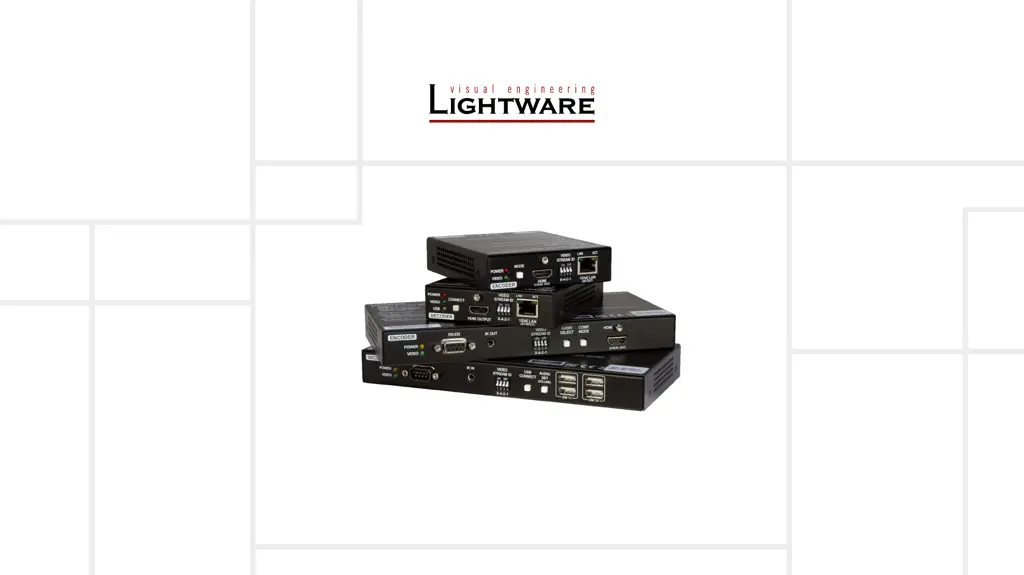
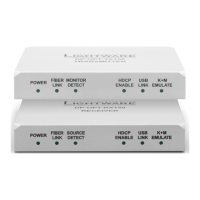
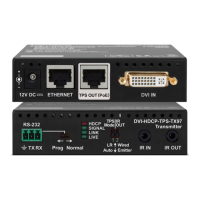
VINX-120-HDMI-ENC
VINX-110-HDMI-DEC
VINX-210AP-HDMI-ENC
VINX-120AP-HDMI-ENC
VINX-110AP-HDMI-DEC
VINX-120AP-HDMI-ENC-DNT
User’s Manual
AV Over IP Multimedia Extender
v2.3 12-03-2021

Table of Contents

Other manuals for Lightware VINX-110-HDMI-DEC

Questions and Answers

  • T
    Timothy DiazAug 11, 2025
    What to do if the video stream cannot be changed by the keyboard shortcut on Lightware VINX-110-HDMI-DEC?
    • N
      Nicholas GardnerAug 11, 2025
      If you're unable to change the video stream using keyboard shortcuts, here are some possible solutions: * If your keyboard is connected to a USB 2.0 port, connect it to the USB 1.1 port instead. * Ensure that the shortcut is assigned correctly in the settings. If not, set the shortcut(s) again. * Verify that the keyboard is connected to the correct Decoder. Connect it to the desired Decoder. * Check if another Decoder is selected for USB transmission. Look at the LEDs or the USB settings in the built-in web page.
  • D
    dcastilloAug 18, 2025
    What to do if there is no video on the screen using Lightware Extender?
    • S
      Sarah FisherAug 18, 2025
      If there's no video on the screen, here are a few things to check: * First, ensure that there is a video signal coming in and that all cable connections are secure. * Next, verify that the Video Stream IDs are correctly assigned in the extender settings. * If HDCP is disabled (EDID information cannot be read), enable HDCP on the input of the Encoder. In some cases, the source device might not be able to read the EDID from the Encoder. * Also, confirm you are not sending HDCP-encrypted content to a non-HDCP capable device, if so, replace it with a HDCP-capable one.
  • D
    David CoffeyAug 25, 2025
    Why I cannot connect to a Lightware VINX-110-HDMI-DEC?
    • S
      starkpamAug 26, 2025
      If you're having trouble connecting to a Lightware Extender, consider these potential causes: * The extenders might not have received an IP address. If this is the case, reboot the VINX devices, as the Ethernet switch might need more time to be ready than the extenders. * The extender might not be properly connected. Check the LEDs and cable connections. * The extenders and your PC may not be on the same subnet. Ensure that all devices are located in the same subnet.
  • M
    Melissa ThomasSep 2, 2025
    How to connect the Encoder and the computer over USB with Lightware VINX-110-HDMI-DEC?
    • S
      schmittdawnSep 2, 2025
      Connect the supplied USB cable between the computer and the Encoder.

Summary

Product Overview and Hardware

VINX Model Details

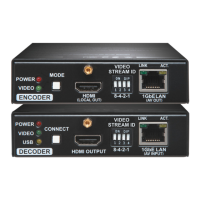
Detailed overview of specific VINX models, including front and rear panel layouts and port descriptions.

Installation and Connections

Electrical Connections

Describes the types of ports and connectors used for power, network, audio, video, and serial connections.

Connecting Steps

Provides instructions for setting up network connections and connecting sources and sinks for Unicast and Multicast modes.

Software Control and Configuration

Connecting to the Device (Web;LDC)

Guides users on how to establish connections to VINX devices using the built-in web interface or Lightware Device Controller.

Main Settings: Encoder and Decoder

Explains how to configure general, video, and audio settings for both Encoder and Decoder units.

Programmers Reference and Commands

Firmware Upgrade and Troubleshooting

Troubleshooting Upgrade Issues

Provides guidance on how to resolve issues that may occur during or after the firmware upgrade process.

Common Issues and Solutions

Lists common symptoms and their root causes, with recommended actions and references to relevant sections.

Lightware VINX-110-HDMI-DEC Specifications

General IconGeneral
CategoryExtender
ModelVINX-110-HDMI-DEC
Input Ports1 x HDMI
Output Ports1 x HDMI
EDID ManagementYes
Power Supply5V DC
Humidity10% to 90% non-condensing
Operating Temperature0°C to +40°C
Storage Temperature-20°C to +60°C
Weight0.2 kg
Ethernet1x RJ45

Related product manuals