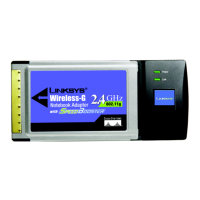
Wireless-G Notebook Adapter or Wirless-G Notebook Adapter with SpeedBooster
List of Figures
Figure 3-1: Front Panel 4
Figure 4-1: Setup Wizard’s Welcome Screen 5
Figure 4-2: Click Here to Start 6
Figure 4-3: Setup Wizard’s License Agreement 6
Figure 4-4: Connecting the Adapter 7
Figure 4-5: Available Wireless Network 7
Figure 4-6: SecureEasySetup Screen 8
Figure 4-7: SecureEasySetup Logo 8
Figure 4-8: SecureEasySetup Logo Location 8
Figure 4-9: SecureEasySetup Congratulations 9
Figure 4-10: Available Wireless Network 9
Figure 4-11: WEP Key Needed for Connection 10
Figure 4-12: WPA - Personal Needed for Connection 10
Figure 4-13: WPA2 - Personal Needed for Connection 10
Figure 4-14: Automatic Setup’s Congratulations 11
Figure 4-15: Available Wireless Network 11
Figure 4-16: Network Settings 12
Figure 4-17: Wireless Mode 12
Figure 4-18: Ad-Hoc Mode Settings 13
Figure 4-19: Wireless Security - Disabled 13
Figure 4-20: Wireless Security - WEP 14
Figure 4-21: WEP Settings 14
Figure 4-22: Wireless Security - WPA-Personal 15
Figure 4-23: WPA-Personal Settings 15
Figure 4-24: Wireless Security - WPA2-Personal 16
Figure 4-25: WPA2-Personal Settings 16
Figure 4-26: Wireless Security - WPA-Enterprise - EAP-TLS 17
Figure 4-27: Wireless Security - WPA-Enterprise - PEAP 17
Figure 4-28: Wireless Security - WPA2-Enterprise - EAP-TLS 18
Figure 4-29: Wireless Security - WPA2-Enterprise - PEAP 18



 To Next Page