Rev: 03.25.19 Page 16
CCD-0001447
Fig. 22
B
A
C
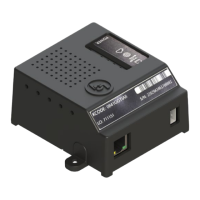
7. Enter the KCODE (Fig. 22A) found on the OneControl Cloud Gateway product label (Fig. 2), then give
the system a friendly name (Fig. 22B).
8. Click the "Add Gateway" button (Fig. 22C) to activate the selected product and associate it with the
established LCI Customer Community account.
Fig. 23
A
B
9. After successful activation, the program will bring back the main dashboard. A panel will appear
(Fig. 23) with information about the named gateway (Fig. 23A).
NOTE: Notice the page (Fig. 23) shows the friendly name given to the system, and adds: "Your gateway
is now accessible via The OneControl Mobile App" (Fig. 23B). This confirms the product has been
activated and is part of the OneControl Cloud.
The OneControl Cloud Gateway has now been activated and associated with the LCI Customer Community.


 To Next Page