Rev: 08.30.22 Page 22 CCD-0006500
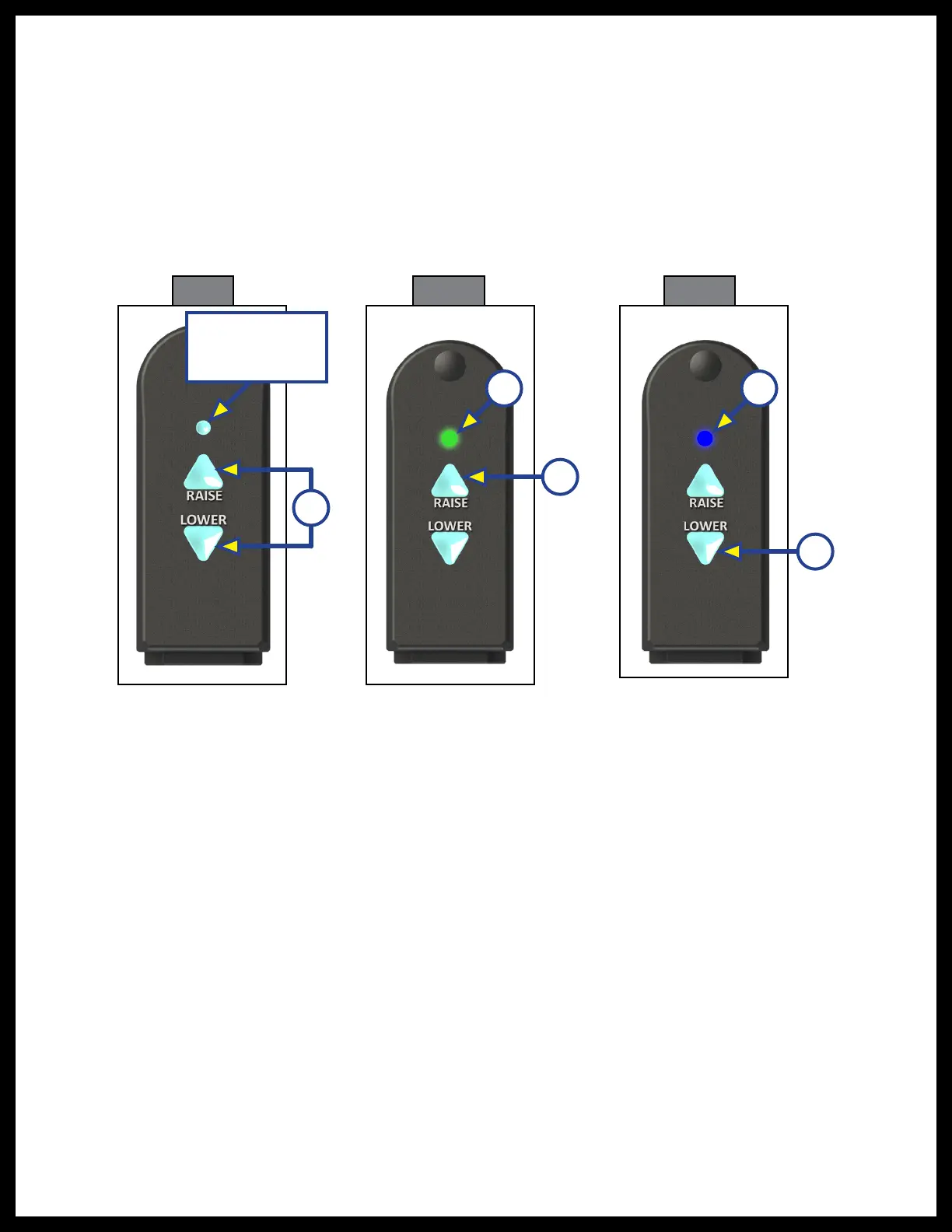
1. Touch and hold the controller's RAISE button (Fig. 10A) to fully extend the bimini top.
NOTE: Do NOT fully open the power bimini without the canvas top installed or failure of the system
willresult.
A. The controller's operation indicator light will turn on green (Fig. 10B).
B. The light will turn off after the system has completed its travel.
2. Touch and hold the controller's LOWER button (Fig. 11A) to fully retract the bimini top.
C. The controller's operation indicator light will turn on blue (Fig. 11B).
D. The light will turn off after the system has completed its travel.
3. Alternately operate the controller's RAISE and LOWER buttons to place the bimini top in various
positions to ensure proper touch controller installation.
Operation
Indicator Light
A
Fig. 9
B
A
B
A
Fig. 10 Fig. 11
Using the Bluetooth® Compatible App
The SureShade app operates in the same fashion as the physical controller. There is no operation indicator
light on the control button screen.
If using an iOS (Apple) smart device, do as follows:
1. Search the App Store for the SureShade Bimini Control app.
NOTE: When using SureShade as the search criteria, more than one SureShade app may appear (Fig. 12A).
Make sure to select SureShade Bimini Control (Fig. 12B).
A. Download and open the app (Fig. 12C).
B. Tap the I Accept button (Fig. 13A) to accept the License Agreement.



 To Next Page