Connect ID 40-55 DR+
User guide
128
Devices on PC IN
The AV input PC IN offers the possibility to connect PC or set-top box
to the TV set and to use the TV screen as output device.
Connecting PC / Set-top box
When connecting a PC or auxiliary device to the PC IN socket of the
TV set, adjust the output signal on your PC first so that it matches
one of the signals in the table in chapter Technical data, section
Signals via PC IN / HDMI.
Switch off all devices before connecting them.
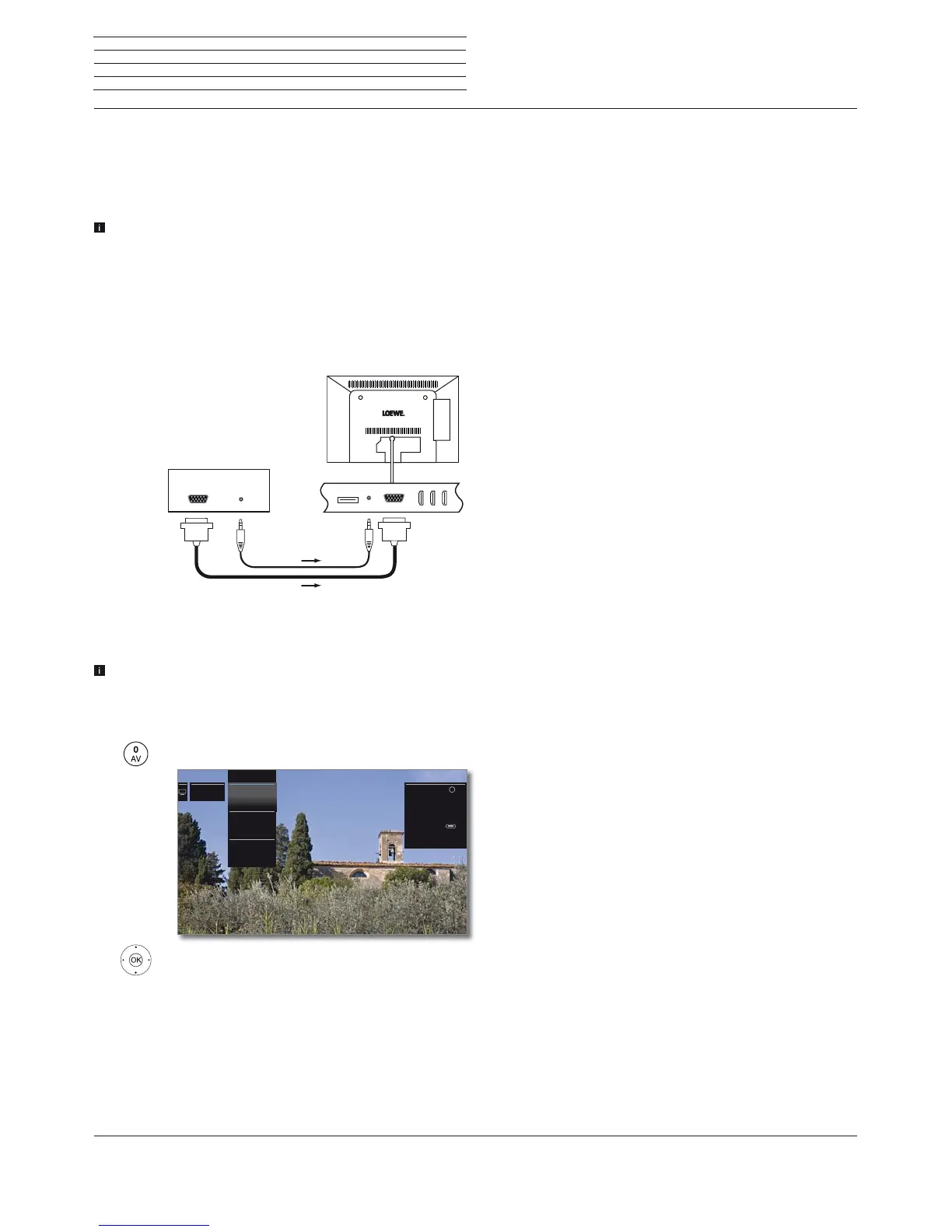
Connect the PC via a VGA cable to the PC IN socket of the TV set.
Connect the analog audio signal from the PC via a stereo jack socket
to the AUDIO IN socket of the TV set.
Alternatively, connect the digital audio output of the PC or auxiliary
equipment to the SPDIF IN socket of the TV set with a cinch cable.
The digital audio input can be assigned to the AVS or PC IN socket in
System settings ט Connections ט Assign digital audio input.
Playback from the device
Call AV list.
Select PC IN,
OK switch over.
Connection example of a PC
VGA AUDIO
PC INAUDIO IN
PC
TV set
8 VIDEO
7 PC IN
9 SPDIF
AV list
Note: If you press for
at least two seconds to
switch to the selected
channel, the screen
switches off and you will
only hear the sound.
With the button
(green), you can switch
the screen back on and
off.
OK
Adjusting the geometry of the PC picture
You can set the position (vertical, horizontal) and the phase position of
your PC. The settings you find under System settings ט Pictureט
more ... ט PC IN - Display.
Connecting devices with component connection (YPbPr / YUV)
External units with component connection YPbPr (often informally
referred to as YUV; see also Glossary) can be connected to the PC
IN socket of the TV set using a component/VGA adaptor (available
in stores).
The other units are connected as described in the left column.
External devices



 To Next Page