Page 32
User Guide MeeBox NAS
Adding a shared printer using a TCP/IP port
1. On the Start menu, click Run. The Run dialog box opens.
2. Type control printers and press Enter. The Printers and Faxes window opens.
3. Click Add a printer or double-click the Add Printer icon. The Add Printer Wizard dialog
box opens. Click Next.
4. Select Local printer attached to this computer. Clear the check box labelled
Automatically detect and install my Plug and Play printer. (See Figure 8.) Click Next.
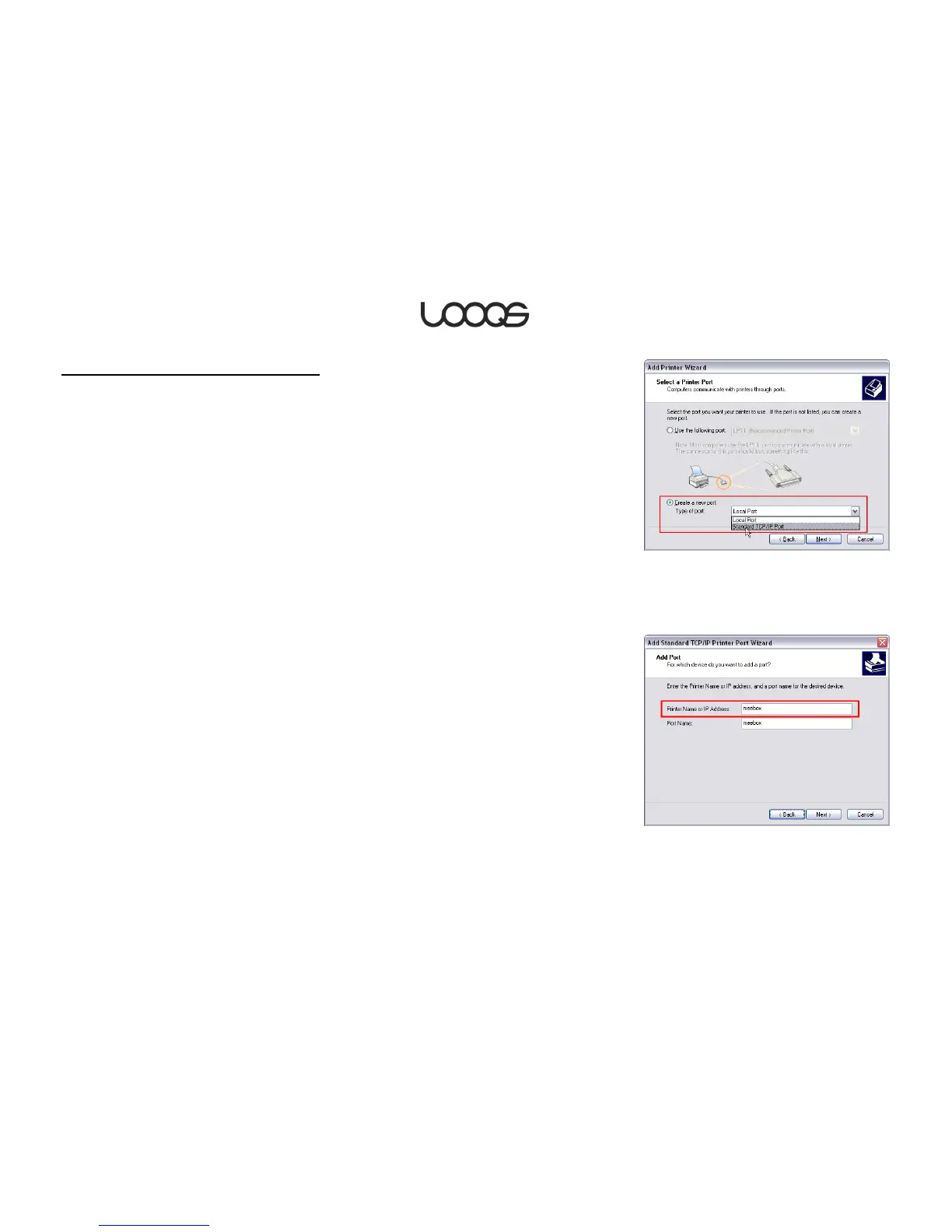
5. Select Create a new port. In the drop-down menu, select Standard TCP/IP Port (see
Figure 9). Click Next. The Add Standard TCP/IP Printer Port Wizard opens. Click Next.
6. In the Printer name or IP address box, enter MeeBox (see Figure 10). Click Next.
7. Under Device Type, select Custom, and click Next.
8. Click Finish to return to the Add Printer Wizard.
From this point forward, follow the same steps you would use to add a printer that is
attached directly to your computer.


 To Next Page