Page 33
User Guide MeeBox NAS
Adding a shared printer as a network printer
1. On the Start menu, click Run. The Run dialog box opens.
2. Type control printers and press Enter. The Printers and Faxes window opens.
3. Click Add a printer or double-click the Add Printer icon. The Add Printer Wizard dialog
box opens. Click Next.
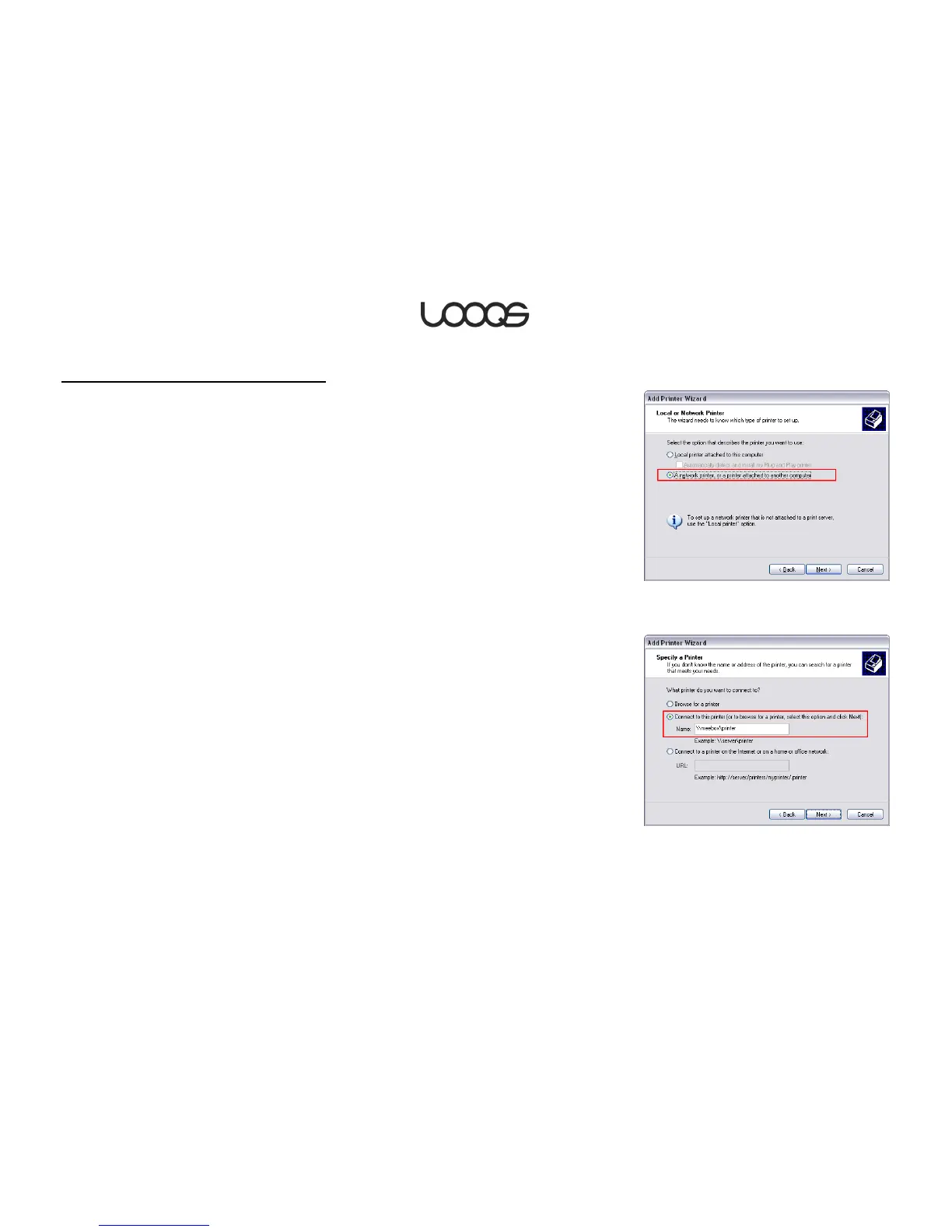
4. Select A network printer, or a printer attached to another computer (see Figure 11).
Click Next.
5. Select Connect to this printer and then, in the provided field, type \\meebox\printer
(see Figure 12). Click Next. The Connect to Printer dialog box opens.
6. Click Yes. The Connect to Printer dialog box opens again. Click OK. A second Add
Printer Wizard dialog box opens.
7. If the correct printer driver is already installed on the computer, select the printer
manufacturer and model, click OK, and skip to Step 10.
8. Click Have Disk. The Install From Disk dialog box opens.
9. Click Browse. Locate the folder containing the appropriate printer driver and click
Open. Click OK. A third Add Printer Wizard dialog box opens.
10. Select the correct printer, and then click OK.
11. If a Software License Agreement dialog box appears, click Yes.
12. Click Finish to close the Add Printer Wizard.
When you finish the Add Printer Wizard, the shared printer will appear in the Printers and
Faxes window as printer on MeeBox.


 To Next Page