LOUP ELITE DRILL/PLANTER MONITOR
•
OPERATION MANUAL
16
uNITs
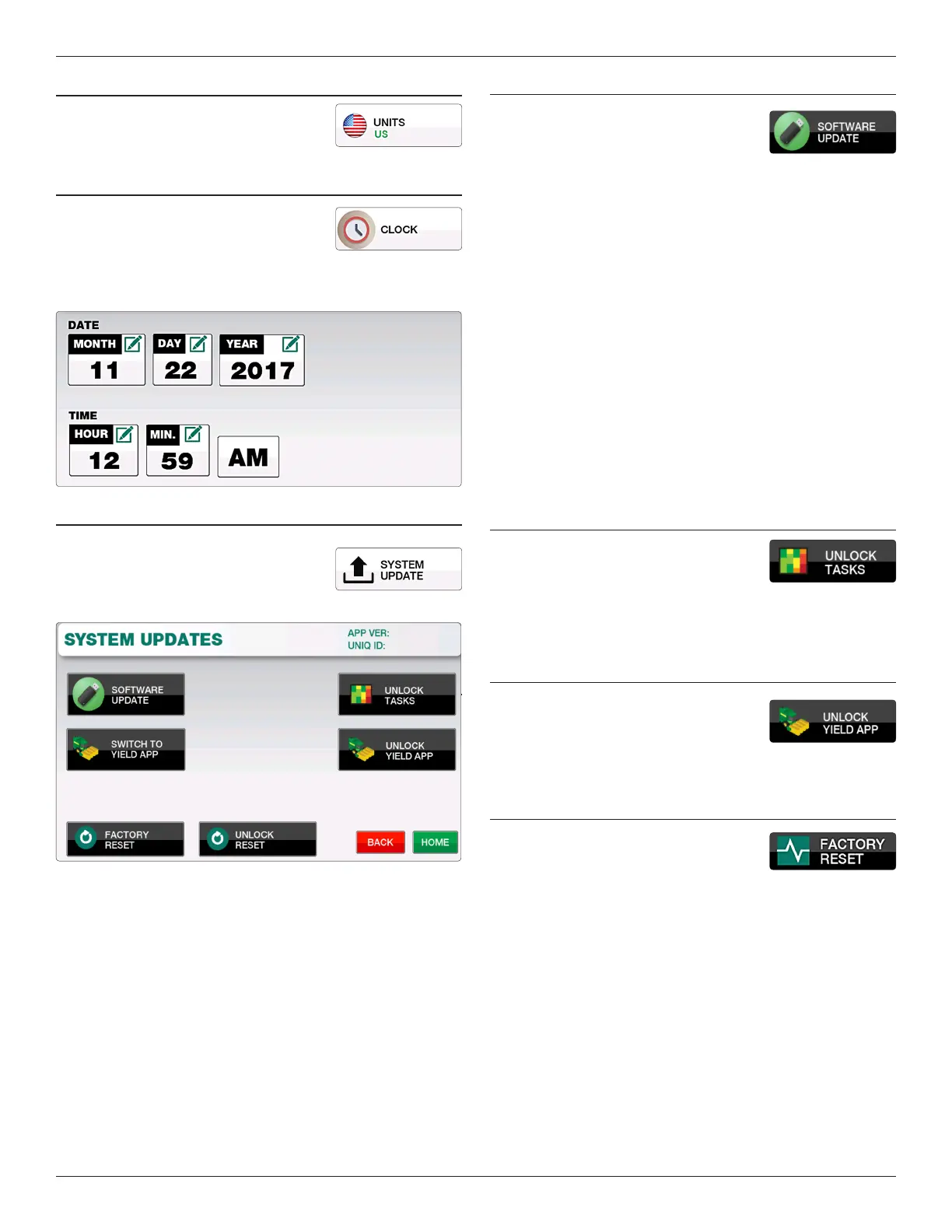
Toggles between US (feet) or Metric
(meters) units.
DATE & TIME
To set the time, simply select the related
buttons for Month, Day, Year, Hour and
Minute and enter the appropriate value into
each eld. Lastly toggle the time between AM or PM and push
“Save” to complete.
sysTEM uPDATE
e system update screen is used to update
to newer versions of soware, unlock
additional functions, or reset to factory
default settings.
sOfTWARE uPDATE
e Update App button is used to perform a
system update to newer version of soware.
To update follow the following steps:
1. On a USB drive, create a folder titled “EliteUpdate” on the
root level of the USB. Within this folder place the update
le from Loup Electronics, this should appear as a .srec le
format.
2. Insert USB into the Elite console and select the “Update
App” button. From the popup window select the version you
wish to update, newest soware versions will appear at the
top of the window.
3. Allow the application to load into the console and when
nished, cycle power to the console. e update will nish
installation upon startup.
4. Ensure the newest soware is updated by selecting the
“MENU” button and checking the “APP VER” number in the
upper right corner.
TAsks/LOggINg uNLOck
If you wish to unlock the ability to log eld
maps call Loup Electronics for the unlock
code required for this feature.
yIELD MONITORINg uNLOck
Loup Elite can be used in both seeding
and harvest applications. Contact Loup
Electronics for the unlock code for
unlocking the yield monitoring application.
fAcTORy REsET
Selecting this will reset all settings back to
Factory Default. All existing implements and
sensors will be removed from memory and
need to be reinstalled if choosing to reset the console.


 To Next Page