65
NOTE:
When adding waypoints to a route, the inserted waypoints will ap-
pear in the route in front of the waypoint you have selected. To in-
sert waypoints at the end of the route, make sure to select "(End of
route)" before adding them.
Navigate a Route
1. From the
NAVIGATION PAGE, press MENU|ENT or from the MAP PAGE,
press
MENU|MENU|↓ to ROUTE PLANNING|ENT.
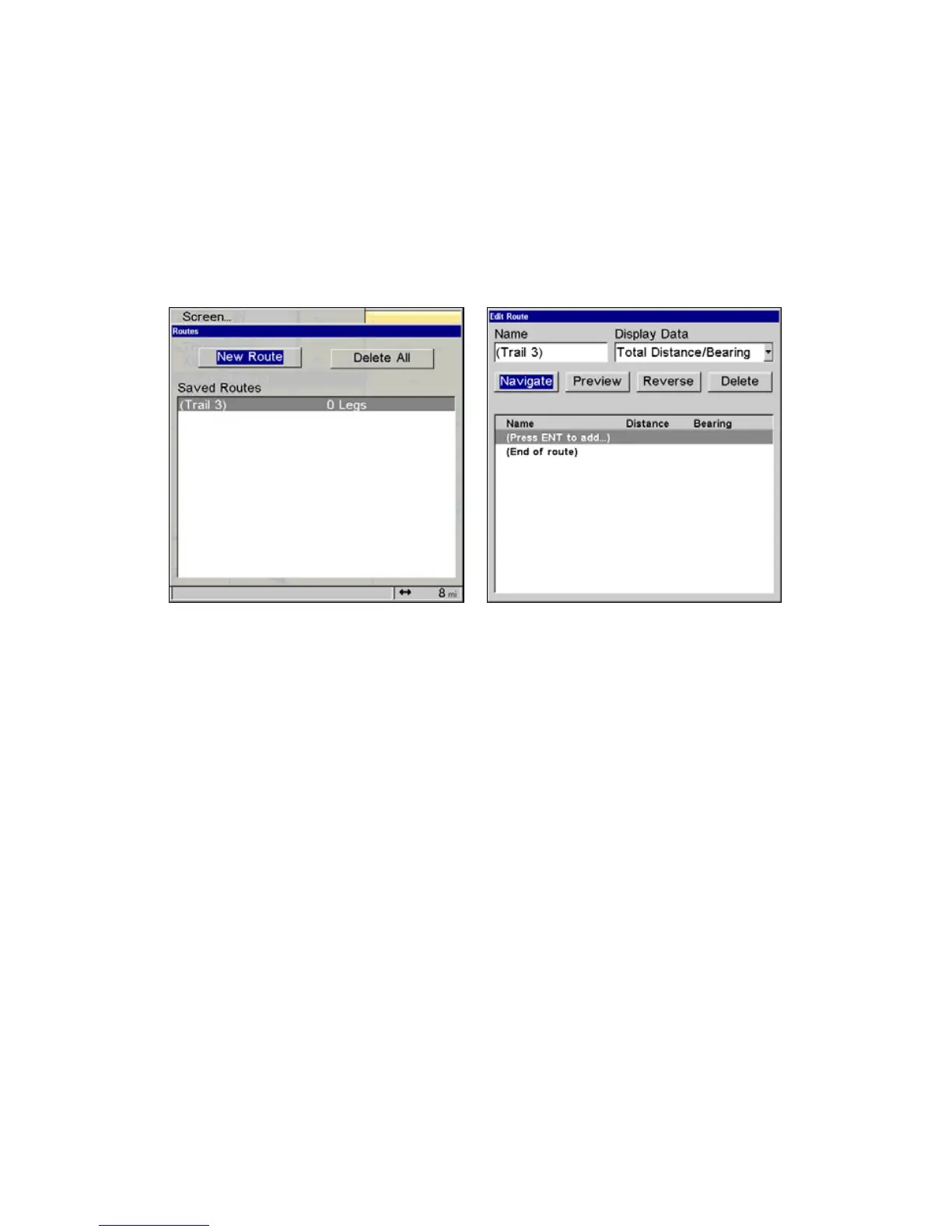
Selecting the Route Planning command on Main Menu brings up the
Routes menu, left. Edit Route menu, right. Navigate command is se-
lected in the Action box.
2. Press ↓ to select route name|ENT|↓ to NAVIGATE|ENT.
3. Upon arrival at your destination, cancel navigation:
press
MENU|MENU|↓ to CANCEL NAVIGATION|ENT|← to YES|ENT.
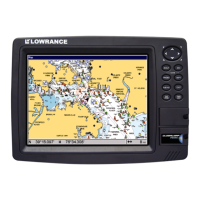
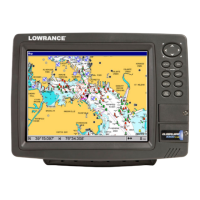
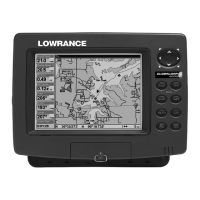
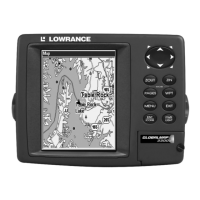
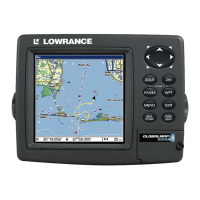
The following figures show what the Navigation Page and Map Page
look like while navigating a route.
Navigate a Route in Reverse
Here's how you run a route backward, from the end waypoint to the
beginning waypoint:
1. From the
NAVIGATION PAGE, press MENU|ENT or from the MAP PAGE,
press
MENU|MENU|↓ to ROUTE PLANNING|ENT.
2. Press ↓ to select route name|
ENT|↓ to NAVIGATE|→ to RE-
VERSE
|ENT|← to NAVIGATE|ENT.
3. Upon arrival at your destination, cancel navigation:
press
MENU|MENU|↓ to CANCEL NAVIGATION|ENT|← to YES|ENT.


 To Next Page
 Loading...