Lumenera Scientific Infinity Camera
User’s Manual Release 3.3
Page 12 Copyright 2004
use the white base or a white piece of paper to represent the background.
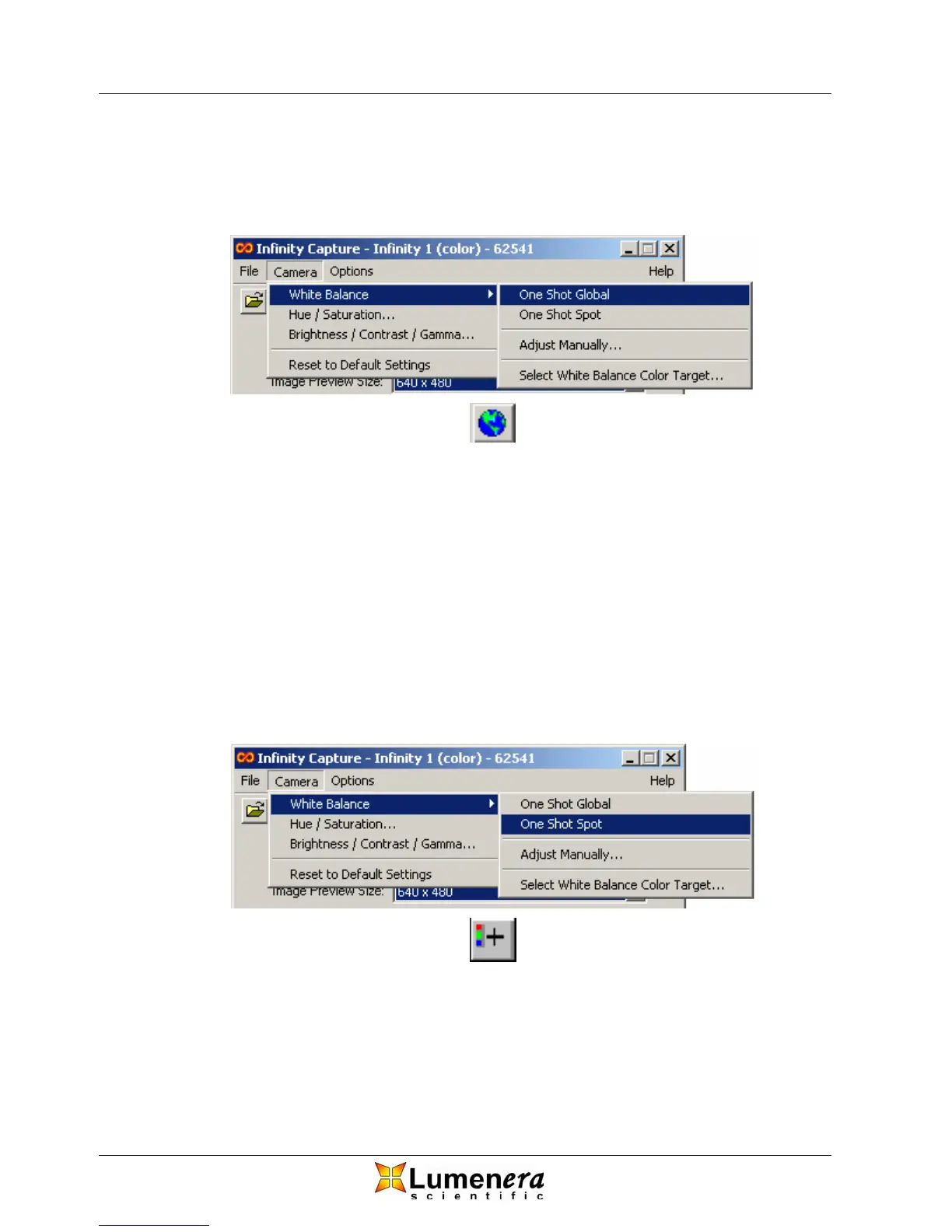
Perform the One Shot Global White Balance function by selecting the Globe icon
from the toolbar, or by selecting One Shot Global from the Camera > White
Balance drop down menu as depicted in Figure 7.
Figure 7 - White Balance / One Shot Global
2. One Shot Spot
Under certain circumstances, users may wish to adjust white balance based on a
small area within the sample area. In these cases, One Shot Selection is the
method of choice. To access the One Shot White Balance, select the crosshair
icon from the toolbar, or select One Shot Spot from the camera drop down menu
as depicted in Figure 8.
Once selected, move the cursor to the area of your image that you want to white
balance (the mouse pointer changes to a cross hair when the mouse is in the
image preview window) and select it. The size of the spot on the image used for
the white balance is 32 x 32 pixels. You can cancel the operation prior to clicking
on the image display by reselecting the icon or menu item.
Figure 8 - White Balance / One Shot Spot
3. Adjust Manually
It is possible to manually adjust the color balance by changing the individual color
gains. This is helpful where slight adjustments to the white balance are required
or when the One Shot methods are unable to achieve a good balance. The
sliders that control the red, green and blue gains can be accessed via the



 To Next Page