Lumenera Scientific Infinity Camera
Release 3.3 User’s Manual
Copyright 2004 Page 15
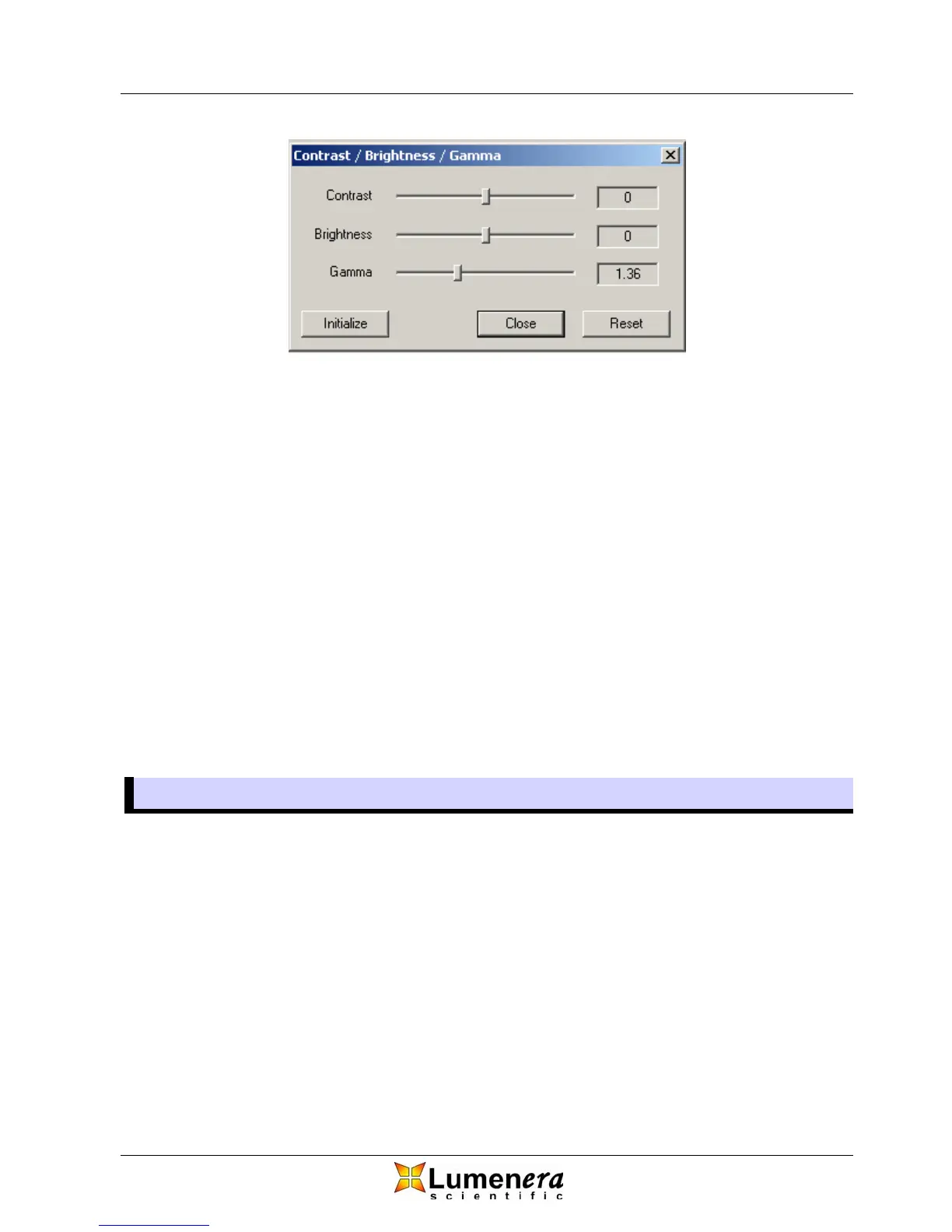
Figure 12 - Contrast / Brightness / Gamma Dialog
Adjusting the contrast affects the brightness relationship between the dark and
light areas in your image. Adjusting the slider to the right increases contrast,
making dark areas darker, bright areas brighter and eliminating brightness levels
in between. Moving the slider to the left decreases contrast causing the
brightness of the image to become more uniform and flat.
Adjusting the brightness affects the overall image intensity. Moving the slider to
the right and left makes the image brighter and darker respectively.
Gamma adjustment affects the bright, dark and between areas of your image in a
non-linear fashion. The purpose of gamma is to correct the non-linearity in most
display devices. Gamma values greater than 1.0, will brighten the darker areas
of an image without over brightening the bright areas. For most monitors, a
good gamma value will be lie in the range 1.3 to 2.0.
The Initialize button will set the Contrast and Brightness to zero and the Gamma
to one. The Reset button will reset the Contrast, Brightness and Gamma to the
values they had when the dialog was popped up.
3.5 Capturing an Image
3.5.1 Capture Image
There are two steps to capture and save an image.
¾ First, select the Capture Image Icon to capture the image and display it on
screen.
¾ Next, select the Save Captured Image Icon to save it to disk.
These commands are also available from the drop down menu.



 To Next Page