Lumenera Scientific Infinity Camera
User’s Manual Release 3.3
Page 14 Copyright 2004
incrementally. It’s not a substitute for white balance but can be used to give
images a warmer or cooler tone.
Saturation typically refers to the dominance of color intensity within your image.
A low saturation image looks dull and adding saturation can make the colors
more vibrant.
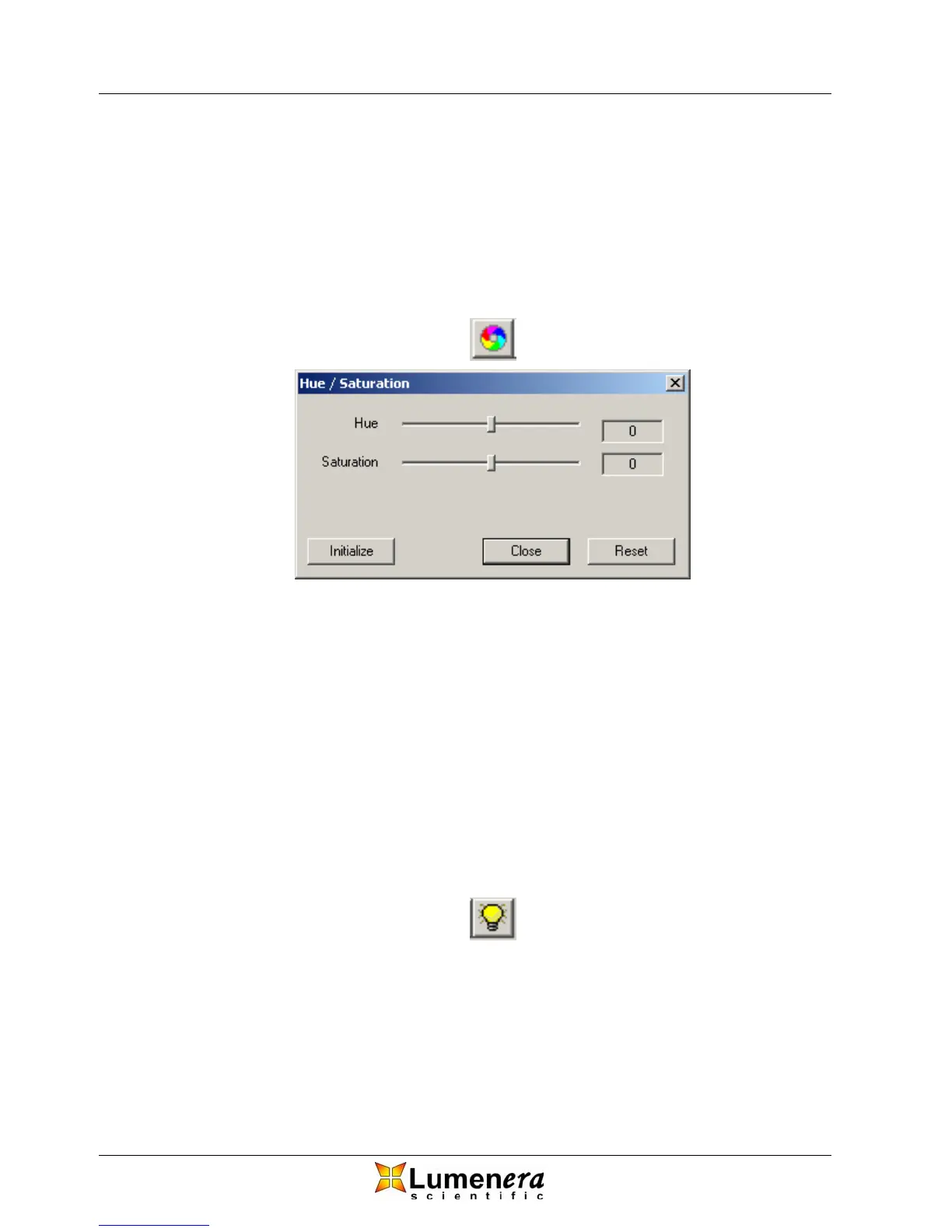
The dialog for Huw/Saturation adjustment can be accessed via the rainbow icon
on the toolbar or by selecting Hue/Saturation from the Camera drop down menu.
Figure 11 - Hue / Saturation Dialog
The sliders are used to adjust the hue and saturation, increasing when moved to
the right and decreasing when moved to the left. By moving the saturation slider
all the way to the left, all color is removed from the image making it appear
monochrome or grayscale. The Initialize button will set the Hue & Saturation to
zero and the Reset button will reset the Hue & Saturation to the values they had
when the dialog was popped up.
3.4.7 Contrast / Brightness / Gamma
The dialog for Contrast/Brightness/Gamma adjustment can be accessed via the
light bulb icon on the toolbar or by selecting Contrast/Brightness/Gamma from
the Camera drop down menu.



 To Next Page