lumenstudio
™
software user manual
lumenstudio
™
software user manual
20
21
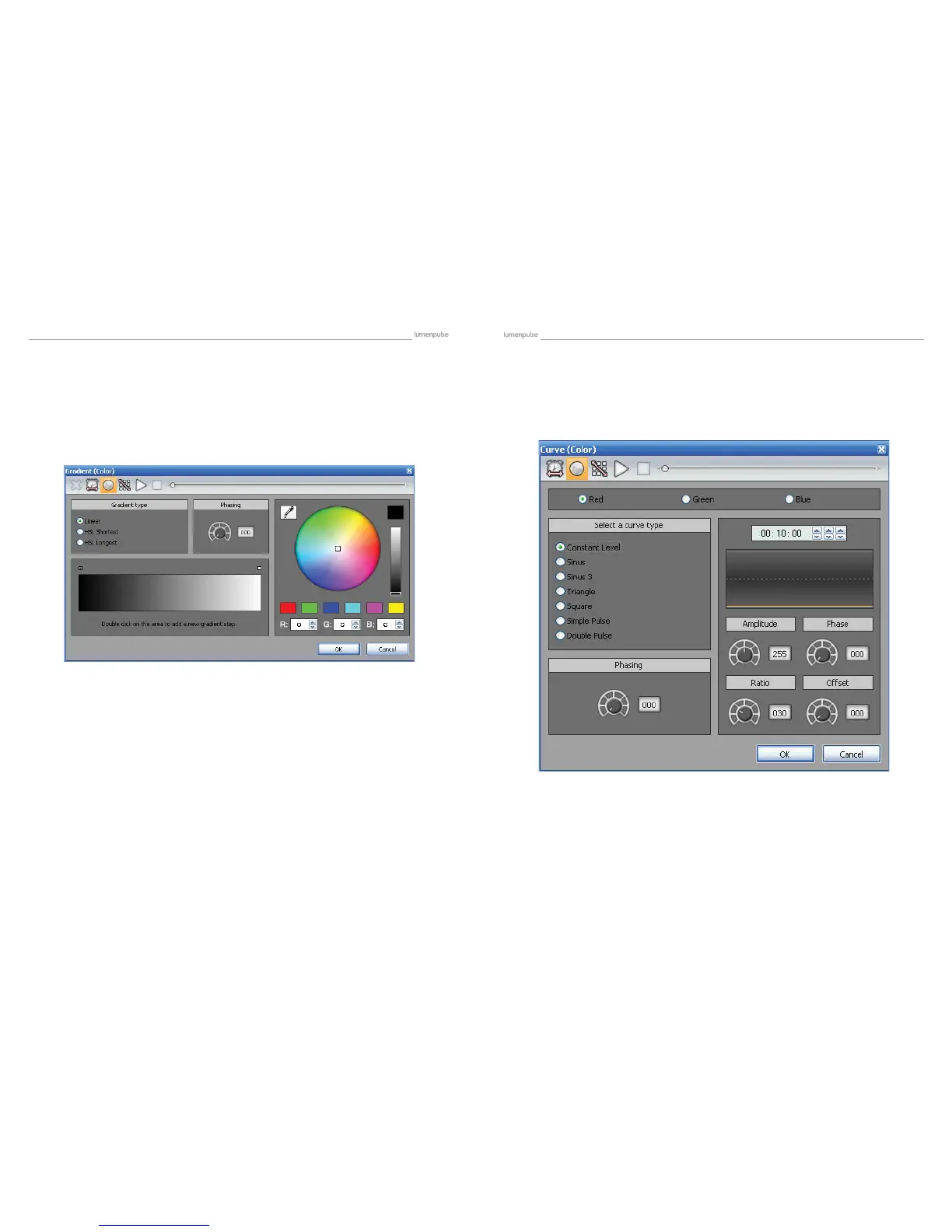
This tool allows you to have more control over the individual channels of your xtures and is extremely useful with LEDs.
The rst thing to do is to select the channel you want to work with (Red, Green...) and then select a waveform from the
list (Sinus, Square...).
Several options are available like Amplitude, Offset. We advise that you play with these
options to see how they work with your xtures.
Phasing : It is possible to add a delay between your xtures using the “Phasing” option.
It is very useful to create a rainbow effect for instance.
You must click on the “Fixtures order” button (3rd button from the left in the toolbar) to setup a direction for your phasing.
The following window is opened and you can use the UP and DOWN buttons to change the order or record a complete
new direction using the “rec” button”.
4.2.2.2.3. Curve
This effect allows you to create a fade between DMX values (color, positions...). In the case of a color gradient, it is
possible to add more points. You must double click on the gradient zone to add a new step. Then, you can select it and
change the color or its position within the gradient.
Phasing : It is possible to add a delay between your xtures using the “Phasing” option. It is very useful to create a
rainbow effect for instance.
Do not forget to use the “Play” button to preview your effect. It is possible to edit an effect by double clicking on it from
the time line.
4.2.2.2.2. Gradient


 To Next Page