lumenstudio
™
software user manual
lumenstudio
™
software user manual
28
29
Perhaps you have used all of the effects and combined them in every way possible, but you are still looking for something
different, perhaps you want to create your own effect from scratch. The color manager allows you to do precisely this.
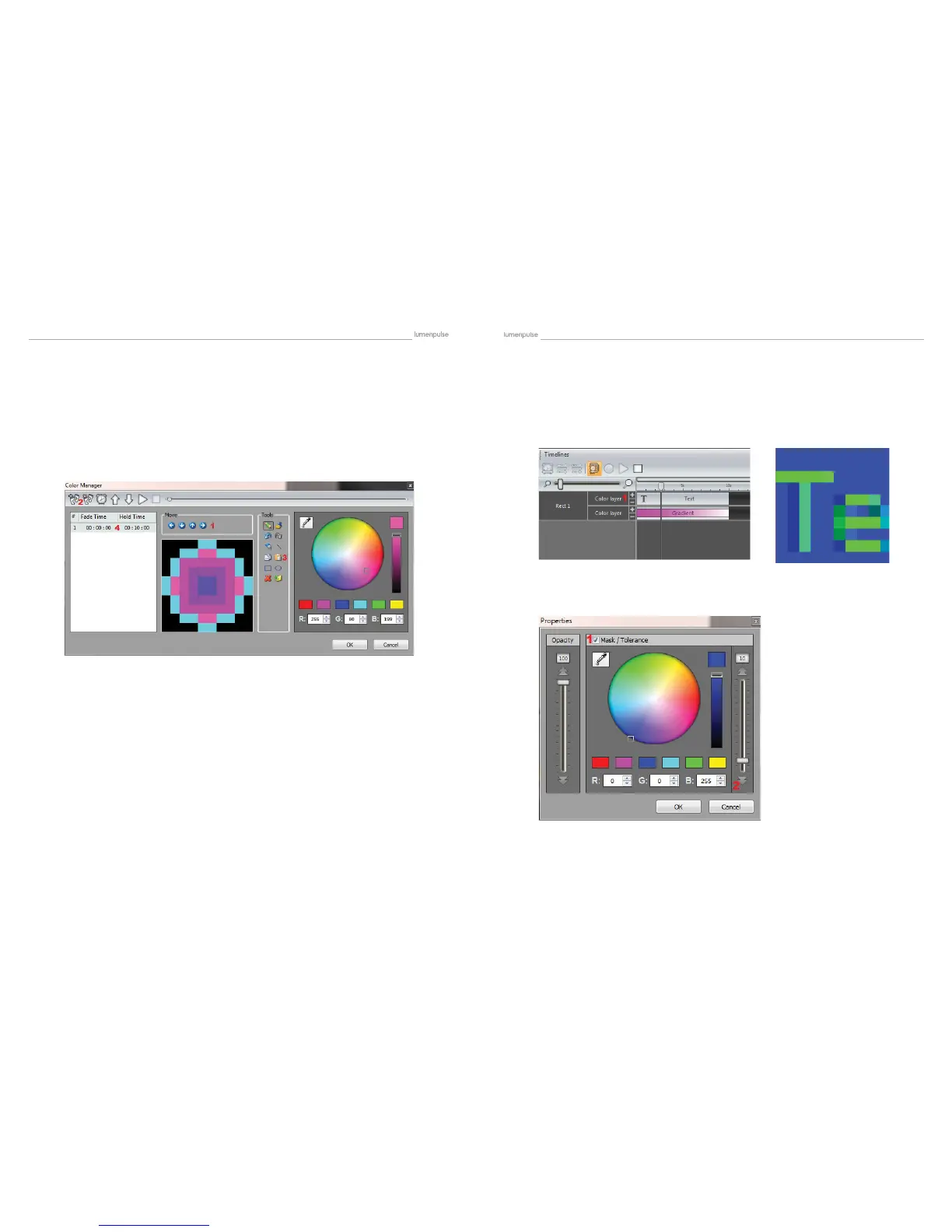
Draw onto a matrix by selecting a color from the color wheel and clicking the pencil tool. The color manager tool works in a
similar way to your standard painting software package, with the ability to ll, draw lines, draw squares and insert images.
- Move your image around the matrix here (1)
- Once you are happy with the image, click here (2) to create a new step
When you create a new step, the previous step is copied. Other steps can be copied and pasted here (3). The fade and
wait time between each step can be changed by double clicking here (4).
If you are not familiar with “RECTS”, please refer to the Rects Mode topic. When creating effects on a rect timeline, it is
possible to add several layers and drag different effects onto each layer.
Click here to add or remove a layer (1)
In the example below, there is a gradient layer with an overlaying text layer. The text is currently blocking the effect. Colors
can be made transparent by right clicking the text layer and selecting properties.
- Click here (1) to enable masking
- Select the color you wish to mask (in the example below it is the text background color, blue)
- Adjust the tolerance here (2)
- The opacity of the layer can also be changed
4.2.2.2.10. Color Manager 4.2.2.3. Rect Layers


 To Next Page