lumenstudio
™
software user manual
lumenstudio
™
software user manual
10
11
IV Creating A New Show
Once the software is started, you will need to save your show. The les are saved with the .arc extension. Click on the
left-side icon of the software title bar to open the main software menu and select “Save” to open the “Save as” window.
Make sure to save your show on a regular basis in order to avoid any loss of data.
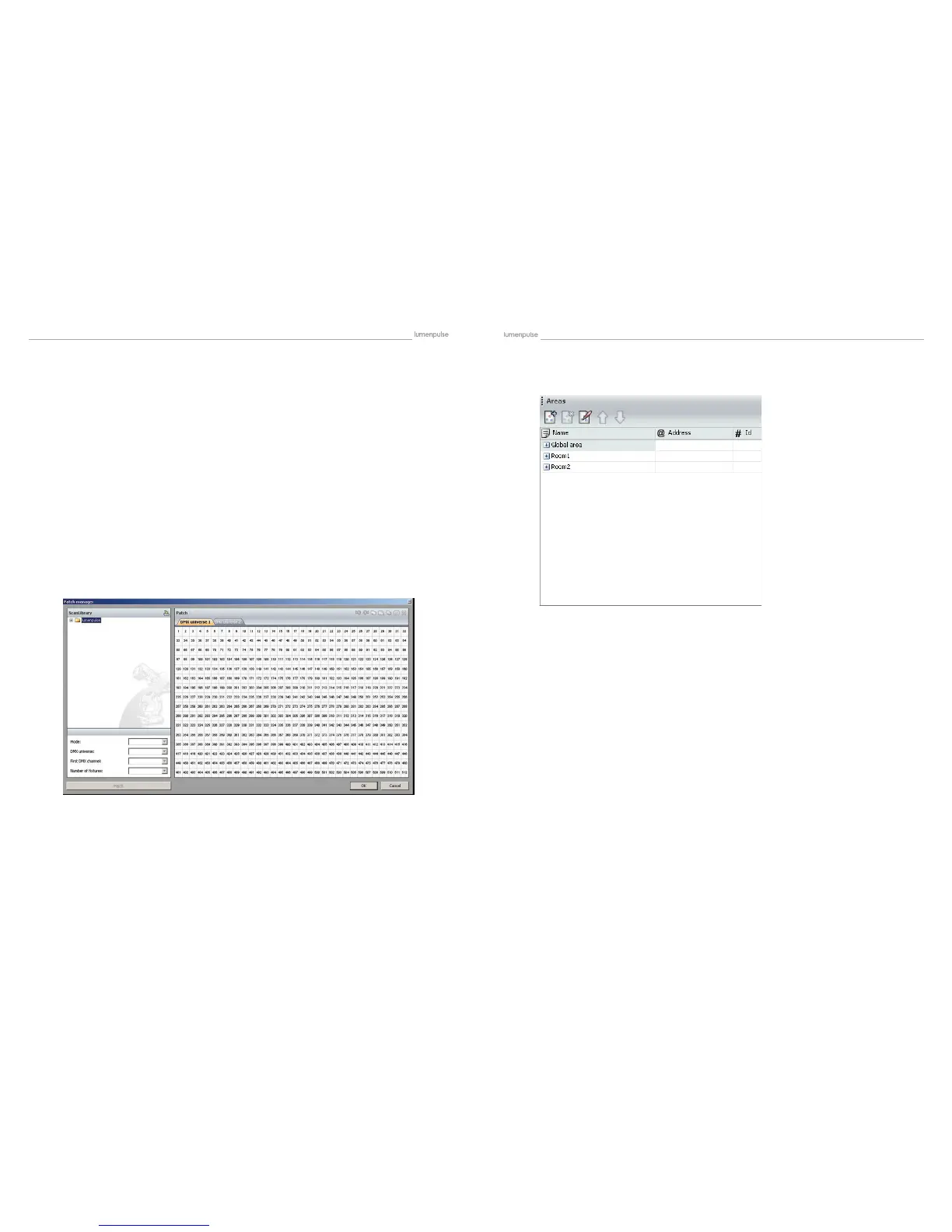
The Editor screen is the place where you will have to patch your xtures. This is the rst thing to do to create your show.
Click on the “Add xtures(s)” button from the toolbar to open the “Patch manager” window.
Here is the procedure to add new xtures :
- select the prole from the left-side manufacturer list
- select the DMX universe
- enter the rst DMX channel (address of the 1st xture)
- enter the number of devices
- validate by clicking on the “Patch” button
There is a different method to add a xture, you can directly drag&drop the prole to the grid. Then, you can right-click with
your mouse on the xture and select “Duplicate” from the menu to add more devices (using the same prole).
Click on the “Areas patch” button from the toolbar to assign your xtures.
You can assign your DMX devices to an area within the Areas tab or the Fixtures tab.
Using the Areas tab, simply select the area on the left (1) then select the devices you wish to include within the area (2).
4.1. Adding Your DMX Devices
4.1.1. The xtures patch
4.1.2. The areas patch


 To Next Page