lumenstudio
™
software user manual
lumenstudio
™
software user manual
30
31
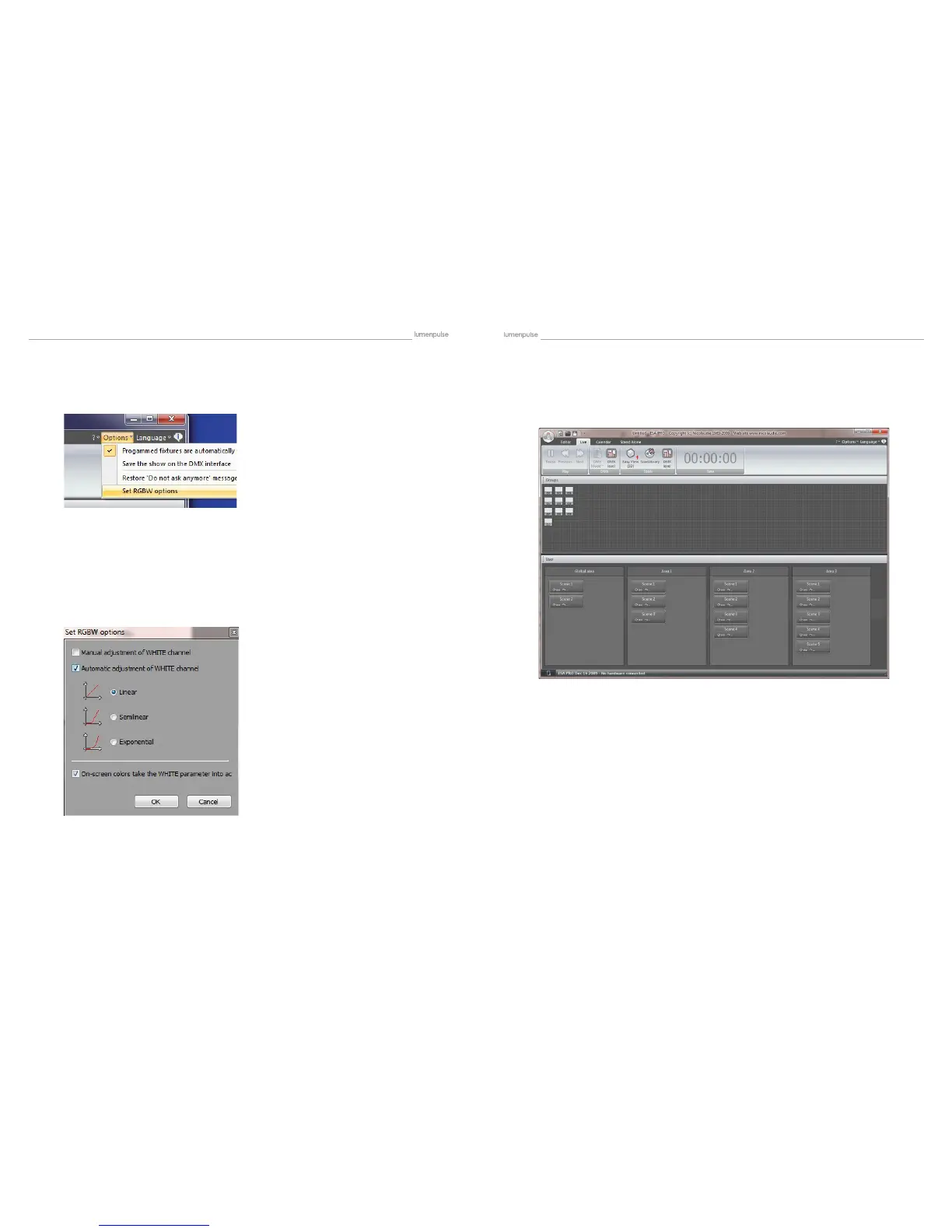
Lumenstudio automatically calculates the RGB or RGBW values required to produce a specic color. However, certain
xtures calculate the RGBW color slightly differently. We can edit the way Lumenstudio calculates the values from the op-
tions menu.
By default, the automatic adjustment of the white channel is linear.
LINEAR : If all the Red, Green, and Blue channels are lit to 30%, this 30% will be added by
the white channel
SEMI-LINEAR : The white channel will stay at 0 unless there is at least 50% of each color
EXPONENTIAL : The white channel will accelerate as the RGB values are raised. e.g. If the
RGB values are at 50%, the white fa der is only at 5%. At 75%, the white
fader is at 22%Then in the last 25%, the white fader jumps up to 100%
You can also choose to have manual control of the white color fader if there is a specic color tone you wish to produce
from your xture
- The LIVE tab allows you to test your scenes while programming. Live mode does not serve as a remote control interface
for end user use.
- Click here (1) to view your xtures in 3D.
4.2.2.4. RGBW Options
V Playing Your Scenes In Live Mode


 To Next Page