Luowice Wireless Security Camera User ManualLuowice Wireless Security Camera User Manual
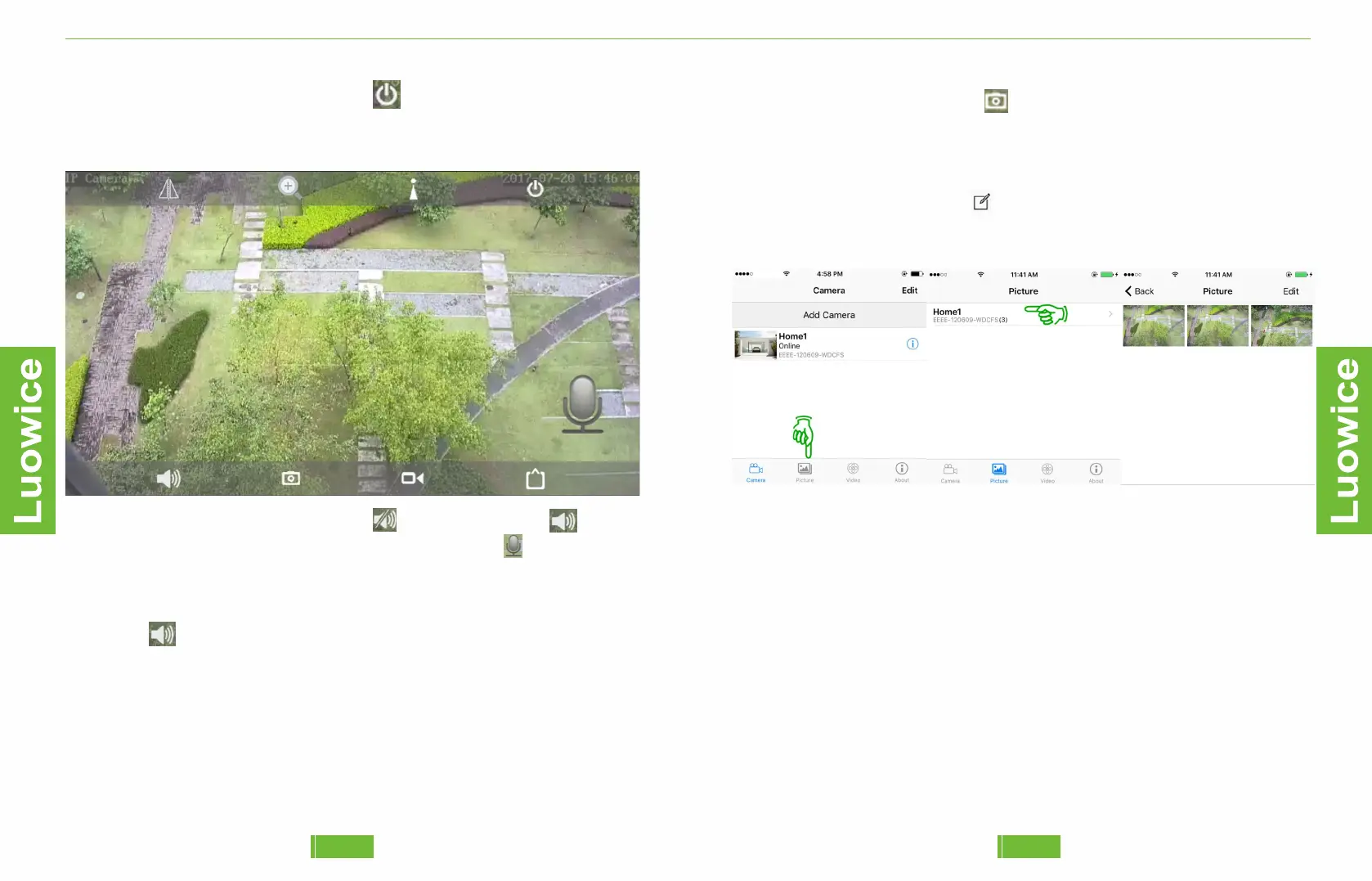
Operation: Please kindly click the icon and it will turn into . Then the
recording will be with audio. Press on the intercom icon and the intercom
function is activated. Please keep pressing on the intercom icon duringsp
eaking. And then loosen the intercom to send out the voice message to the
other side. If you want to turn off the audio recording function, pleaseclic
k the icon And then the record will be without audio.
●Exit: Exit the camera view
Operation: Please kindly click the icon , and you will exit the camera
view then.
●Audio Adjusting: Turn on audio recording and intercom function.
Note:
a)Please check whether the camera model you purchased is with
intercom function.If not, the intercom function will not be applicable.
b)The video record on the SD card is always with audio.
c)If the audio volume is too low, please go to 'Audio Setting' to adjust the
input/output volume of Line In/Mic.
●Snapshot: Take pictures while you are watching the live video.
Operation: Please click the icon . And there shall be indicated as
'Snapshot Saved'. And then exit the default interface. Click 'Picture'. And
you will see the number of snapshot on the opening interface. Click the
camera you want to check the snapshots and the snapshots will appear
then. If you want to delete a snapshot, click the snapshot to open the
image, and then click the icon and click on 'Delete' on the pop-out
page. You can also email the snapshot or save the snapshot to your phone
album on the pop-out page.
18
17


 To Next Page