Luowice Wireless Security Camera User ManualLuowice Wireless Security Camera User Manual
2.3.12 FTP Setting
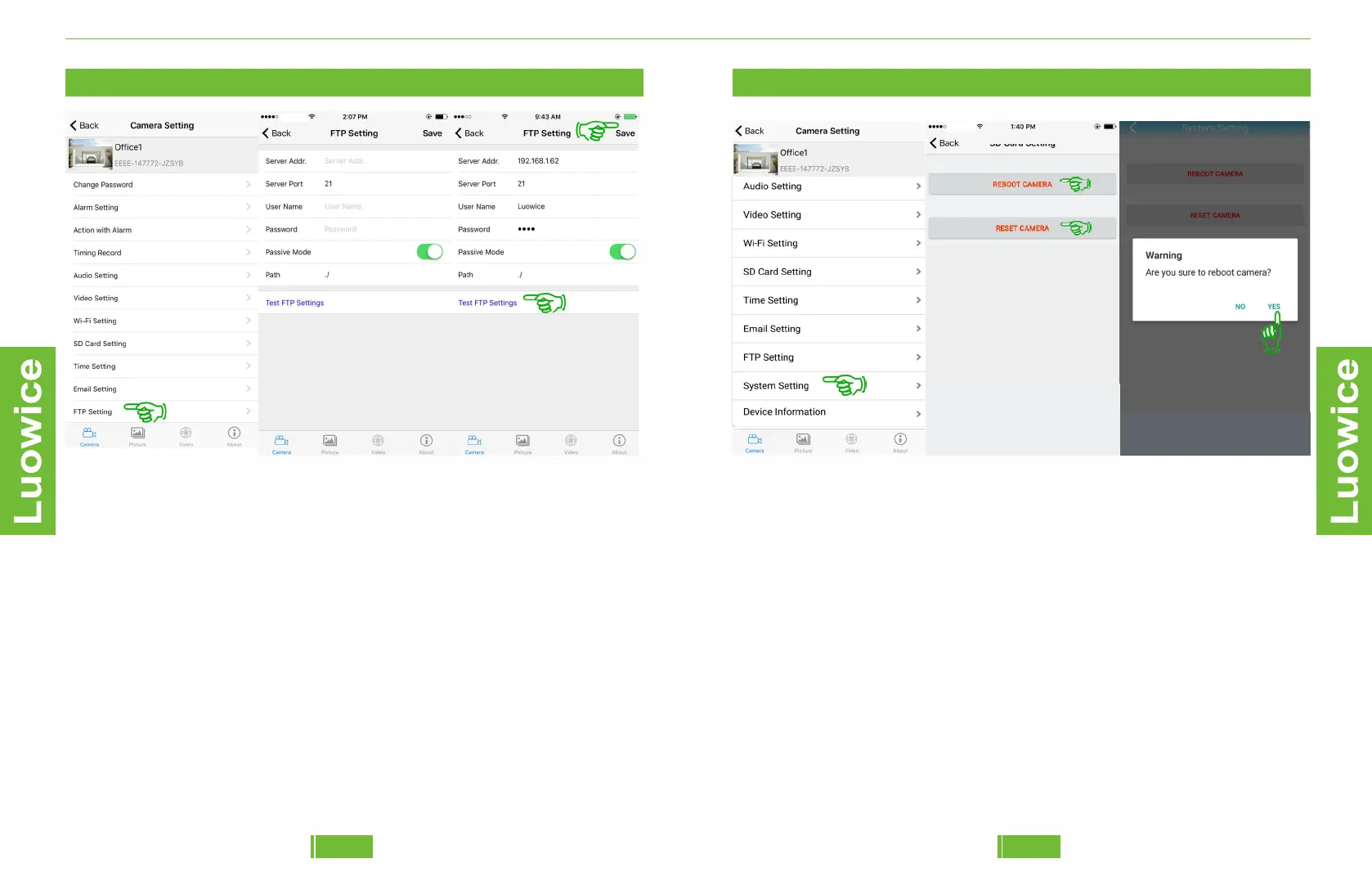
Operation: Please click 'FTP Setting' on the main menu interface. And
insert the relevant information on the pop-out page. And then click 'Test
FTP Settings' to check whether the snapshots/videos are sent to the FTP
successfully. If yes, please click 'Save' and the setting is successful then.
Note:
a) Please keep the user name and password within 8 letters and avoid
using special characters such as #, &.
b) If you confirm that all the information is correct, but the testing result
keeps indicating 'Test failed', please log in your FTP server to check
whether snapshots/videos are received successfully. If yes, go directly
click on 'Save' and the setting is successful then.
2.3.13 System Setting
Operation: Please click 'System Setting' on the main menu interface. And
choose 'Reboot Camera'/'Reset Camera' based on your need. And then
click 'Yes' to apply your choice and click 'Back' to save all the settings.
Note:
a) When there is a view delay, or other abnormal situation, please choose
'Reboot Camera' to solve the problem.
b) When 'Reboot Camera' does not work, or the camera cannot be viewed,
please apply 'Reset Camera'. Please note that 'Reset Camera' will erase
all the settings and the camera needs to be paired to your phone again,
just like a new camera. But the video records are still stored in the SD
card.
4039


 To Next Page