Luowice Wireless Security Camera User ManualLuowice Wireless Security Camera User Manual
2.3
Camera Setting Interface
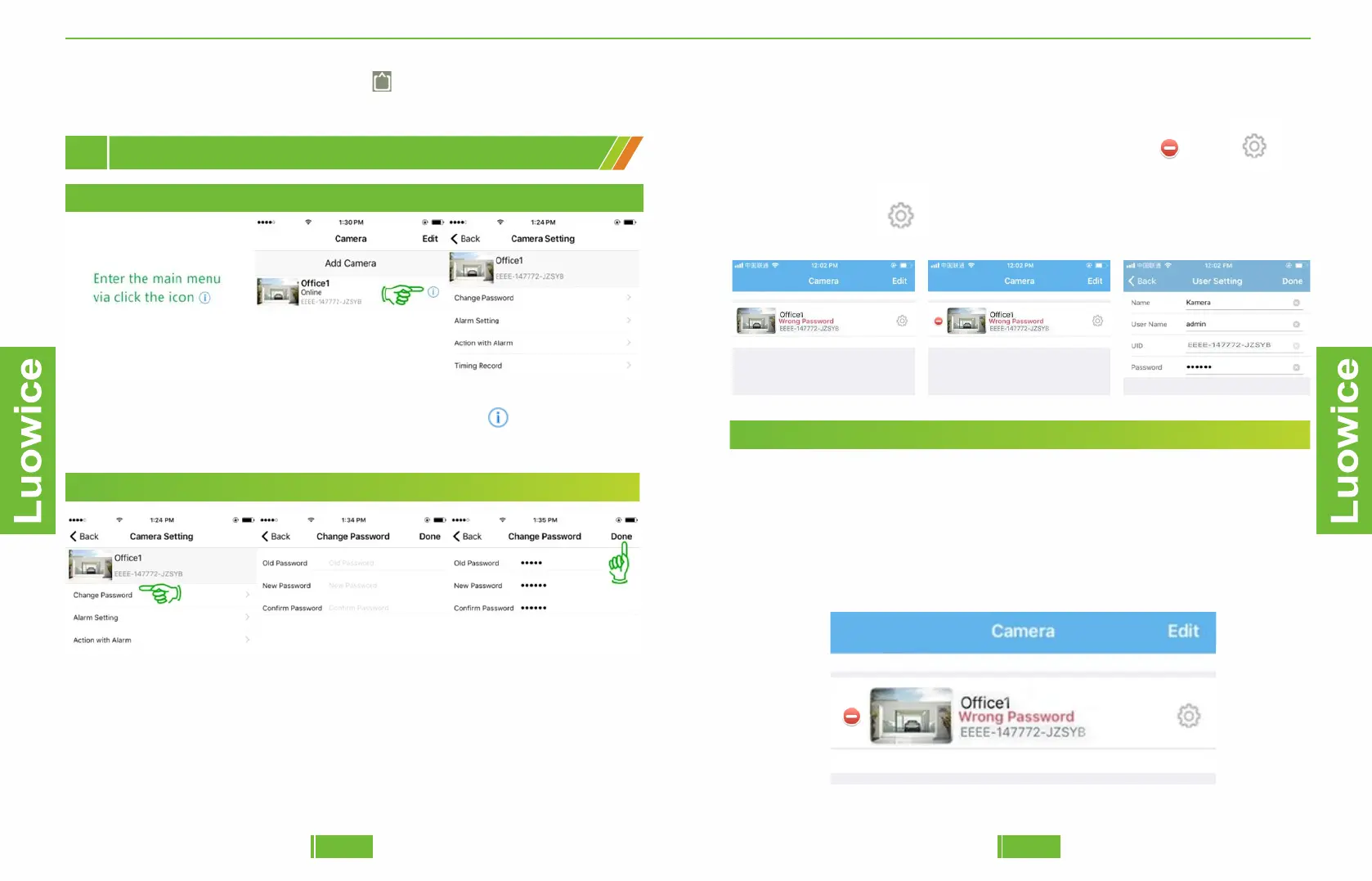
2.3.1 Instruction on Entering the Main Menu
Operation: Please open the APP click the setting icon after the camera
indicating as 'Online'. And the main menu page will appear.
Operation: Please kindly click the icon and the resolution interface will
appear. Then click HD/SD based on your need.
2.3.2 Change Password
Operation: Please click 'Change Password' on the main menu interface.
And type in the relevant information. And then click 'Done' and the
password will be changed successfully.
Note:
a)Default password: admin
b)Please keep the password within 15 letters and avoid using special
characters such as #, *, &, =.
2221
c)If the APP always indicates 'Wrong password'. Please kindly follow the
following steps to re-enter the camera's password.
Operation:
Come to the camera list interface and click the 'Edit' -' icon' - ' icon' -
'reenter the camera's new password' - 'Done'.
Note: If your password is correct, the password can not be modified after
clicking the setting icon.
Operation:
Step1: Press the camera's reset button for 10 seconds. Then come to
the camera list interface and delete the original UID via clicking the 'Edit'
icon. And the following interface will show.
If you forget the password of the camera or it shows an error 'Wrong
Password', please follow the steps to solve the problems.
2.3.3 Forget camera password or 'Wrong password'


 To Next Page