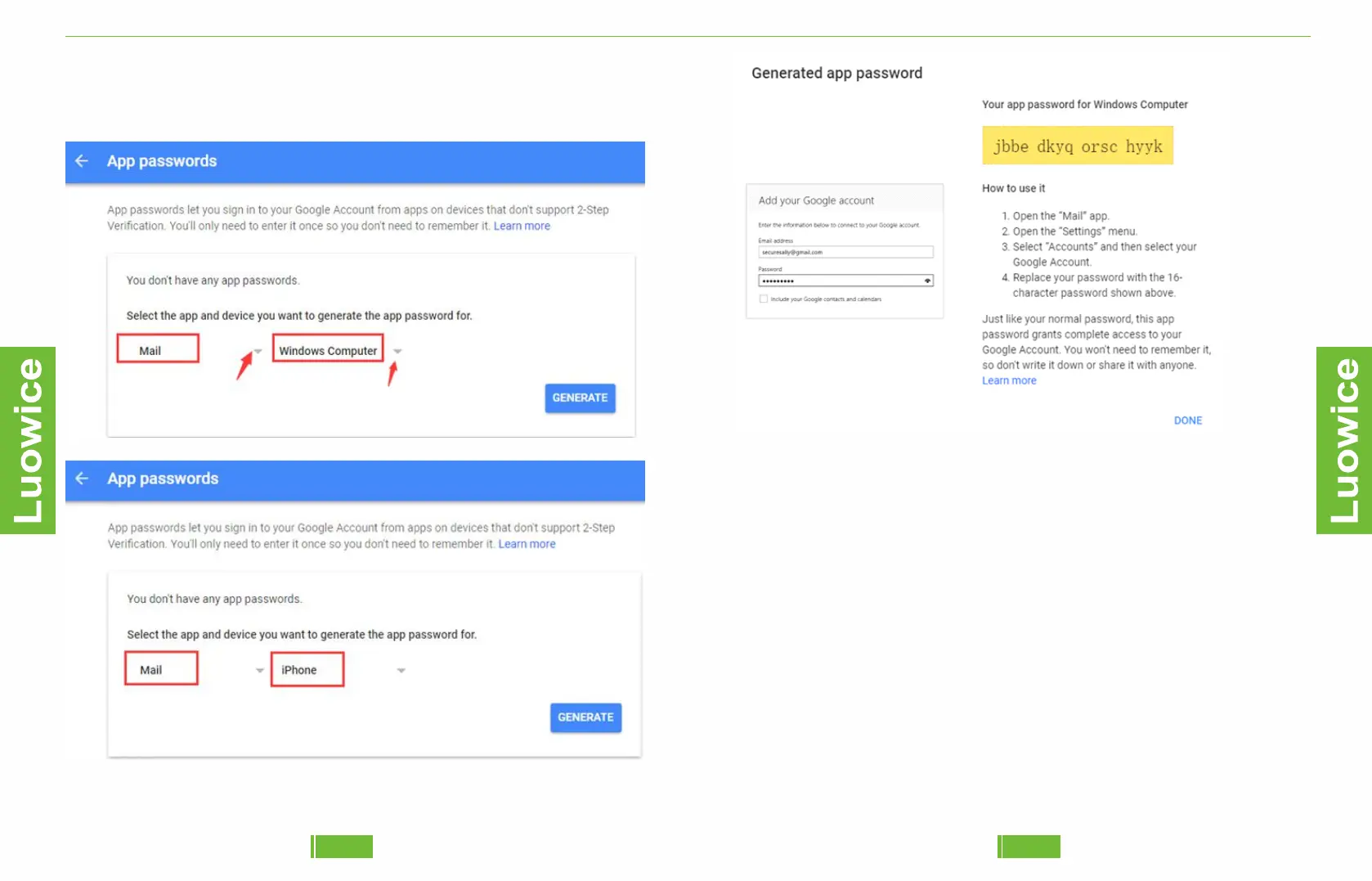
Step3, Click 'Select device' and choose the device you're using.
Select 'Generate'. Follow the instructions to enter the App password (the
16 character code in the yellow bar) on your device. Select 'Done'.
Step4, Then you get an app password, which you can use as the email
password on CamHi Email Setting Page.
b) User Name: the email address you use as 'Sender’
c) Password: the password of your email address. For Gmail, you need to
use the app password (please refer to the Step3). As for Yahoo and other
emails, you have to get the app password from your email too.
d) Send To: the email address you want to use as a receiver of the alert
e) Sender: the same as the email address you insert in 'User Name’
f) Subject: the name you want to use as the title of the email alert. If the
subject can not be saved, please kindly change it to another subject and
try to save again until it is saved successfully.
g) Sometimes even the ‘Test’ result indicates as ‘Test Failed’, the setting
is in fact working. If you confirm that all the settings are correct, but still
can not get the test successful, please kindly check the ‘Sender’ email
account to see whether it sends out testing mail to the receiver email
account. If yes, you can go directly to click on ‘Save’. And the Email
Setting is successful then.
3231
Luowice Wireless Security Camera User ManualLuowice Wireless Security Camera User Manual


 To Next Page